Laptop Overheating Fix: A Step-by-Step Cooling Checklist
Listen to this article
TL;DR: If your laptop runs hot, throttles, or your laptop shuts down randomly, you need a repeatable laptop overheating fix checklist: check temps, restore airflow, and confirm the fan and heatsink are doing their job. Start with safe diagnostics and cleaning, then escalate to laptop fan replacement or thermal paste replacement when the evidence points there.
Alright squad, Hardware Hank here. If your laptop is sounding like a tiny jet engine, hitting slideshow FPS, or straight-up rage-quitting with random shutdowns, that’s not “just how laptops are.” That’s heat. And heat is the silent debuff that turns a perfectly good machine into a stuttery mess. Let’s get you back to butter-smooth performance with a real-world, no-nonsense laptop overheating fix checklist.
Overheating Diagnostics: Confirm It’s Heat (Not Just “Bad Luck”)
Before we start unscrewing panels like we’re speedrunning a teardown, we need proof. Overheating is common, but you don’t want to chase the wrong boss fight.
Common symptoms of a laptop runs hot problem
- CPU temperature too high during gaming, Zoom calls, or even basic browsing
- Throttling: performance drops hard after a few minutes (FPS tanks, input feels delayed)
- Laptop shuts down randomly under load (classic thermal protection shutdown)
- Fan noise ramps to max constantly, or the fan is weirdly silent when it should be working
- Hot keyboard deck or palm rest, warm air barely coming out of exhaust vents
Quick temperature check (Windows 10 and Windows 11 friendly)
Windows doesn’t show CPU core temps in a simple built-in panel, so use a reputable hardware monitor (pick any well-known option). Here’s what you’re looking for:
- Idle temps: often around 40-60C depending on the laptop and room temp
- Load temps: spikes happen, but sustained high temps are the issue
Reality check: Many modern laptop CPUs can boost hot for short bursts, but sustained heat plus throttling or shutdowns means your cooling system is losing the fight.
Airflow test (the “is it actually breathing?” check)
Put your hand near the exhaust vent while the laptop is under load (game, benchmark, or heavy app). You should feel a steady stream of warm air. If the laptop is hot but airflow is weak, you’re likely dealing with cleaning laptop vents needs, a clogged fin stack, or a dying fan.
Laptop Overheating Fix Checklist (Safe Steps First)
This is where the magic happens. We start with the safest, highest-impact moves that don’t require deep disassembly.
Step 1: Power plan and background load (free FPS, free cooling)
If your CPU is pinned at high usage doing nothing, it’ll cook itself for no reason. Open Task Manager and look for runaway processes. Also keep Windows updated because bug fixes can reduce weird background behavior. Here’s a legit Microsoft resource: Microsoft Support guidance on keeping Windows updated.
If you suspect malware is chewing CPU cycles, that can absolutely cause heat and fan ramping. Do a scan and educate yourself on the signs via Malwarebytes resources on malware and performance issues. And if you want a pro to handle it, Fix My PC Store offers virus removal services that can stop the hidden background heat factory.
Step 2: Fix the “soft surface” problem (yes, your blanket is griefing you)
Laptops pull air from intake vents, often on the bottom. If you game on a bed, couch, carpet, or your lap with blocked vents, you’re basically putting a pillow over the radiator. Use a hard surface. Even a basic laptop stand can improve airflow dramatically.
Step 3: Cleaning laptop vents (no disassembly version)
Goal: remove dust bunnies that are choking intake and exhaust.
- Shut down the laptop (not sleep), unplug it, and let it cool.
- Use a flashlight to inspect vents.
- Use short bursts of compressed air at an angle. Don’t “full send” a continuous blast.
Pro tip from Hank: If you can access the fan through a vent, do not let the fan free-spin at warp speed from compressed air. Overspinning can stress the bearings. If you can safely hold the fan still with a non-metal tool through the vent, do it. If you can’t, keep bursts short and controlled.
Step 4: Check for performance-throttling heat patterns
Run a game for 10-15 minutes and watch temps and clock speeds. If clocks drop while temps stay high, you’re throttling. That’s the laptop protecting itself. This is the difference between “it runs” and “it FLIES.” Cooling restores sustained boost, which is where your real FPS lives.
Heatsink Cleaning: The Hidden Dust Wall (Fin Stack Clog)
Here’s the spicy truth: sometimes the vents look clean, but the heatsink fins inside are packed like a lint sandwich. This is the #1 reason a laptop runs hot even after you blow air through the vents.
What a clogged fin stack looks like (and why it’s brutal)
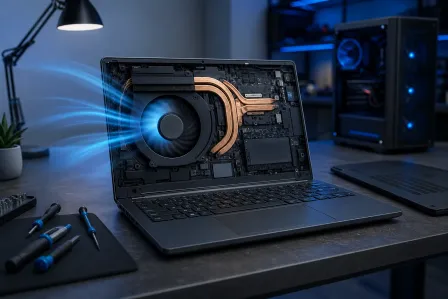
Dust collects on the heatsink fins right where the fan pushes air through. Airflow drops to near zero, temps climb fast, and the fan screams like it’s trying to escape the chassis. You can get random shutdowns because the heat can’t leave the system.
DIY-safe decision point
- If you’re comfortable removing the bottom cover: you can often expose the fan and fin stack for proper heatsink cleaning.
- If your laptop is under warranty or uses tricky clips/ribbon cables: consider stopping here and going pro to avoid turning a cooling problem into a “my laptop won’t turn on” problem.
If you’re in West Palm Beach or anywhere in Palm Beach County, this is exactly the kind of job we do all day at Fix My PC Store. Start with professional laptop repair and we’ll clean, inspect, and test the cooling system properly.
Laptop Fan Replacement: When the Fan Is Cooked (Literally)
A failing fan is like running a monster rig with no case fans. Sure, it boots... but you’re living on borrowed time.
Signs you need laptop fan replacement
- Fan doesn’t spin at boot or under load
- Grinding, rattling, or buzzing noises (bearing failure vibes)
- Fan spins but airflow is weak even after cleaning
- Temps spike instantly under light load
Why fan failure causes laptop shuts down randomly
When the fan can’t move enough air, heat builds fast. The system hits a thermal limit and triggers an emergency shutdown to prevent damage. It feels random, but it’s actually a safety feature doing a clutch save.
DIY vs pro for fan replacement
Some laptops make fan swaps easy. Others require removing the motherboard, disconnecting tiny ribbon cables, and re-seating the heatsink with correct torque pressure. If that sounds like a raid mechanic you didn’t sign up for, book a tech. Fix My PC Store can handle computer repair and laptop cooling hardware replacements across Palm Beach County service areas like West Palm Beach, Royal Palm Beach, Wellington, Palm Springs, Lake Worth Beach, Greenacres, Riviera Beach, and Palm Beach Gardens.
Thermal Paste Replacement: The “Free Performance” Maintenance Move
Thermal paste is the microscopic bridge between your CPU/GPU and the heatsink. When it dries out or pumps out over time, heat transfer gets worse. That’s when you see CPU temperature too high even if the fan is working.
When thermal paste replacement is the right call
- Laptop is several years old and has never been serviced
- Temps are high and stable under load even after cleaning
- Fan is spinning normally, vents are clear, but throttling persists
What “good paste” actually does for gaming
Better heat transfer means the CPU and GPU can hold higher boost clocks longer. That can be the difference between inconsistent frame pacing (stutters) and that butter smooth gameplay feel. Not every laptop gains the same amount, but the big win is sustained performance and fewer shutdowns.
Don’t ignore the heatsink mount
Even with fresh paste, a warped heatsink or uneven mounting pressure can wreck cooling. If the laptop was dropped, overheated for a long time, or previously “serviced” with questionable technique, a tech should inspect the heatsink flatness and contact pattern.
Advanced Overheating Diagnostics: When It’s Not Just Dust
Okay, you cleaned vents, checked airflow, and your laptop still runs hot. Time to think like a benchmark goblin and isolate the cause.
Battery and charging heat
Charging adds heat. Some laptops run hotter while plugged in because performance profiles boost harder. That’s normal to a point. If temps become dangerous only while charging, you may have a power profile issue, failing battery, or poor internal airflow.
GPU heat vs CPU heat (different fixes)
If your GPU is the hot one during gaming, you may need paste or thermal pad service on the GPU side as well. Some laptops share heatpipes between CPU and GPU, so one side overheating can drag the other down too.
Software load that mimics overheating
Background tasks, malware, or a broken driver can peg CPU usage, making it seem like a cooling failure. If your fans are constantly at max while idle, consider a deeper software check or pro diagnostics. If overheating caused repeated crashes, protect your files. Fix My PC Store also offers data recovery services if a failing drive or corruption joins the party.
When to Stop DIY and Get Pro Help (The Smart Play)
I love a good DIY win, but I love not turning a simple overheating fix into a motherboard replacement even more. Here are the hard stop moments:
- You suspect fan failure and the laptop requires full teardown
- Thermal paste is clearly dried out but the heatsink is difficult to access
- The fin stack is clogged deep inside and compressed air isn’t cutting it
- There are signs of a warped heatsink or missing screws
- The laptop shuts down randomly even after cleaning and basic checks
In Palm Beach County, you don’t need to gamble with a sketchy “maybe it works” fix. Fix My PC Store in West Palm Beach can do a full overheating service: proper disassembly, fin stack cleaning, fan testing, thermal paste replacement, and verification under load. That’s the difference between “it boots” and “it’s cracked and stable.”
Preventative Maintenance: Keep Your Laptop Cool in 2026 and Beyond
You don’t need to baby your laptop, but you do need to respect airflow. Here’s the simple playbook:
- Clean vents periodically, especially if you have pets (fur is basically thermal insulation)
- Use a hard surface or stand for gaming sessions
- Keep your OS and drivers updated to avoid runaway CPU usage
- If you notice rising temps over time, schedule a professional internal cleaning before it starts shutting down
And if you want the “one-and-done” approach, book a checkup through our laptop repair service. We’ll get your cooling system back to peak form so your laptop can actually hold boost clocks like it was meant to.
Need Expert Computer Support?
Get professional help from Palm Beach County's trusted computer repair specialists.
Get Help Today