Laptop Not Charging? Diagnose the Real Cause Before Replacing Parts
Listen to this article
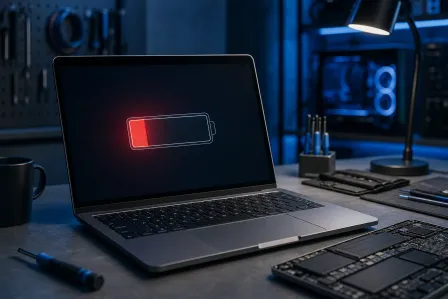
I see this all the time: your laptop stops charging, the battery icon starts acting like it has a personal vendetta, and the first instinct is, “Welp, battery’s dead.” Sometimes that’s true. But in 2026, a huge chunk of laptop not charging cases are really about the stuff between the wall and the battery: a worn charging port, a failing AC adapter, USB-C power delivery drama, or (my personal favorite) a motherboard-level power fault that laughs at your brand-new battery.
Let me save you a headache (and your wallet). Below is a safe, step-by-step diagnostic guide for what you can check at home, what you should not poke with a screwdriver, and when a professional laptop repair visit in Palm Beach County is the fastest path back to sanity.
Laptop Not Charging: Start With the Simple Stuff (That People Skip)
Before we talk parts like laptop charging port repair or a dc jack replacement, do the boring checks. Yes, boring. Also yes, effective.
1) Confirm the outlet and power strip are not the villain
- Plug something else into the same outlet (lamp, phone charger, anything).
- Skip the power strip temporarily. Some surge protectors fail quietly and dramatically.
2) Do a proper “power reset”
This is the laptop repair equivalent of “turn it off and on again” and it actually works.
- Shut down the laptop.
- Unplug the charger.
- If the battery is removable, remove it. If not, leave it.
- Hold the power button for 15-20 seconds.
- Plug the charger back in and try powering on.
Why it helps: it discharges residual power and can reset power-management states that get stuck after sleep/hibernation glitches.
AC Adapter Testing: The Most Common “Not Charging” Fix
If your laptop isn’t charging, the charger brick deserves suspicion. I know, it looks innocent. So does the friend who says, “I’ll just borrow your charger for a second.”
Check for obvious adapter and cable damage
- Frayed cable near the brick or connector
- Burnt smell (never a good sign in electronics)
- Loose or bent tip
- Adapter gets too hot to touch quickly
Heat note: Warm is normal. “Ow, why is this cooking my desk?” is not.
Try a known-good charger (same specs)
If you can borrow the same model charger, great. If not, match the specs on the label:
- Voltage (V) must match.
- Amps (A) can be equal or higher on the replacement.
- Connector type must match (or correct USB-C PD profile, more on that next).
Why it matters: Wrong voltage can prevent charging or damage the laptop. This is not the time for “close enough.”
Use a multimeter (optional, but definitive)
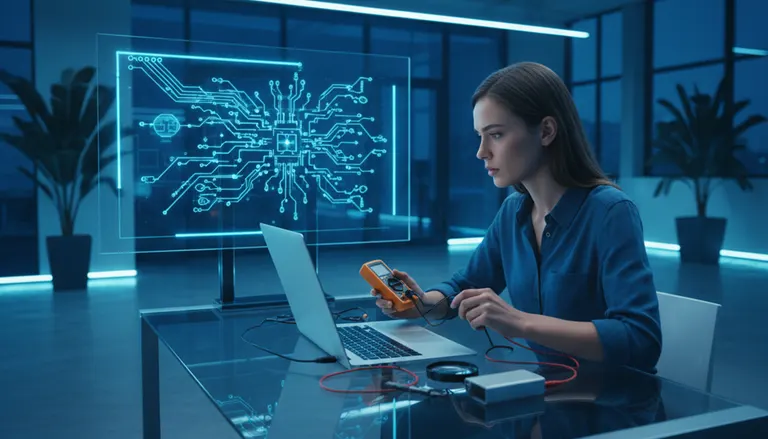
If you have a multimeter and know how to use it safely, you can test whether the adapter is outputting the rated voltage. If it’s dead or wildly off-spec, congrats: you found a real cause without replacing the battery “just because.”
USB-C Not Charging: Power Delivery Troubleshooting That Actually Works
USB-C is awesome when it’s awesome. And when it’s not, it’s like watching two adults argue over who’s paying the bill. If your usb-c not charging situation is driving you nuts, here’s the clean way to isolate the problem.
1) Confirm your charger supports enough wattage
Many laptops need 45W, 65W, 90W, or more. A little phone charger might power the laptop off but won’t charge it, or it will trickle-charge while the battery still drains under load.
- If you see “plugged in, not charging,” suspect low wattage or a PD negotiation issue.
- Gaming or workstation laptops often require higher wattage than slim ultrabooks.
2) Swap the USB-C cable (yes, the cable)
Not all USB-C cables are created equal. Some are charge-only, some are low-wattage, some are worn internally. Try a known-good, quality USB-C cable rated for the wattage you need.
3) Try a different USB-C port (if your laptop has multiple)
Some laptops only accept charging on specific USB-C ports. Also, one port can fail while the other still works. That’s a clue.
4) Check for lint and port damage
Phone people, gather around: lint is not just a pocket problem. A little debris can prevent solid contact. Use a flashlight. If you see packed lint, gently remove it with a wooden toothpick (not metal). If the port feels loose or the plug wiggles excessively, that’s a hardware issue.
For Windows guidance on battery and power behavior, Microsoft has solid baseline steps here: Microsoft Support for Windows power and battery help.
Laptop Battery Not Charging vs. Laptop Not Powering On: Know the Difference
These get mixed up constantly, so let’s separate them:
- Laptop not charging: It runs on the charger, but the battery percentage won’t increase (or it says “plugged in, not charging”).
- Laptop not powering on: No lights, no fan, no boot, nothing. This can still be a charger/port issue, but it can also be motherboard power circuitry.
Clues your battery is the problem
- Battery percentage jumps around or drops fast
- Laptop shuts off instantly when unplugged
- Battery is swollen (stop using it immediately)
Swollen battery warning: If the trackpad is lifting, the bottom cover is bulging, or the chassis won’t sit flat, power it down and get it checked. Swollen lithium batteries are not a DIY confidence-building exercise.
Clues it’s not the battery
- Battery is relatively new, but charging is intermittent based on cable angle
- Charging LED flickers when you touch the connector
- USB-C charging works sometimes with one charger but not another
Laptop Charging Port Repair: The “Wiggle to Charge” Red Flag
If your laptop only charges when the plug is held at a weird angle, you’re basically doing a daily stress test on the port. I see this all the time. And it usually ends in one of two ways: a laptop charging port repair or a dc jack replacement.
Warning signs of a failing DC jack or charging port
- Loose connector, excessive wiggle
- Charging cuts in and out when you move the laptop
- Port feels hot, looks discolored, or smells burnt
- Sparking or crackling (stop immediately)
Heat and arcing: what’s actually happening
When the port is worn, contact resistance increases. Resistance creates heat. Heat can deform plastic and loosen solder joints. Loose joints create arcing. Arcing creates more heat. It’s a beautiful little disaster loop.
Translation: ignoring a loose port can turn a simple jack job into a motherboard repair.
DC jack replacement vs. port re-solder: what you’re paying for
- DC jack replacement: Common on laptops with barrel-style chargers. The jack may be on a cable harness or soldered to the motherboard.
- USB-C port repair: Often requires microsoldering because USB-C ports are typically board-mounted with multiple data and power pins.
If you’re in West Palm Beach or anywhere in Palm Beach County (Jupiter, Palm Beach Gardens, Lake Worth Beach, Boynton Beach, Delray Beach), this is exactly the kind of job we handle daily through our computer repair service and laptop repair team.
Power Delivery Troubleshooting: When the Motherboard Is the Suspect
Sometimes the charger is fine, the port is fine, and the battery is fine. Cool. That’s when we look at the power path on the motherboard: charging ICs, MOSFETs, current-sense resistors, and protection circuits. This is not “replace a part and hope.” This is test, measure, confirm.
Symptoms that point to motherboard-level power faults
- No charging on any known-good adapter
- Battery detected but will not accept charge
- Charging stops under load or randomly
- Burnt smell near the port area or visible corrosion (especially after liquid exposure)
Liquid damage and corrosion: the quiet charger-killer
I’ve rescued more water-damaged phones than I can count, and laptops are just as dramatic. A small spill can corrode charging circuits over time. If your laptop had a “tiny” coffee incident and now it won’t charge weeks later, that’s not a coincidence.
What You Can Safely Do at Home vs. What Belongs in a Repair Shop
I’m all for DIY when it’s safe and sensible. I also enjoy not seeing people accidentally short a board because they watched one too many “easy fix” videos at 2 a.m. (Look, I’m not judging your 8-hour screen time report. Okay, maybe a little.)
Safe at-home checks
- Try a different outlet and bypass the power strip
- Power reset
- Test with a known-good charger (correct specs)
- Swap USB-C cable and verify charger wattage
- Inspect ports for lint and obvious damage
- Check battery status in Windows 10 or Windows 11 settings
Bring it in for service
- Loose charging port, flickering charge LED, “wiggle to charge” behavior
- Burning smell, discoloration, heat at the port, or any sparking
- Swollen battery
- USB-C port feels loose or has intermittent detection
- Possible liquid damage
Cost-Effective Repairs: When Replacement Makes Sense (and When It Doesn’t)
Here’s the money-saving truth: replacing parts without diagnosis is how people end up with a new battery, a new charger, and the same problem. Let’s not do that.
Usually worth repairing
- AC adapter replacement when output is unstable or dead
- Charging port repair when the port is loose or arcing
- Battery replacement when health is poor or swelling is present
Needs a real estimate first
- Motherboard power repair (varies widely by model and fault)
- Severe corrosion cleanup and component replacement after liquid damage
One More Myth: “It’s Probably a Virus Making It Not Charge”
Nope. Malware typically doesn’t stop physical charging. What it can do is hammer your CPU, spike heat, and make your battery drain so fast you think charging isn’t working. If your fans are screaming and performance is awful, a security check is smart.
If that sounds like you, our virus removal service can help. For good reading on symptoms and cleanup realities, see Malwarebytes resources.
Palm Beach County Computer Repair Tip: Protect Your Data Before Power Gets Worse
If your laptop is cutting in and out, don’t wait until it won’t power on at all. Back up important files now. Charging failures can escalate, and sudden shutdowns can corrupt data.
If the laptop won’t stay on long enough to back up, that’s where professional data recovery help becomes the safety net.
Need Expert Computer Support?
Get professional help from Palm Beach County's trusted computer repair specialists.
Get Help Today