Laptop Battery Draining Fast: Causes and Fixes
Listen to this article
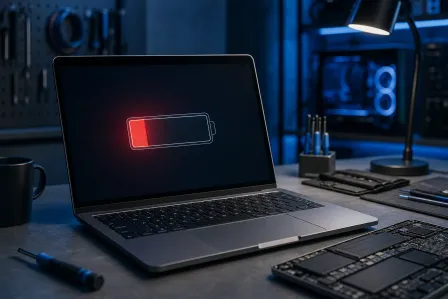
Your laptop battery used to last all day. Now it barely makes it through a meeting. This frustrating decline in battery life is one of the most common complaints laptop owners have, and it can transform a truly portable device into one that always needs to be near an outlet. Understanding why laptop batteries drain quickly and what can be done about it helps you extend your battery life and make informed decisions about when repair or replacement makes sense.
Battery degradation is a natural process that affects every laptop over time, but many other factors can accelerate drain or cause batteries to run down faster than they should. Some of these factors are easy to address with simple changes, while others require more significant intervention. According to Apple's battery information and Microsoft's battery guidance, understanding your battery's behavior helps optimize its performance and longevity.
Understanding Lithium-Ion Battery Basics
Modern laptops use lithium-ion batteries, which offer high energy density and relatively light weight compared to older battery technologies. However, these batteries have characteristics that affect how they age and perform. Understanding these basics provides context for addressing battery problems.
Lithium-ion batteries lose capacity over time regardless of how they are used. Every charge cycle causes minor chemical changes in the battery that slightly reduce its total capacity. A battery that could hold a full charge for eight hours of use when new might only manage six hours after a year of regular use, and four hours after two years. This decline is normal and expected.
The rate of degradation depends on several factors. Heat accelerates battery aging significantly. Keeping batteries at very high or very low charge levels for extended periods also accelerates degradation. Frequent deep discharges are harder on batteries than shallow cycles. Environmental conditions during storage and use all affect longevity.
Modern laptop batteries are designed to last for a certain number of charge cycles before significant capacity loss occurs. Most are rated for three hundred to five hundred full cycles, where a full cycle represents discharging and recharging the full battery capacity. Partial discharges count proportionally, so two fifty-percent discharges equal one full cycle.
Software-Related Battery Drain
Before assuming your battery is failing, consider whether software issues might be causing excessive drain. Many battery problems are actually software problems that can be fixed without replacing anything.
Background processes consume power even when you are not actively using the computer. Applications that constantly check for updates, synchronize files, index content, or perform other background tasks all draw power. A single poorly behaved application running constantly can dramatically reduce battery life.
Your operating system includes tools to identify power-hungry applications. Task Manager on Windows and Activity Monitor on Mac show which applications are consuming resources. Looking at power usage specifically helps identify applications that are disproportionately draining your battery.
Browser tabs are surprisingly power-hungry. Modern web pages often run scripts continuously, play animations, auto-refresh content, and perform other activities that consume processing power and therefore battery. Keeping dozens of tabs open can drain your battery significantly faster than keeping the browser closed.
Outdated or corrupted drivers can cause hardware to operate inefficiently. A graphics driver problem might prevent power-saving features from engaging, keeping the GPU running at full power when it should be idle. Updating drivers can sometimes dramatically improve battery life.
How to Extend Your Laptop Battery Life
Step 1: Reduce Screen Brightness
The display is typically the largest single consumer of power. Reducing brightness to 50-70% provides meaningful battery savings while remaining comfortable for most environments. Enable automatic brightness adjustment if available.
Step 2: Manage Startup and Background Programs
Open Task Manager (Windows) or Activity Monitor (Mac) and identify programs consuming excessive resources. Disable unnecessary startup programs and close applications you are not actively using.
Step 3: Enable Battery Saver Mode
Both Windows and Mac offer battery saver or low power modes that automatically reduce power consumption. These modes limit background activity, reduce screen brightness, and adjust other settings for maximum battery life.
Step 4: Close Unused Browser Tabs
Each open tab consumes memory and processing power. Close tabs you are not actively using, especially those with video content or heavy animations. Consider using tab management extensions to suspend inactive tabs.
Step 5: Disable Unused Features
Turn off Wi-Fi and Bluetooth when not needed. Disable keyboard backlighting when ambient light is sufficient. Disconnect external devices that draw power from the laptop. Each of these small savings adds up to meaningful additional runtime.
Battery Health Assessment
Understanding your battery's current condition helps determine whether optimization will help or replacement is needed. Both Windows and Mac provide tools for assessing battery health.
Windows includes a battery report feature accessible through command prompt. Running the powercfg /batteryreport command generates a detailed HTML report showing battery design capacity, current full charge capacity, and usage history. Comparing design capacity to current full charge capacity shows how much capacity has been lost to aging.
Mac provides battery condition information in System Preferences. Under Battery settings, clicking Battery Health shows the current condition and maximum capacity as a percentage of original. Mac also categorizes battery condition as Normal, Replace Soon, Replace Now, or Service Battery.
When full charge capacity drops to seventy or eighty percent of original, battery replacement becomes worth considering. At lower percentages, practical runtime may become frustratingly short for mobile use.
Battery Replacement Options
When a battery genuinely needs replacement, several options exist depending on your laptop model and your preferences.
Some laptops have user-replaceable batteries. Older laptops and some business-oriented models allow battery replacement without tools. You can purchase a replacement battery and swap it in yourself. This option is becoming less common as laptops have become thinner and more integrated.
Many modern laptops have internal batteries that require disassembly to access. While technically possible to replace yourself, this process varies in difficulty and risks damage if done incorrectly. For many users, professional replacement is the better choice.
Professional battery replacement ensures proper installation and typically includes diagnostic assessment. A technician verifies that the battery is actually the problem before replacement and ensures the new battery is properly installed and calibrated. Our hardware repair service includes laptop battery replacement.
Battery quality matters for replacements. Cheap third-party batteries may have significantly lower actual capacity than advertised, may lack proper safety circuitry, and may fail prematurely. Quality batteries from reputable sources, while more expensive, provide better performance and safety.
Frequently Asked Questions
How long should a laptop battery last?
New laptops typically provide four to ten hours of battery life depending on the laptop and usage pattern. Battery capacity naturally declines to about 80% of original after two to three years of regular use.
Is it bad to keep my laptop plugged in all the time?
Modern laptops manage charging well and generally handle being plugged in. However, keeping the battery at 100% constantly can accelerate degradation. Some laptops offer settings to limit charging to 80% for users who mostly operate plugged in.
When should I replace my laptop battery?
Consider replacement when capacity drops below 70-80% of original, when runtime no longer meets your needs, or when the battery shows physical swelling. Swelling requires immediate professional attention as it can be dangerous.
Why does my battery drain when the laptop is off?
Some drain while off is normal due to maintaining clock and memory states. Excessive drain suggests the laptop is not fully shutting down, has a parasitic drain issue, or the battery itself is failing. Professional diagnosis can identify the cause.
Need a Battery Replacement?
We replace laptop batteries with quality components and verify proper function. Get your laptop's mobility back.
Schedule Battery ServiceFor professional laptop battery replacement in West Palm Beach and throughout Palm Beach County including Boca Raton, Palm Beach Gardens, and Lake Worth, Fix My PC Store provides expert hardware services. We also offer general laptop repair and system optimization services.