iOS 26 Anti-Tamper Alerts: What They Mean After iPhone Repairs
Listen to this article
TL;DR: If you’re seeing an iOS 26 anti-tamper alert or a parts warning after an iPhone repair, it usually means iOS detected a component change and is asking for verification, not that your phone is “ruined.” Some messages are normal after screen or battery replacements, but things like dead touch, random restarts, or Face ID failures can point to a bad install or a damaged part that needs re-seating, calibration, or replacement.
Look, I’m not judging your 8-hour screen time report. Okay, maybe a little. But I am judging the panic spiral I see all the time when someone gets a repair and their iPhone suddenly throws a warning like it just caught you sneaking parts in through the back door.
Let me save you a headache. Apple has been expanding parts pairing and repair verification for years. In iOS 26, those prompts can feel more aggressive, especially after an iPhone screen replacement or iPhone battery replacement. This post breaks down what the alerts mean, what’s normal, what’s not, and what to do if True Tone disappears or Face ID starts acting like it doesn’t recognize you without makeup.
What the iOS 26 anti-tamper alert actually means (and what it does not)
An iOS 26 anti-tamper alert (or related “parts and service” notification) is iOS telling you: “Hey, a component doesn’t match what I expected.” That can happen for a few reasons:
- A part was replaced (screen, battery, camera module, etc.).
- A connector was unplugged and reconnected during service.
- The phone can’t verify the part’s identity the way Apple’s system expects.
Here’s what it does not automatically mean:
- That your phone is “tampered with” in the criminal sense.
- That the repair is unsafe or doomed.
- That you have to trade in your phone immediately (please don’t do that, your wallet deserves better).
Apple’s official explanation of genuine parts messaging is worth reading if you want it straight from the source: Apple Support: About genuine iPhone parts and service.
Why Apple shows repair verification prompts
In theory, this system helps with security, safety (especially batteries), and quality control. In practice, it also means a perfectly fine repair can still trigger an iPhone repair warning if the phone can’t confirm a part through Apple’s verification process.
Android vs iOS? I’ll fix ‘em both. But yes, iPhones are more likely to “narrate” your repair experience with pop-ups. Some Androids do parts checks too, but Apple’s messaging is… let’s call it “enthusiastic.”
Common iPhone repair warning messages after screen or battery replacement
After a repair, iOS may show warnings in Settings (often under Settings > General > About) or as a notification. The wording varies, but the themes are consistent.
“Important Display Message” after iPhone screen replacement
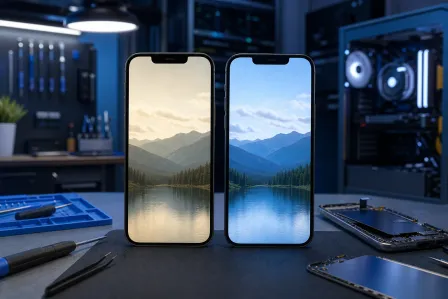
This often appears after an iPhone screen replacement when the phone can’t verify the display. You might also see a non-genuine part message even if the screen is high quality.
Normal symptoms that can still happen with a good install:
- A message in Settings about display verification
- True Tone missing (more on that in a second)
Not normal: ghost touch, dead zones, flickering at certain brightness levels, or the display randomly going black. Those are functional problems, not “message problems.”
“Important Battery Message” after iPhone battery replacement
After an iPhone battery replacement, you may see a battery verification message and sometimes limited battery health reporting depending on the model and the parts pairing situation.
Normal-ish:
- A warning that iOS can’t verify the battery
- Battery health not displaying the way you expect
Not normal:
- Random shutdowns above 20%
- Overheating during light use
- Charging that cuts in and out
- Battery swelling (stop using it and get it checked immediately)
True Tone not working after repair: what’s normal vs. what needs fixing
If you’re saying, “Max, my screen looks weird and True Tone not working after repair is ruining my vibe,” you’re not alone. I see this all the time.
Why True Tone disappears after screen replacement
True Tone relies on display calibration data and sensors working together. On many iPhone models, that calibration data is tied to the original display assembly. If the replacement screen doesn’t have the needed data transferred or isn’t recognized the way iOS expects, True Tone can vanish from Display settings.
What you can do:
- Check Settings: Settings > Display & Brightness. If True Tone toggle is missing, it’s not a “turn it off and on again” situation.
- Ask about calibration/data transfer: A quality shop can often address this depending on model, part type, and available tools.
Insider tip: If the screen looks “too blue” or “too warm” after a repair, don’t assume the display is junk. Sometimes it’s simply calibration, sometimes it’s a low-quality panel, and sometimes Night Shift is turned on because your phone thinks you’re going to sleep at 3:12 PM (based on your screen time habits, it might be right).
Face ID issues after screen repair: when to worry
Face ID issues after screen repair are a big deal, but they’re also commonly misunderstood.
What causes Face ID problems after a repair
Face ID uses a complex set of sensors (TrueDepth). Depending on the iPhone model and what was repaired, Face ID can fail due to:
- A damaged or contaminated sensor area (dust, adhesive, or debris)
- A mis-seated connector internally
- Damage from the original impact that cracked the screen (the drop that started all this)
- Incorrect part fitment blocking the sensor window
If Face ID stopped working right after service, the first step is to verify basics and rule out software. Apple’s troubleshooting checklist is here: Apple Support: If Face ID isn’t working.
Quick checks you can do at home (before you drive across town)
- Restart the iPhone. Yes, it’s the repair equivalent of “turn it off and on again” and it actually works sometimes.
- Check for screen protector interference around the notch/Dynamic Island area.
- Make sure the sensor area is clean (microfiber cloth, no cleaning sprays poured directly on the phone).
- Try re-setting Face ID: Settings > Face ID & Passcode.
If Face ID still fails, that’s when a shop should inspect connector seating and sensor alignment. Don’t keep re-trying setup 47 times like it’s going to magically decide you’re trustworthy.
iPhone repair verification and post-repair calibration: what “done right” looks like
Repairs are not just “swap part, send it.” The best outcomes come from iPhone repair verification and post-repair calibration steps that confirm the phone is stable.
Post-repair checks a good shop should perform
- Touch and gesture testing across the full display
- Brightness and color consistency checks
- Front camera + sensor validation (especially for Face ID models)
- Charging and power draw checks after battery replacement
- Speaker, mic, and ear speaker tests (because one torn flex cable can ruin your day)
When re-seating connectors fixes the problem
Sometimes the phone is fine, but a connector is slightly off or not fully locked. That can cause:
- Intermittent touch
- Display flicker
- Front sensor weirdness
- Random reboots when pressure is applied to the screen
A careful re-seat and inspection (and replacing any damaged shielding or brackets) can solve it. This is why I sigh when people try to DIY a modern iPhone repair with a butter knife and confidence.
Normal after-repair behavior vs. red flags you should not ignore
Let’s separate “Apple being Apple” from “your phone is actually unhappy.”
Usually normal after a screen or battery repair
- A parts message in Settings
- True Tone missing (model/part dependent)
- Battery health not reporting as expected (model/part dependent)
- Slightly higher battery usage for a day if you restored data or updated iOS (indexing can spike usage)
Red flags that mean the repair needs to be checked
- Touch issues: dead zones, ghost touches, missed taps
- Face ID fails consistently after troubleshooting
- Overheating during basic tasks like texting or browsing
- Battery drops fast even with low usage
- Screen lifting or gaps (could indicate swelling or poor fit)
- Camera focus problems or black screen in camera app
If you’re seeing red flags, don’t just live with it. Also don’t keep slapping on new screen protectors like that’s going to fix a connector issue. It won’t.
Palm Beach County iPhone repair help: how we handle iOS repair warnings
If you’re in Palm Beach County and your phone is throwing an alert after a repair, you don’t need to panic-Google yourself into a trade-in. You need a clean diagnosis.
At Fix My PC Store, we help customers across West Palm Beach and nearby areas in Palm Beach County figure out whether they’re dealing with a harmless iPhone repair warning or a real hardware issue that needs correction.
- Need a screen or battery checked after service? Start here: iPhone repair and post-repair verification.
- Have an iPad with similar parts prompts or touch problems? Yep, we do that too: iPad repair services.
- Team Android and feeling left out? Don’t worry, I tease iOS users too: Samsung phone and tablet repair.
- Not sure what you need yet? Book general help: smart device repair.
What to bring (and what not to do) before you come in
- Bring the phone and the charger you normally use.
- Tell us what changed: message wording, when it started, and what was repaired.
- Do not factory reset first unless you’ve backed up and someone advised it. Resets rarely fix hardware issues and often just waste your time.
- Please stop using rice for water damage while you’re at it. My flip phone collection is judging you right now.
FAQ: quick answers about non-genuine part messages and trade-ins
Will the iOS 26 anti-tamper alert go away?
Sometimes it fades after verification periods or updates, sometimes it stays in Settings. The important part is whether the phone functions correctly and passes testing.
Will this affect resale or trade-in?
It can, depending on the buyer and the device. If you plan to sell, keep receipts and document the repair quality. If you’re trading in, be honest about repairs to avoid surprises.
Is an aftermarket part always bad?
Nope. Quality varies massively. Some third-party parts are excellent. Some are bargain-bin nightmares. A good shop will choose parts that balance cost, durability, and performance, and they’ll test everything after installation.
Need Expert Mobile Device Repair?
Get professional iPhone, iPad, and Samsung repair from Palm Beach County's trusted mobile device specialists.
Get Device Help