Intel Arrow Lake Desktop Crash Loops: How to Fix in 2026
Listen to this article
TL;DR: If your Intel Arrow Lake (Core Ultra 200 series) desktop is stuck in crash loops, hitting blue screens, or randomly freezing, you're not alone - and you're not crazy. The culprit is almost always aggressive power delivery defaults in your motherboard BIOS, outdated microcode, or VRM compatibility issues. This guide walks you through every fix, from simple BIOS updates to knowing when it's time to call in the pros.
Alright, let me be real with you. The Intel Core Ultra 200 series desktop processors are genuinely cracked when they're working right. Solid gaming performance, great multi-threaded workloads, and a platform that's built for the future. But here's the thing - in 2026, a TON of people who upgraded to Arrow Lake are dealing with an intel arrow lake crash fix situation that's driving them absolutely bonkers. Random reboots mid-game. Blue screens during a ranked match. Full-on crash loops where your system just... won't stay on. GG to your competitive rating, right?
Don't panic. Don't throw your rig out the window. And definitely don't start shopping for a whole new CPU just yet. I've been deep in the trenches on this one, and most of these issues are fixable. Let me walk you through it.
Why Is My Intel Core Ultra 200 Desktop Crashing?
First, let's talk about why this is happening, because understanding the problem is half the battle. The intel core ultra 200 desktop crash epidemic isn't caused by one single thing - it's a perfect storm of factors that hit at the same time:
- Aggressive motherboard power delivery defaults: Many Z890 and B860 motherboards shipped with BIOS profiles that push way more voltage and power to Arrow Lake chips than Intel actually recommends. Motherboard manufacturers love to tout "out-of-the-box performance," but those aggressive defaults can cook your chip's stability over time.
- Outdated BIOS microcode: Early BIOS versions for the 200 series platform had microcode that didn't properly manage power states and thermal throttling. This leads to random crashes, especially under mixed workloads like gaming while streaming.
- VRM compatibility and quality issues: Not all motherboard VRMs handle Arrow Lake's power delivery requirements the same way. Some budget boards struggle to maintain clean, stable power under sustained loads.
- Defective silicon (rare but real): A small percentage of chips may have been degraded by running too long under those aggressive default settings before users even knew there was a problem.
Sound familiar? Yeah, it's giving major deja vu from the 13th and 14th Gen instability saga. Intel has acknowledged many of these issues and released fixes, but the rollout has been messy. Let's get you sorted.
Step 1: Update Your BIOS and Microcode - The Arrow Lake BIOS Update Fix
This is the single most important thing you can do, and honestly, it fixes the problem for a huge chunk of people. The arrow lake bios update fix addresses the core microcode issues that cause instability. Here's how:
Check Your Current BIOS Version
Open up your system info (hit Win + R, type msinfo32, and hit Enter). Look for your BIOS version and date. Then head to your motherboard manufacturer's support page - ASUS, MSI, Gigabyte, ASRock, whoever made your board - and compare your version to the latest available.
Flash the Latest BIOS
Download the latest BIOS for your specific motherboard model. Most modern boards let you flash via USB using a built-in BIOS flashback feature, which is clutch because it means you can update even if your system won't stay stable long enough to do it from within Windows. Follow your manufacturer's instructions to the letter here. This is not the time to wing it.
Pro tip: After flashing, do a full BIOS reset to defaults ("Load Optimized Defaults") before you start tweaking anything. This ensures the new microcode's recommended power profiles are actually applied. Many of the intel 200 series blue screen issues disappear right here.
Intel has published updated guidance for board partners through Intel's official processor support page, so if your motherboard manufacturer hasn't released a recent BIOS update, it might be time to reach out to them directly.
Step 2: Fix Your Power Delivery and VRM Settings
Okay, BIOS is updated. Feeling good? Let's make sure your power delivery isn't still set to "send it" mode. This is where a lot of arrow lake motherboard compatibility issues hide.
Apply Intel Baseline Profile (IBP)
Most updated BIOS versions now include an Intel Baseline Profile or Intel Default Settings option. USE IT. This locks your power limits, current limits, and voltage parameters to what Intel actually designed the chip to run at. Yes, you might lose a tiny bit of peak multi-threaded performance, but we're talking maybe 2-3% in exchange for a system that doesn't randomly reboot during a boss fight. That's the easiest trade in history.
Disable Aggressive MCE and Multi-Core Enhancement
Multi-Core Enhancement (MCE) or similar features (different manufacturers call it different things) override Intel's boost algorithms and basically tell your CPU to run at max turbo on all cores, all the time. This is like driving with the gas pedal taped to the floor. Disable it unless you know exactly what you're doing and have the cooling to match.
Check Your VRM Temperatures
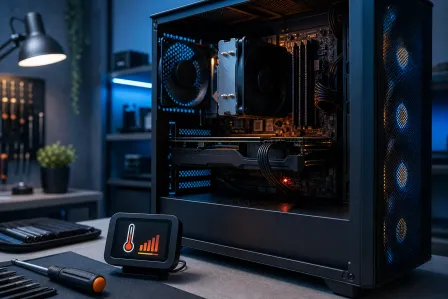
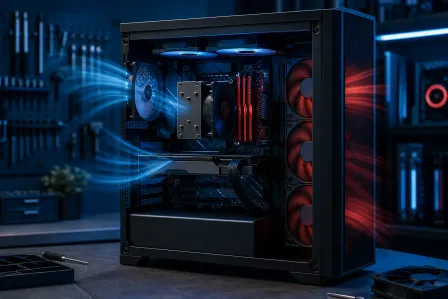
If you're on a budget motherboard, your VRMs might be running hot under sustained loads. Use a monitoring tool like HWiNFO64 to check VRM temps during a stress test. If they're consistently above 100C, that's a problem. Better case airflow or even a small fan pointed at the VRM heatsink can make a real difference. This is the unsung hero of desktop crash loop repair.
Step 3: Diagnose Whether Your Chip Is Actually Defective
Alright, you've updated your BIOS, applied Intel's recommended power settings, and your system is STILL crashing? Now we need to figure out if your chip itself took damage from running under those aggressive defaults before you got things dialed in.
Run Stability Tests
Use tools like Prime95 (small FFTs for pure CPU stress) and OCCT to test stability. If your system crashes within minutes on Intel Baseline settings with a fully updated BIOS, that's a red flag that the silicon itself may be compromised.
Check Windows Event Viewer
Windows Event Viewer (search for it in the Start menu) can show you exactly what's causing your crashes. Look under Windows Logs > System for critical errors and WHEA (Windows Hardware Error Architecture) warnings. Repeated WHEA errors pointing to the processor are a strong indicator of CPU-level instability. Microsoft's blue screen troubleshooting guide is also a solid resource for decoding those stop codes.
Test with Minimal Hardware
Strip your system down to the basics - one stick of RAM, no extra drives, no GPU if your board has video output. If it still crashes, you've narrowed it down significantly. If it's stable, start adding components back one at a time to find the culprit. Sometimes what looks like intel core ultra desktop freezing is actually a bad RAM stick or a failing SSD causing the chaos.
Step 4: When to Call in the Professionals
Look, I love a good DIY troubleshooting session as much as anyone. But there are situations where you genuinely need expert hands on your rig:
- Your BIOS is corrupted and won't flash: If a bad flash or crash during an update bricked your BIOS, recovering it requires specialized tools. Our computer repair team at Fix My PC Store handles BIOS recovery regularly - we've got the hardware programmers and expertise to bring your board back from the dead.
- You're not sure if it's the CPU, motherboard, or RAM: Proper diagnosis requires testing components individually with known-good parts. We have test benches specifically for this. Swapping in a known-good CPU to test your board (or vice versa) is the fastest way to a definitive answer.
- You need RMA guidance: If your chip is genuinely defective, Intel's RMA process can be... let's say "an adventure." We help customers in West Palm Beach and across Palm Beach County navigate the warranty process, document the issue properly, and get replacements faster.
- You're worried about data loss: Repeated crash loops and blue screens can corrupt your Windows installation and even damage data on your drives. If you've got important files at risk, our data recovery services can help secure your data before we start swapping hardware around.
Whether you're in West Palm Beach, Boca Raton, Jupiter, or anywhere in Palm Beach County, the team at Fix My PC Store has been dealing with Arrow Lake instability cases all year. We've seen it all - from simple BIOS updates that took five minutes to full motherboard replacements. No judgment, just solutions.
Preventing Future Intel Arrow Lake Crash Issues
Once you've got your system stable (and trust me, that moment when it runs clean through a full stress test? POGGERS), here's how to keep it that way:
- Keep your BIOS updated: Check for updates every month or two. Motherboard manufacturers are still rolling out microcode fixes and stability improvements.
- Don't blindly enable XMP/EXPO without testing: Memory overclocking can introduce instability, especially on Arrow Lake. Enable your memory profile, then run a memory stress test like MemTest86 overnight to make sure it's solid.
- Monitor your temps: Use HWiNFO64 and keep an eye on both CPU and VRM temperatures. Good airflow is the unsung hero of system stability.
- If you overclock, do it RIGHT: Overclocking is an art form, and I'm all for it - but only when you understand the risks and test thoroughly. Bump clocks up slowly, stress test at each step, and never sacrifice stability for a benchmark screenshot.
- Keep Windows 11 updated: Microsoft has released several updates that improve hardware compatibility with the 200 series platform. Don't skip those Windows Updates.
And hey - if your laptop is also giving you grief, or you suspect a virus is making your instability worse, we handle that too. Sometimes what people think is a hardware crash is actually malware doing nasty things in the background.
The Bottom Line on Arrow Lake Crash Loops
The Intel Core Ultra 200 series is genuinely a solid platform when it's configured correctly. The problem was never really the chips themselves for most people - it was motherboard manufacturers shipping with insane power defaults and BIOS microcode that wasn't ready for prime time. With the right updates and settings, these processors deliver butter-smooth gaming performance and serious productivity power.
If you've tried everything in this guide and your system is still giving you grief, don't suffer through it. Crash loops aren't just annoying - they can degrade your hardware and put your data at risk. Get it diagnosed properly, get it fixed, and get back to gaming. That's the move.
Your rig deserves to run like the absolute beast it was built to be. Let's make that happen.
Need Expert Computer Support?
Dealing with Arrow Lake crash loops in Palm Beach County? Fix My PC Store's technicians specialize in BIOS recovery, hardware diagnostics, and getting your gaming rig back to peak performance.
Get Help Today