Intel 14th Gen CPU Instability: Repair Shop Diagnostic Checklist (2026)
Listen to this article
TL;DR: Intel 14th gen instability can show up as game crashes, WHEA errors, BSODs, or random reboots that look like a GPU, RAM, or power supply issue. The fastest way to stop guessing is a structured checklist: confirm BIOS and microcode, remove risky memory overclocks (XMP), verify thermals (including VRM), then run repeatable stress tests and track results.
If you’re in Palm Beach County (West Palm Beach, Royal Palm Beach, Wellington, Lake Worth Beach, Palm Beach Gardens, Jupiter, Boca Raton, and nearby), this guide will help you bring the right info to the bench and avoid unnecessary part swaps. Let’s break this down!
Why Intel 14th gen instability gets misdiagnosed (and why you’re not “doing it wrong”)
This sounds complicated, but I promise it’s not! The tricky part is that CPU instability doesn’t always look like “CPU problem.” In 2026, a lot of repair visits start with symptoms like:
- Games closing to desktop with no clear error
- Random reboots during loading screens or shader compilation
- Streaming or rendering crashes that look like GPU trouble
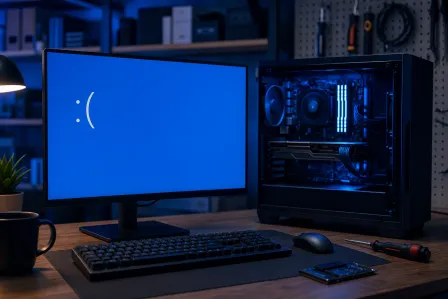
- BSODs like WHEA_UNCORRECTABLE_ERROR or other stop codes
When a system is right on the edge, anything that spikes CPU voltage, current, or heat can tip it over. That’s why i9 14900K crashing reports and i7 14700K BSOD reports often sound like “it only happens in this one game.” It’s not that you’re imagining it. It’s that games are excellent stress tests!
Common symptoms: i9 14900K crashing, i7 14700K BSOD, and random reboot patterns
Here are the patterns we see most often when the CPU (or CPU settings) are the real root cause:
- WHEA-Logger entries in Event Viewer around the time of a crash or reboot
- Random reboots with no blue screen (sometimes the system just resets)
- Game crashes CPU instability style: one title crashes consistently, others are “fine” until a patch changes load behavior
- BSODs under bursty load (opening apps, alt-tabbing, compiling shaders, loading into a match)
Small win moment: if you can describe when it happens (first 10 minutes, only when XMP is on, only when the room is warm), you’re already doing real diagnostics. You’ve got this.
What to bring to the repair shop (so we can diagnose faster)
Want to save time and money? Bring evidence. Not because we don’t believe you, but because instability can be intermittent. The more we can reproduce it, the faster we can confirm the root cause.
1) BIOS version and motherboard model
- Motherboard brand/model (example: “ASUS Z790 …” or “MSI B760 …”)
- Current BIOS version (a photo of the BIOS main screen is perfect)
2) Windows crash data: Event Viewer + dump files
- Event Viewer logs around the crash time (especially WHEA-Logger)
- Any minidumps from BSODs (if they exist)
If you’ve never opened Event Viewer, that’s totally okay. Microsoft’s steps are here: Microsoft Support: Open Event Viewer in Windows.
3) Your current “performance” settings
- Is XMP enabled?
- Any undervolt or overclock applied?
- What cooler and case airflow setup are you using?
Pro tip: “I changed something and it got worse” is not a failure. That’s a clue. We love clues!
Repair shop diagnostic checklist for Intel 14th gen instability (the structured approach)
Here’s the exact kind of flow that reduces guesswork. We start with the highest-impact, lowest-risk checks first, then move into deeper validation.
Step 1: Rule out obvious software look-alikes (without wasting days)
Yes, we’re talking CPU instability, but we still do a quick sanity pass:
- Check Windows stability and recent driver changes
- Confirm no obvious malware or unwanted background load (crypto miners can mimic “random” instability)
If you suspect something sketchy, pair the hardware work with a proper cleanup. Our virus removal service is built for that exact scenario.
Step 2: BIOS microcode update verification (and settings audit)
This is huge. A lot of stability outcomes depend on BIOS updates that include Intel microcode and vendor tuning changes.
- Confirm the system is on a current, stable BIOS from the motherboard manufacturer
- Load BIOS defaults (temporarily) to remove unknown tweaks
- Verify power and boost behavior is not set to aggressive “unlimited” style settings
Important note: I’m not going to promise that “update BIOS and everything is fixed.” Sometimes it is! Sometimes it isn’t. But it is a foundational step, and it prevents chasing ghosts.
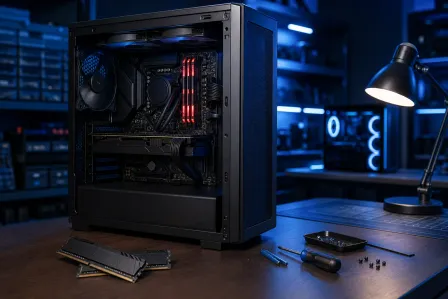
Step 3: XMP RAM instability check (because RAM can impersonate a CPU problem)
XMP is convenient, but it’s still an overclock profile. If you’re troubleshooting, we want a clean baseline:
- Disable XMP and run RAM at default JEDEC settings
- Retest the same crash scenario or stress test
- If stable at JEDEC but unstable at XMP, you’ve learned something valuable
Once you see it, it’ll totally click: the goal is not “fastest settings,” it’s “known-good settings,” then we build back up carefully.
Step 4: Thermal checks, including VRM overheating inspection
Everyone watches CPU core temps. Fewer people watch the motherboard’s power delivery. And yes, VRM overheating can cause throttling, instability, or sudden resets.
- Check CPU package temperature under load
- Check cooler mounting pressure and thermal paste condition
- Inspect VRM heatsinks for dust blockage and poor airflow
- Confirm case fans are oriented correctly (intake vs exhaust)
If your PC is rebooting under load and your CPU temps look “fine,” VRM thermals are one of the next places we look. It’s a classic “hidden bottleneck.”
Step 5: Stress test procedure (repeatable, logged, and boring on purpose)
Stress testing should be methodical. The goal is to reproduce the failure on demand and capture what changes when we adjust one variable.
- Run a CPU-focused stress test and log temps, clocks, and power behavior
- Run a mixed CPU + RAM test to catch borderline memory controller instability
- Run a GPU load separately (so we don’t blame the CPU for a GPU-only crash)
When we see BSODs, we correlate them with dump data. Microsoft’s bug check reference is helpful for context: Microsoft Learn: Bug check code reference.
Step 6: WHEA uncorrectable error fix workflow (what we try, in a safe order)
WHEA_UNCORRECTABLE_ERROR is scary-looking, but it’s basically Windows saying, “hardware reported a fatal error.” The fix depends on the cause. Our safe workflow usually looks like:
- Baseline first: BIOS defaults + XMP off + confirm temps
- Update second: BIOS update (microcode) + chipset drivers
- Stability tuning third: reduce overly aggressive boost/power settings where appropriate
- Only then: consider undervolt stability testing (carefully)
Notice what’s missing? Randomly swapping parts. We want proof before we replace anything.
Step 7: Undervolt stability testing (when it helps and when it backfires)
Undervolting can reduce heat and sometimes improve stability. But it can also create instability if pushed too far. So we treat it like a lab experiment:
- Change one setting at a time
- Use small steps
- Run the same test sequence after each change
If your system is already crashing, an undervolt you found online can make symptoms worse. That’s not you “messing up.” That’s just how tight margins work. Learning moment, and you’re still moving forward.
Step 8: CPU degradation symptoms (what we look for in 2026 cases)
Not every unstable CPU is “degraded,” and I’m not here to panic you. But we do watch for patterns that suggest the CPU can no longer hold prior boost behavior reliably:
- System was stable for months, then progressively needs lower settings to stay stable
- Crashes cluster around high boost events (spiky loads)
- Stability improves when power limits are reduced or boost behavior is made less aggressive
If we suspect this, we document it with repeatable tests and settings changes, so you have clear next steps (and not just a shrug).
What “good” looks like after diagnostics (and how we avoid unnecessary part swaps)
At the end of a proper checklist, we want to be able to say one of these with confidence:
- It was XMP/RAM tuning (stable at JEDEC, unstable at XMP) and we can recommend safer memory settings
- It was BIOS/microcode/settings and the system is stable after an update and configuration audit
- It was thermals (CPU cooler or VRM airflow) and stability returns after cleaning, reseating, or fan optimization
- It’s reproducible hardware instability with documentation, which helps you make an informed decision on next steps
And if you’re worried about your files during repeated crashes, that’s a smart instinct. If a drive starts acting up after hard resets, our data recovery service can help protect what matters before we push the system harder.
When to bring it in: Palm Beach County computer repair that’s built for tricky instability
If you’ve been chasing random reboots diagnosis for weeks, you deserve a calmer process. A good bench diagnosis is about repeatability, logs, and controlled changes, not “try a new PSU and hope.”
At Fix My PC Store in West Palm Beach, we help customers across Palm Beach County with stability issues that look like GPU, RAM, or PSU failures but trace back to platform settings, thermals, or CPU behavior. If it’s a desktop, start with our computer repair diagnostics and stability testing. If you’re dealing with a portable system that’s rebooting under load, our laptop repair and thermal service path makes more sense.
Quick at-home checklist (safe steps you can try before your appointment)
You don’t need to be a tech expert to do this. Here are a few low-risk steps that often reveal the pattern:
- Write down the pattern: what app/game, how long, what changed recently
- Check Event Viewer for WHEA-Logger entries around the crash
- Temporarily disable XMP and retest (just for troubleshooting)
- Check temps under load and make sure fans are spinning and vents are clear
- Photograph BIOS version and key settings screens
Even if you stop here, you’ve already done the hardest part: turning a “random” problem into a testable one. That’s a win!
Need Expert Computer Support?
Get professional help from Palm Beach County's trusted computer repair specialists.
Get Help Today