How to Tell If Your PC Problem Is Hardware or Software
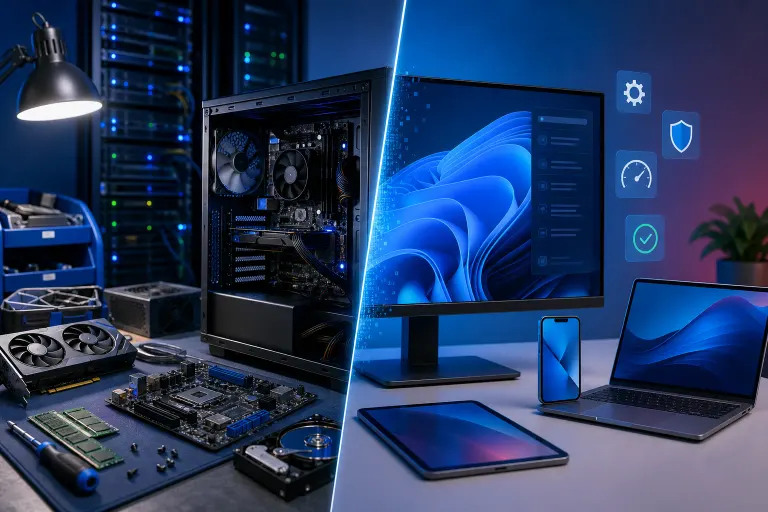
TL;DR: Most PC problems fall into one of two buckets: something physical is failing, or something in the operating system or software is broken. A few targeted tests will tell you which one you're dealing with. Know that before you bring it anywhere or start reinstalling Windows.
What You Need
- A working PC or phone to look things up (your sick machine might not cooperate)
- A bootable USB drive with a live Linux distro (Ubuntu works fine, it's free, download it from ubuntu.com)
- Windows installation media or a recovery drive, if you have one
- Access to Windows Event Viewer and Task Manager (built-in, no download needed)
- About 30-60 minutes and a little patience
You do not need to be a technician. You do need to pay attention and not skip steps. (Yes, I'm talking to you. The one who skips steps.)
Step 1: Note When and How the Problem Happens
Before you run a single tool, just observe. Hardware problems and software problems have different personalities.
Patterns that suggest hardware:
- The machine won't power on at all, or powers off randomly with no warning
- You hear clicking, grinding, or beeping sounds
- The screen has physical artifacts, lines, or flickering that shows up even at the BIOS screen or before Windows loads
- The problem happens every single time, regardless of what you're doing
- It crashes during heavy tasks like gaming or video editing, which stress the components
Patterns that suggest software:
- The problem only appears after Windows loads
- It started after an update, a new program install, or a driver change
- A specific app crashes but others run fine
- You get Blue Screen of Death (BSOD) errors with text codes
- Reinstalling a program or rolling back a driver makes it better, even temporarily
If your display looks wrong only inside Windows and the BIOS looks fine, that's a software or driver issue. If the display looks wrong at the BIOS screen before Windows even touches it, that's hardware. Simple rule. Surprisingly useful.
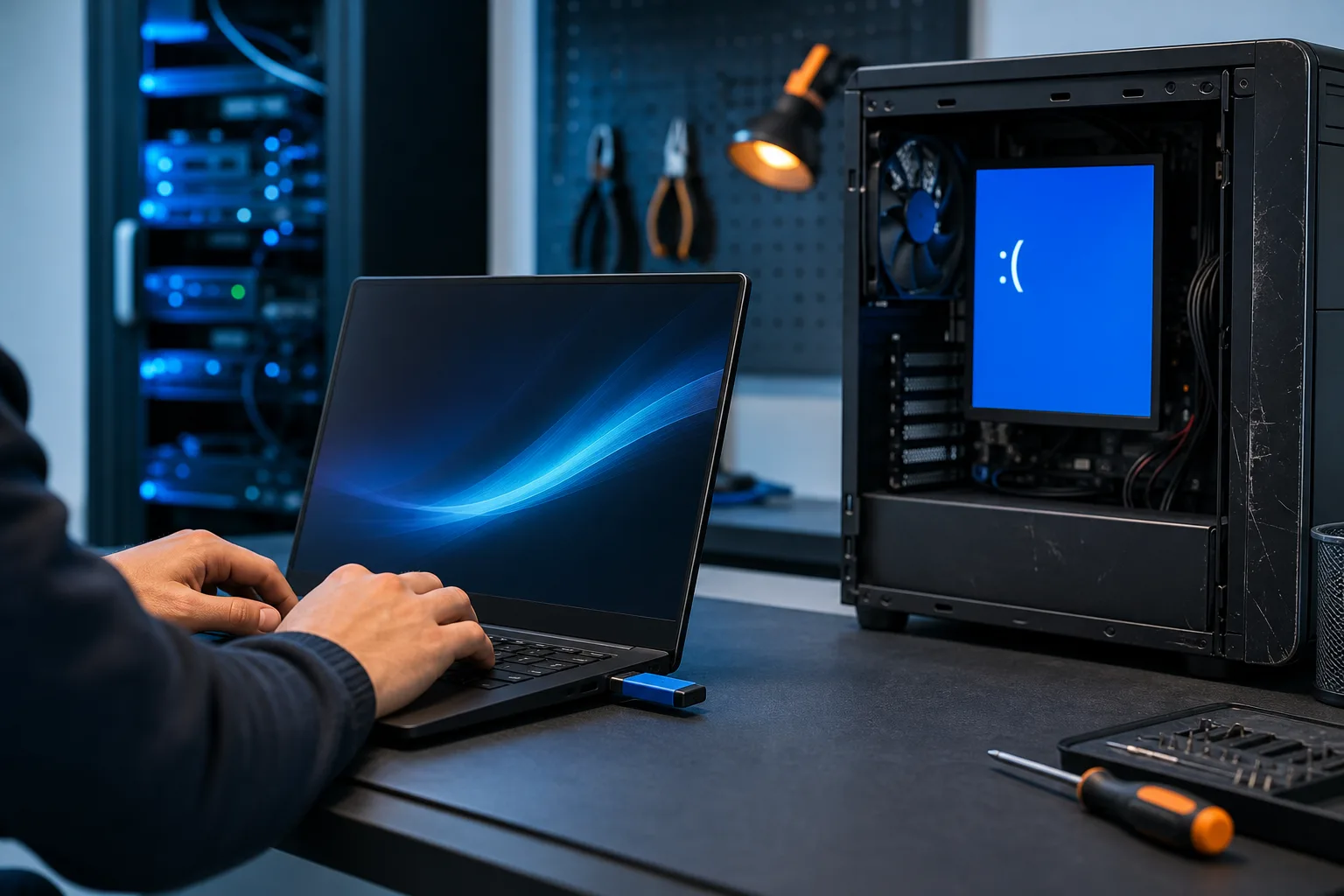
Step 2: Boot From a Live USB (The Most Useful Test Nobody Does)
This is the single best way to separate hardware from software, and almost nobody bothers with it. (Frustrating.)
A live Linux USB boots your PC using a completely different operating system stored on the USB drive. It ignores your Windows installation entirely. If your PC runs stable on the live USB for 30-60 minutes with no crashes, no freezing, and no weirdness, your hardware is probably fine. The problem is in Windows or your software.
If it crashes, freezes, or throws errors on the live USB too, that's hardware. Your operating system isn't even involved.
Download Ubuntu from ubuntu.com, flash it to a USB drive using a free tool like Rufus, boot from it (usually F12 or F2 at startup to pick boot device), and just run it for a while. Browse, open files, watch a video. If it holds together, your Windows installation is the patient, not your computer.
Step 3: Check Event Viewer for Error Codes
If Windows is loading, Event Viewer is your first stop. It logs every crash, warning, and error with timestamps.
How to open it: Press Win+R, type eventvwr.msc, hit Enter.
Go to Windows Logs, then Application and System. Look for red Error entries around the time your problem occurred. Note the Event ID numbers.
Some IDs point directly to hardware. Event ID 11 (disk errors), 41 (unexpected shutdown), and errors mentioning hardware in the description are bad signs. Software errors usually name a specific app or Windows service.
BSOD errors are especially useful. Write down the stop code, like MEMORY_MANAGEMENT or CRITICAL_PROCESS_DIED. Search those exact strings. They often point to RAM, storage, drivers, or corrupted system files, and the distinction matters.
Computer acting up? Get a real diagnosis. Book a diagnostic
Step 4: Run Windows Built-In Diagnostics
Windows has a few decent tools that cost nothing and don't require installation.
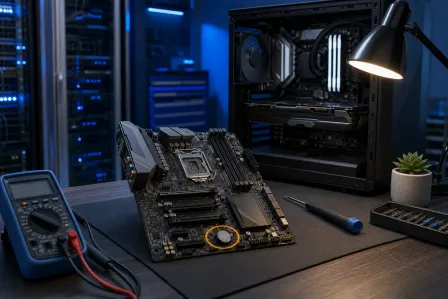
For RAM: Open the Start menu, search for Windows Memory Diagnostic, run it. It reboots your machine and tests RAM. If it finds errors, your RAM stick or slot may be failing. Try reseating the RAM first (power off, open the case, pop it out, push it back in firmly). If errors persist, the stick is likely dead.
For storage: Open a Command Prompt as administrator. Run chkdsk C: /f /r. This checks your drive for bad sectors and file system errors. A healthy drive finishes clean. A dying drive throws errors and takes forever. If you're seeing a lot of errors, back up immediately. Do not wait. (Seriously, stop reading and back up right now if your drive is throwing errors. Our backups and disaster recovery page exists for a reason.)
For system files: Run sfc /scannow in that same administrator Command Prompt. This checks Windows system files for corruption. If it finds and fixes problems, your issue was software-side corruption, not hardware.
Step 5: Test Under Load and Monitor Temperatures
Download HWMonitor or HWiNFO (both are free, both are legitimate). Watch your temperatures while you reproduce the problem.
If your CPU hits 95-100°C or your GPU runs dangerously hot right before a crash or shutdown, that's a thermal problem. Usually caused by a clogged heatsink, dried-out thermal paste, or a dead fan. That's technically hardware, but it's often a maintenance fix, not a replacement.
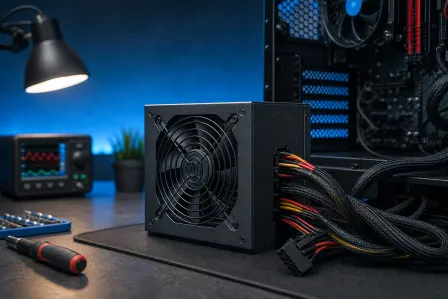
If temperatures are normal and your PC still crashes, you're looking at something else. Could be a failing power supply not delivering stable voltage under load. Could be RAM errors. Could be a bad driver.
Note: random crashes that only happen during gaming or video rendering, but not during light use, are almost always heat or power supply issues. Sometimes a bad GPU driver. Run the temperature test before assuming your hardware is dead.
Step 6: Isolate the Variable
This is how actual diagnostics work. Change one thing at a time and see if the problem changes.
- Uninstall the last program or driver you installed before the problem started
- Roll back a driver update (Device Manager, right-click the device, Properties, Driver tab, Roll Back Driver)
- Try a different RAM stick or slot if you have multiple
- Plug into a different power outlet or use a different cable
- Disconnect external devices and see if the problem persists
If unplugging a USB hub makes your PC stable, that USB hub is your problem. If removing a RAM stick makes the crashes stop, that stick is your problem. This process sounds tedious. It is. It also works.
If you're not up for that, or if things have escalated to the point where the machine won't even boot consistently, bring it in. Our computer repair team can run proper diagnostics with tools you don't have sitting around at home.
Common Mistakes
Reinstalling Windows immediately. This is the IT equivalent of amputating a leg because you have a splinter. If the problem is hardware, reinstalling Windows does nothing. If the problem is software, reinstalling is a last resort, not a first step.
Assuming it's a virus. Sometimes it is. Usually it isn't. Run a scan with Malwarebytes Free, but don't assume malware is the cause of every PC problem. Most crashes are mundane, bad drivers, bad RAM, bad updates.
Ignoring when it started. If you can't remember what changed right before the problem appeared, check Windows Update history and your recently installed programs. Something changed. It almost always did.
Shopping for replacement parts before confirming the diagnosis. I have seen people buy a new hard drive for a problem that turned out to be a corrupted driver. Wasted money, wasted time. Diagnose first, buy second.
Trusting a single tool. No single diagnostic tool catches everything. Use two or three. Cross-reference what they're telling you.
If you're a business and this kind of thing is eating into your day, that's what managed IT services are for. Someone else monitors the machines so you don't have to play detective every time something hiccups.
And if you just want to talk through what you're seeing without driving anywhere, we offer remote support for plenty of software-side issues.
Bottom Line
Hardware problems tend to be consistent, physical, and show up before or outside of Windows. Software problems tend to be tied to specific conditions, started after a change, and respond (at least a little) to software fixes.
Boot the live USB. Run Event Viewer. Test your RAM and storage. Monitor your temperatures. Change one variable at a time. If you work through all of that and still can't pin it down, or if the machine is behaving so badly you can't complete the tests, bring it in. Guessing and throwing parts at a PC is how a $50 fix turns into a $500 mistake.
Check out our complete computer repair guide if you want to go deeper on what the repair process actually looks like, or book a diagnostic and let us sort it out for you.
Computer acting up? Get a real diagnosis.
Fix My PC Store has repaired thousands of machines across West Palm Beach. Honest pricing, no upsell games, and a free diagnostic for new customers with our email coupon.