
How to Fix a Computer: 8 Common Problems Solved
Wondering how to fix a computer without calling for help right away? This guide walks you through 8 of the most common PC problems, with clear steps to diagnose and solve each one yourself, plus honest advice on when to hand it off to a pro.
TL;DR: Most computer problems have a straightforward fix you can do yourself in under an hour. This guide covers 8 of the most common issues, gives you exact steps for each, and tells you when the problem is bigger than a DIY fix. Bookmark it for the next time something goes sideways.
What You Need
Before you start, grab these. You probably already have most of them.
- A Windows or Mac computer (these steps cover both where they differ)
- About 15 to 60 minutes depending on the problem
- A stable internet connection for any downloads
- A USB flash drive with at least 8 GB free (only needed for Problem 8)
- Administrator access to your computer. If you share a work machine, check with your IT contact first.
No special tools required for most of these. Just patience and a willingness to read an error message carefully.
Problem 1: Fix a Computer That Runs Slowly
This is the most common complaint we hear. Slow does not always mean broken. It usually means something is eating your resources.
Step 1. Press Ctrl + Shift + Esc (Windows) or open Activity Monitor (Mac) and look at what is using the most CPU and RAM. If one app is hogging 80 percent of your processor, that is your culprit.
Step 2. Restart the computer. Seriously. A fresh boot clears temporary files and resets memory. Skip this step and the rest will not matter much.
Step 3. Disable startup programs. On Windows, open Task Manager, click the Startup tab, and disable anything you do not recognize or need immediately. On Mac, go to System Settings, General, Login Items.
Step 4. Check available storage. Windows needs roughly 15 percent of your drive free to breathe. If you are below that, empty the Recycle Bin, clear your Downloads folder, and run Disk Cleanup (search it in the Start menu).
Step 5. Run Windows Update or macOS Software Update. Pending updates sometimes hold background processes open and slow everything down.
If the machine is still crawling after all five steps, the issue may be hardware. An aging hard drive or insufficient RAM are common culprits on machines over five years old. That is worth a conversation with a computer repair tech.
Problem 2: Fix a Computer That Keeps Crashing or Freezing
Random crashes feel scary, but most have a boring explanation.
Step 1. Note the pattern. Does it crash during a specific program, on startup, or randomly? Random crashes often point to overheating or RAM. Program-specific crashes usually mean a corrupt install.
Step 2. Check your temperatures. Download a free tool like HWMonitor (Windows) or use the built-in sensors on Mac via Terminal. CPU temperatures above 90°C under normal load are a red flag.
Step 3. Clean the vents. A can of compressed air aimed at the vents for 10 seconds can drop temperatures by 10 to 20 degrees on a dusty machine.
Step 4. On Windows, open Event Viewer (search it), go to Windows Logs, then Application or System. Look for red Error entries around the time of the crash. The error code there is your next search term.
Step 5. Uninstall any recently installed software. Crashes that started after a new install almost always trace back to that install.
Problem 3: Fix a Computer With No Internet Connection
Step 1. Check if other devices on the same network have internet. If your phone works fine, the problem is your computer, not your router.
Step 2. On Windows, right-click the network icon in the taskbar and select Troubleshoot Problems. It actually catches basic issues like a stuck IP address fairly reliably.
Step 3. Open Command Prompt as Administrator and type netsh winsock reset, press Enter, then restart. This clears network stack corruption that causes phantom connection problems.
Step 4. Update or reinstall your network adapter driver. Go to Device Manager, expand Network Adapters, right-click your Wi-Fi or Ethernet adapter, and choose Update Driver.
Step 5. If nothing else works, forget the Wi-Fi network and reconnect from scratch. Sometimes the saved credentials go stale.
For businesses with repeated network drops, the root cause is usually infrastructure, not the computers. Our business networking team sees this constantly.
Problem 4: Fix a Computer That Won't Turn On
This one feels dramatic. It usually is not.
Step 1. Check the power cable. Check the outlet. Plug something else into the same outlet to confirm it has power.
Step 2. For laptops, remove the battery if it is removable, hold the power button for 30 seconds, reinsert the battery, and try again. This drains residual charge that sometimes causes a hard lockup.
Step 3. Listen and look carefully when you press power. Do you hear fans spin? See any lights? Any beep codes? One long beep often means RAM. Three short beeps often means a POST failure. These codes vary by manufacturer, so look yours up specifically.
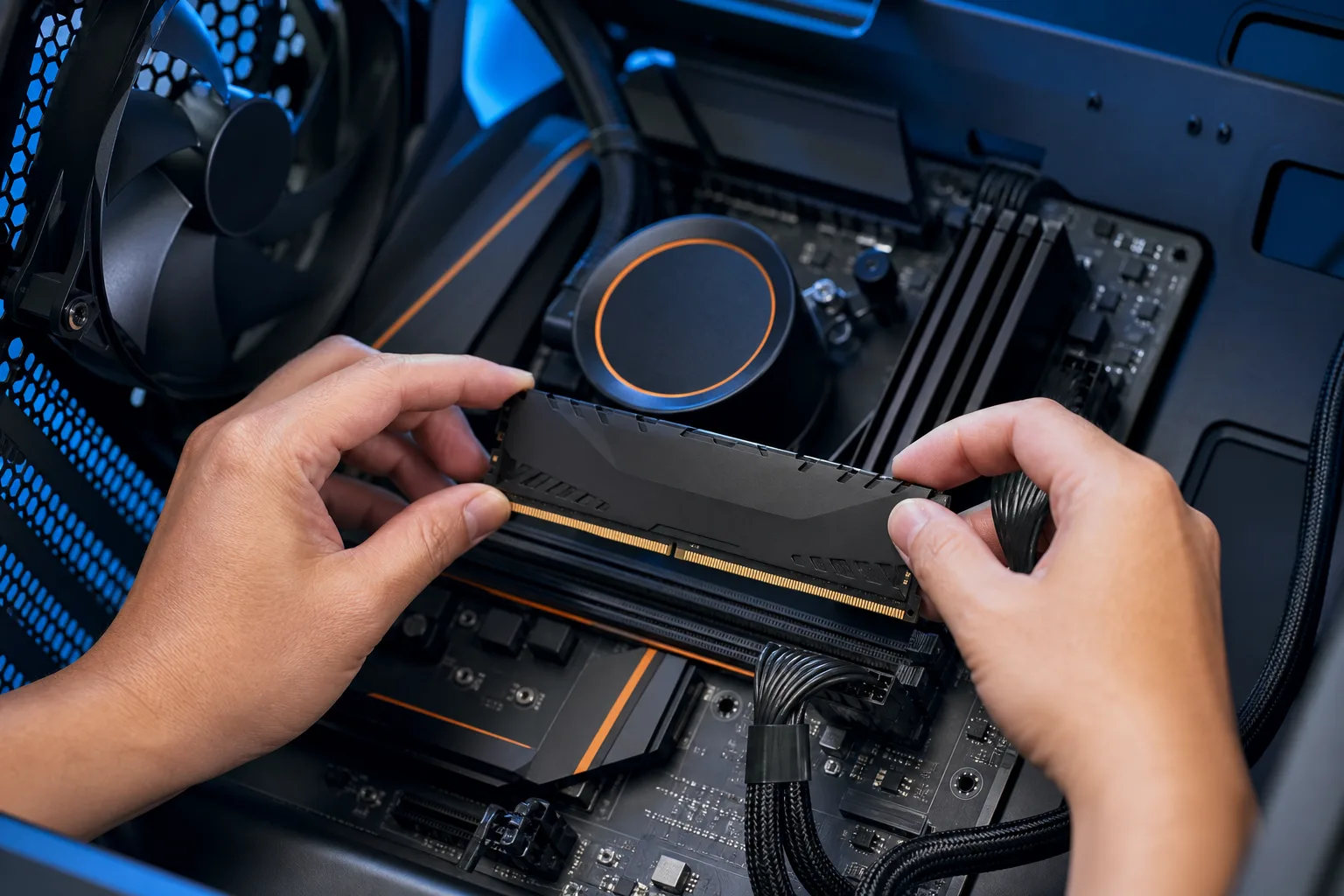
Step 4. For desktops, reseat the RAM. Unplug the machine, open the side panel, press the clips on each RAM stick, pull them out, and firmly push them back in until they click. This fixes more "dead" computers than you would expect.
If the machine is completely silent with no signs of life after these steps, the issue is likely the power supply, motherboard, or battery. Time to bring it in for laptop repair or desktop diagnosis.
Computer acting up? Get a real diagnosis. Book a free diagnostic
Problem 5: Fix a Computer Infected With Malware or Viruses
Step 1. Disconnect from the internet immediately. This prevents the malware from sending data out or receiving new instructions.
Step 2. Boot into Safe Mode. On Windows 10 or 11, hold Shift while clicking Restart, choose Troubleshoot, Advanced Options, Startup Settings, then Restart, and press 4. Safe Mode loads only essential drivers, which keeps most malware from running.
Step 3. Run Malwarebytes (the free version is genuinely good for a one-time scan). Let it run a full scan in Safe Mode.
Step 4. After removal, change all passwords from a different, clean device. Malware often logs keystrokes.
Step 5. Check your browser extensions. Remove anything you did not intentionally install.
For businesses, a single infected machine can compromise your whole network. If you have company data involved, that is a cybersecurity incident, not just a tech problem. Business cybersecurity response is a different level of intervention than a home scan.
Problem 6: Fix a Computer With a Blue Screen of Death (BSOD)
The blue screen is Windows telling you it hit something it could not handle. The stop code on screen is the key.
Step 1. Write down or photograph the stop code (it looks like MEMORY_MANAGEMENT or IRQL_NOT_LESS_OR_EQUAL).
Step 2. Search that exact stop code on Microsoft's support site. Their documentation is actually good for BSOD errors and maps each code to its likely cause.
Step 3. If the code points to a driver, update or roll back that driver in Device Manager.
Step 4. Run the Windows Memory Diagnostic tool (search it in Start). Faulty RAM causes a surprising number of BSODs.
Step 5. Run sfc /scannow in an elevated Command Prompt. This checks for corrupted Windows system files and repairs them automatically.
Problem 7: Fix a Computer With a Full or Failing Hard Drive
Step 1. Open File Explorer, right-click your C: drive, click Properties, and check how full it is. Over 90 percent full will slow the system and cause errors.
Step 2. Run Disk Cleanup (search in Start), check all boxes including System Files, and let it run.
Step 3. Check the drive health. On Windows, open Command Prompt and type wmic diskdrive get status. A result of OK is good. A result of Pred Fail means your drive is warning you it is about to die.
Step 4. If you get a Pred Fail warning, back up everything right now before doing anything else. Not tomorrow. Right now. Our guide to backups and disaster recovery applies to home users too, not just businesses.
Step 5. A failing drive needs to be replaced. An SSD upgrade on an older machine is one of the best performance boosts you can do, often costing less than a hundred dollars in parts plus labor.
Problem 8: Fix a Computer That Is Stuck in a Boot Loop
A boot loop is when your computer starts, gets to a certain point, and restarts again on its own. Endlessly.
Step 1. Try Startup Repair first. On Windows 10 or 11, interrupt the boot three times in a row by holding the power button, and Windows will automatically open the Recovery Environment. Select Startup Repair.
Step 2. If Startup Repair fails, choose System Restore from the same Recovery Environment menu. Pick a restore point from before the loop started.
Step 3. If you have no restore points, try bootrec /fixmbr and bootrec /fixboot from the Command Prompt option in Recovery. These repair the boot record without touching your files.
Step 4. As a last resort, a clean Windows reinstall from a USB drive will fix the boot loop while giving you the option to keep your personal files. Microsoft's Media Creation Tool walks you through making the USB.
If none of these recover the machine, the drive or motherboard may be at fault. At that point, remote support can at least help you diagnose before you bring it in.
Common Mistakes When You Fix a Computer Yourself
Skipping the restart. Almost everyone does this. Restart before assuming the problem is serious.
Downloading random "fix my PC" software. Most of these are scams or make things worse. Stick to known tools: Malwarebytes, HWMonitor, the built-in Windows tools, and manufacturer utilities.
Ignoring SMART drive warnings. If any tool tells you your drive health is degraded, do not keep using the machine normally. Back up first, always.
Fixing the symptom, not the cause. Clearing junk files on a drive with a failing controller buys you maybe a week. Find the root cause.
Not documenting what you tried. If you end up needing help, being able to tell a technician exactly what you already did saves time and money.
Waiting too long. A slow computer that gets ignored for six months often becomes a dead computer. Small problems caught early are almost always cheaper to fix.
Bottom Line
Knowing how to fix a computer yourself is genuinely empowering, and most problems on this list have a real DIY solution. Slow machine, bad Wi-Fi, malware, BSOD, boot loop. You can handle these.
But some problems cross into hardware failure territory where the wrong move can make data recovery harder or more expensive. If you have worked through the steps here and something still is not right, the team at Fix My PC Store in West Palm Beach is straightforward about what actually needs fixing versus what can wait.
You can also start with remote support if you want a technician to look at the problem without leaving home. Either way, you now know exactly what you are dealing with before you make that call.
Computer acting up? Get a real diagnosis.
Fix My PC Store has repaired thousands of machines across West Palm Beach. Free diagnostics, honest pricing, no upsell games.
Frequently asked questions
How do I fix a computer that is running very slowly?
Start by restarting the machine, then check Task Manager for processes using excessive CPU or RAM. Disable unnecessary startup programs and make sure your drive has at least 15 percent free space. If the machine is still slow after those steps, aging hardware like a spinning hard drive or low RAM may be the underlying cause.
Can I fix a computer virus myself without a technician?
Yes, in many cases. Disconnect from the internet, boot into Safe Mode, and run a free scan with Malwarebytes. After the scan clears the infection, change your passwords from a different device. If company data or a work machine is involved, treat it as a security incident and contact an IT professional.
What does a blue screen of death actually mean?
It means Windows hit an error so serious it had to stop to prevent damage. The stop code displayed on screen tells you what went wrong. Common causes include driver conflicts, faulty RAM, and corrupted system files. Running the Windows Memory Diagnostic and the sfc /scannow command resolves many BSOD errors.
How do I know if my hard drive is failing?
Run the command 'wmic diskdrive get status' in Command Prompt. A result of 'Pred Fail' means the drive is signaling it may be close to failure. Other warning signs include frequent freezes, clicking sounds, and files becoming inaccessible. Back up everything immediately if you see any of these signs.
When should I stop trying to fix my computer myself and call a professional?
If you have worked through the relevant steps and the problem persists, especially if there are signs of hardware failure like strange sounds, no power, or drive warnings, it is time to get a second opinion. Continuing to troubleshoot a failing drive, for example, can make data recovery harder and more expensive.
How much does professional computer repair typically cost in West Palm Beach?
Costs vary depending on the problem and whether any parts are needed. Diagnostic fees, labor for software issues, and hardware replacements are usually priced separately. The best approach is to get a clear estimate upfront before any work begins. Fix My PC Store provides diagnoses so you know exactly what you are paying for.