How to Diagnose a Dead Desktop PC: Systematic Repair Guide
Listen to this article
TL;DR: A dead desktop PC that won't turn on can be caused by anything from a bad power cable to a fried motherboard. This guide walks you through the exact systematic diagnostic steps the pros use - from the simplest fixes to component-level troubleshooting - so you can figure out what's going on before you panic. Let's get that rig back to life!
Alright, let me set the scene. You sit down at your battle station, reach for the power button, and... nothing. No fans spinning, no RGB glow, no glorious POST beep. Just silence. A dead desktop PC is genuinely one of the most gut-wrenching moments for any PC enthusiast, and trust me, I've been there. But here's the thing - before you start planning a funeral for your rig, let's run through a dead desktop PC repair process that could save you serious cash and get you back to butter-smooth gameplay faster than you think.
Whether you're rocking a monster rig with a top-tier GPU or a smart budget build that punches above its weight, these PC diagnostic steps work the same way. This is the exact systematic approach we use at Fix My PC Store's computer repair service in West Palm Beach, and now I'm handing it to you. Let's GO.
Step 1: Verify Your Power Source - The Simplest Desktop No Power Troubleshooting Fix
I know, I know - "did you check if it's plugged in?" sounds like the most basic advice on the planet. But listen, you would NOT believe how many times this is the actual fix. We're talking GG before the match even starts. Here's your checklist:
Check the Power Outlet and Cable
- Test the outlet: Plug in a lamp or phone charger. If it works, the outlet is fine. If not, check your circuit breaker.
- Swap the power cable: Those C13 power cables (the standard desktop power cord) can fail quietly. Grab one from a monitor or another device and try it.
- Check the power strip or surge protector: Surge protectors can trip or die after a power surge. Plug directly into the wall to test.
- Flip the PSU switch: Look at the back of your PC. There's a physical toggle switch on the power supply. Make sure it's set to the "I" (on) position. You'd be surprised how often this gets bumped.
If your computer won't turn on after all that, we're moving deeper. This is where the real detective work begins.
Step 2: Power Supply Failure Signs - Is Your PSU Dead?
The power supply unit is the heart of your PC. It pumps electricity to every single component, and when it dies, everything dies with it. Here are the telltale power supply failure signs to watch for:
Symptoms of a Failing or Dead PSU
- Absolutely zero response when pressing the power button - no fans, no lights, nothing
- A faint burning or electrical smell coming from the back of the case
- The PC was randomly shutting down or restarting before it died completely
- You hear a click but nothing else happens
- Visible damage, bulging, or burn marks on the PSU itself
The Paperclip Test (PSU Jump Test)
This is a clutch move that every PC enthusiast should know. You can test if your PSU is delivering power without it being connected to the motherboard:
- Unplug the PSU from the wall and disconnect ALL cables from your motherboard and components.
- Find the 24-pin ATX connector (the big one that goes to the motherboard).
- Using a paperclip or a dedicated PSU jumper tool, bridge the green wire (PS_ON) to any black wire (ground). On modern PSUs, this is typically pin 16 (green) to pin 17 (black), but the color coding is standard.
- Plug the PSU back into the wall and flip the switch on.
- If the PSU fan spins, it's getting power. If nothing happens, your PSU is likely toast.
SAFETY NOTE: Never open a power supply unit. PSU capacitors can hold lethal charges even when unplugged. If your PSU fails the jump test, it needs to be replaced - not repaired at home. The Microsoft Support troubleshooting page also recommends professional service for power-related hardware failures.
A quality replacement PSU from brands like Corsair, EVGA, or Seasonic can breathe life right back into your build. And honestly? Upgrading to a higher-wattage, 80+ Gold rated PSU is one of those moves where your future self will absolutely thank you.
Step 3: Motherboard Failure Diagnosis - Checking the Nerve Center
If your PSU passes the paperclip test but your PC still won't power on, we need to look at the motherboard. Motherboard failure diagnosis can be tricky because the board connects to literally everything, but here's how to narrow it down systematically:
Visual Inspection First
Pop that side panel off (moment of truth - I hope there's no dust bunnies the size of actual bunnies in there) and look for:
- Bulging or leaking capacitors: Those little cylindrical components on the board should have flat tops. If they're bulging, leaking brown fluid, or look swollen, that's a dead giveaway of motherboard failure.
- Burn marks or discoloration: Any dark spots or melted areas on the PCB mean something shorted out.
- Standoff shorts: Make sure the motherboard isn't making contact with the case in places it shouldn't be. An extra standoff in the wrong spot can short the entire board.
Check the Motherboard Indicator LEDs
Many modern motherboards have a small standby LED that lights up when power is connected, even when the PC is off. If your PSU is good but this LED isn't lighting up, the motherboard might be the culprit. Some boards also have diagnostic LED arrays or small displays that show error codes during POST - absolute bangers for troubleshooting.
Try the Front Panel Header Bypass
Sometimes it's not the motherboard at all - it's the power button itself! Use a screwdriver to briefly touch the two power switch pins on the front panel header. If the PC fires up, your case's power button or its wiring is the problem. That's a poggers-level easy fix.
Step 4: Isolate Components - RAM, GPU, and Peripherals
When your computer won't turn on, sometimes a single bad component can prevent the whole system from POSTing. Here's how to isolate the issue:
Strip It Down to Bare Essentials
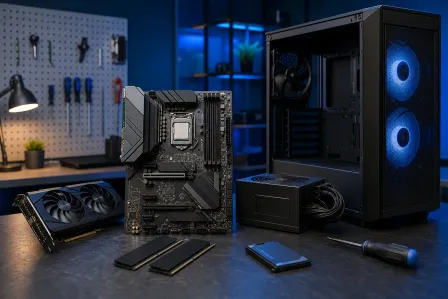
- Disconnect everything except the CPU, one stick of RAM, and the power connections (24-pin and CPU power).
- Remove the GPU and use onboard graphics if your CPU supports it (most Intel CPUs and AMD APUs have integrated graphics).
- Unplug all USB devices, hard drives, SSDs, and extra fans.
- Try to power on. If it works, add components back one at a time until you find the culprit.
Reseat Your RAM
This is genuinely one of the most common fixes I see, and it's SO satisfying when it works. RAM sticks can wiggle loose over time, especially if your rig has been moved or shipped. Pull the sticks out, clean the contacts gently, and reseat them firmly until you hear that satisfying click. Try different slots too - a dead DIMM slot on the motherboard can cause a no-boot situation.
Clear the CMOS
A corrupted BIOS configuration can sometimes prevent POST. Remove the CMOS battery (that little CR2032 coin cell on the motherboard), wait 30 seconds, and pop it back in. This resets BIOS settings to default. While you're at it, if that battery is old, replace it - they're cheap and a dead CMOS battery can cause weird boot issues. The Tom's Hardware BIOS guide has great details on BIOS access and reset procedures.
Step 5: Listen for Beep Codes and Watch for Debug LEDs
If your PC is getting SOME power (fans twitch, LEDs flash briefly) but won't fully boot, pay attention to what it's telling you:
Beep Codes Are Your Friend
Many motherboards have a small speaker (or header for one) that outputs beep patterns during POST failure. One long beep followed by two short beeps? That's typically a GPU issue. Continuous short beeps? Could be a memory problem. Check your motherboard manufacturer's manual for the specific beep code chart - every manufacturer uses slightly different patterns.
Modern Diagnostic Features
Higher-end boards from ASUS, MSI, Gigabyte, and ASRock often include Q-LED indicators or debug LED displays that cycle through CPU, DRAM, VGA, and BOOT checks. If the LED stops on one of these, that's your problem area. This is where spending a bit more on a quality motherboard really pays off in troubleshooting - absolute clutch feature.
When to Call in the Pros: Knowing Your Limits
Look, I'm all about DIY. Building and fixing PCs is literally my passion. But there are times when you need professional help, and there's ZERO shame in that game:
- Component-level motherboard repair (replacing individual capacitors, traces, or chips) requires specialized soldering equipment and expertise.
- If you smell burning or see physical damage to components, don't keep testing - you could cause more damage.
- Data recovery concerns: If your dead PC has irreplaceable data, a professional data recovery service should be your first call before attempting any repairs that might affect your drives.
- Laptop issues: If your dead machine is a laptop rather than a desktop, the diagnostic process is different and more delicate. Our laptop repair specialists handle these with the right tools and expertise.
- Suspected electrical damage: Power surges, lightning strikes, or spilled liquids require professional assessment to determine what's salvageable.
Here in West Palm Beach and across Palm Beach County - from Boca Raton to Jupiter and everywhere in between - our team at Fix My PC Store handles dead desktop PC repairs every single day. We've seen it all, from simple cable swaps to full motherboard replacements, and we'll always give you an honest diagnosis before any work begins.
Quick Reference: Dead Desktop PC Diagnostic Flowchart
Here's your speed-run version of this entire desktop repair guide:
- Check power source - outlet, cable, surge protector, PSU switch
- Test the PSU - paperclip/jumper test
- Visual inspection - look for damaged capacitors, burn marks, loose connections
- Bypass the power button - use a screwdriver on front panel pins
- Strip to essentials - CPU + one RAM stick + power only
- Reseat RAM and clear CMOS - remove and reinstall, reset BIOS
- Check beep codes and debug LEDs - let the board tell you what's wrong
- Add components back one by one - isolate the failure
- Call the pros - when DIY hits its limit
Following this systematic approach saves you time, money, and the heartbreak of replacing parts you don't actually need to replace. And honestly? There's nothing more satisfying than hearing those fans spin up and seeing your RGB light show come back to life after a successful diagnosis. That's a W right there.
Whether you fix it yourself or bring it to our computer repair team in West Palm Beach, understanding what's going on inside your machine puts you in control. Knowledge is power - literally, in this case. GG, and may your frames be high and your temps be low!
Need Expert Computer Support?
Dead PC got you down? The repair pros at Fix My PC Store in West Palm Beach diagnose and fix desktop PCs every day across Palm Beach County. Let us bring your rig back to life!
Get Help Today