How Remote Computer Repair Actually Works: Behind the Scenes
Listen to this article
TL;DR: Remote computer repair lets a technician securely connect to your PC over the internet, diagnose problems in real time, and fix them - all while you watch. You stay in control the entire time, and no one accesses anything without your explicit permission. It's fast, safe, and surprisingly simple.
Okay, I get it. The idea of someone fixing your computer without ever touching it sounds a little like magic. Maybe even a little suspicious? I hear this all the time from folks here in Palm Beach County and beyond: "How can you possibly fix my PC from over there?"
Great question! And honestly, once you understand how remote computer repair works, it totally clicks. It's one of those things that seems mysterious until someone walks you through it. So let's do exactly that. Let's go behind the scenes, step by step, so you can see everything that happens during a remote tech support session.
You've got this - and by the end of this article, you'll feel completely confident about the whole process.
What Is Remote Computer Repair, Exactly?
Remote computer repair - sometimes called virtual computer repair - is when a trained technician connects to your computer over the internet to diagnose and fix problems. They use specialized software to see your screen, move your mouse, and run tools, just as if they were sitting right in front of your machine.
Think of it like a video call, but instead of showing your face, you're sharing your desktop. The technician can see exactly what's going on and take action to resolve the issue in real time.
This is the same core technology that powers Microsoft's own Remote Desktop feature built into Windows 10 and Windows 11. Professional remote support tools just take it further with better security, easier setup, and more diagnostic capabilities.
The Remote PC Repair Process: Step by Step
Let's break this down into the exact stages of a typical remote repair session. No jargon, no confusion - just a clear walkthrough of what happens from start to finish.
Step 1: You Reach Out for Help
Everything starts when you contact us. Maybe your computer is running slow, you're getting weird pop-ups, or something just isn't working right. You describe the problem - over the phone, through chat, or via email - and we figure out if remote support is the right fit.
Here's the thing: not every problem can be fixed remotely. If your screen is cracked, your hard drive is physically failing, or your laptop won't turn on at all, you'll need in-person computer repair. But a huge number of common issues - software glitches, malware, slow performance, driver problems, configuration errors - are perfect candidates for remote desktop troubleshooting.
Step 2: You Grant Permission and Establish the Connection
This is the part people are most curious about, and rightfully so! Here's how it works:
We'll send you a link or ask you to visit a specific website. From there, you'll download a small, temporary program (sometimes called a support agent or session client). When you run it, you'll see a unique session code or ID.
You share that code with your technician, and only then can they connect. This is important: you are the one who initiates and authorizes the connection. No one can just pop into your computer uninvited. You're in the driver's seat the whole time.
Once connected, you'll typically see the technician's cursor moving on your screen. You can watch every single thing they do. If at any point you want to stop the session, you can close the program or simply disconnect. Full control stays with you.
Step 3: The Technician Runs Diagnostics
Now the fun part begins! (Well, fun for tech nerds like me, anyway.)
Your technician will start by gathering information about your system. They'll check things like:
- System specs - How much RAM you have, your processor type, available storage
- Running processes - What programs and background tasks are active
- Startup programs - What loads automatically when your computer boots up
- Event logs - Windows keeps a detailed record of errors and warnings behind the scenes
- Installed software - Checking for outdated, conflicting, or suspicious programs
- Malware indicators - Scanning for viruses, adware, or other threats
This diagnostic phase is like a doctor's checkup for your PC. It helps the technician understand not just the symptom you reported, but what's actually causing it underneath.
Step 4: The Actual Repair Happens
Once the technician knows what's wrong, they get to work. Depending on your issue, the remote pc repair process might include:
- Removing malware or unwanted programs
- Updating outdated drivers or Windows components
- Adjusting system settings for better performance
- Fixing broken Windows updates
- Resolving software conflicts
- Cleaning up startup items that slow your boot time
- Configuring email, printers, or network settings
- Installing security patches
Throughout all of this, you can watch in real time. A good technician will also explain what they're doing as they go. At Fix My PC Store, we believe you deserve to understand what's happening with your own computer. No mysteries here!
Step 5: Testing and Verification
Once the repair work is done, the technician doesn't just disappear. They'll test everything to make sure the problem is actually resolved. They might restart your computer, run a few programs, or ask you to try the thing that was giving you trouble before.
This is the moment where you get to celebrate that small win. Your computer is working again, and you didn't even have to leave your desk!
Step 6: Session Closure and Cleanup
When the session ends, the remote connection is completely severed. That temporary program you downloaded? It doesn't maintain any ongoing access to your computer. The technician can't reconnect later without you going through the whole permission process again.
Your technician may also provide you with a summary of what was done and any recommendations for keeping your system healthy going forward.
What Can a Remote Technician See and Access?
This is probably the biggest trust concern people have, so let's address it head-on.
During a remote session, the technician can see your screen and control your mouse and keyboard - that's it. They see exactly what you would see if you were sitting there. They can open files, run programs, and change settings, but you're watching the entire time.
A reputable remote tech support provider will never:
- Ask for your banking passwords
- Access your personal files without a clear reason related to the repair
- Install software without explaining what it does
- Maintain hidden access after the session ends
As Malwarebytes explains about remote access security, the key difference between legitimate remote support and malicious remote access is consent and transparency. When you choose to connect with a trusted provider, you're in control.
Is Remote Desktop Troubleshooting Really Safe?
Yes - when you're working with a trusted provider. Here's why:
Encrypted connections: Professional remote support tools use end-to-end encryption, meaning the data traveling between your computer and the technician's system is scrambled and unreadable to anyone else.
Session-based access: The connection only exists for the duration of your support session. Once it's over, it's over.
Your permission required: Every session starts with you. You download the tool, you share the code, you grant access. And you can revoke it at any time by closing the window.
Full visibility: You see everything the technician does on your screen in real time. There's no "hidden mode" with legitimate tools.
The important thing is to only accept remote support from companies you trust and have contacted yourself. Never give remote access to someone who calls you out of the blue claiming to be from Microsoft or your internet provider - that's a scam, every time.
What Problems Can Be Fixed Remotely?
You might be surprised by how much can be accomplished through virtual computer repair. Here's a quick list of common issues we resolve remotely for customers across West Palm Beach, Boca Raton, Jupiter, and throughout Palm Beach County:
- Slow computer performance
- Virus and malware removal
- Software installation and configuration
- Email setup and troubleshooting
- Printer connectivity issues
- Windows update problems
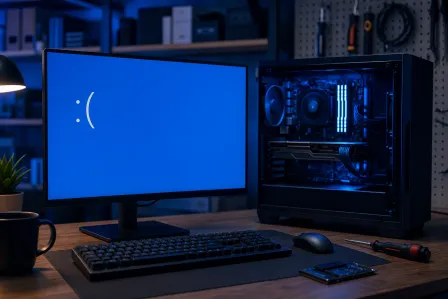
- Blue screen errors
- Browser hijacking and pop-up ads
- Data backup setup
- Network and Wi-Fi configuration
For businesses, managed IT services can take remote support even further - providing ongoing monitoring, maintenance, and proactive fixes before problems even start.
Why Choose Remote Repair Over In-Person Service?
Don't get me wrong - there are absolutely times when in-person service is the way to go. But remote repair has some serious advantages:
- Speed: No driving, no waiting rooms. Many issues are resolved in under an hour.
- Convenience: Get help from your home, office, or anywhere with an internet connection.
- Cost-effective: No travel fees or logistics overhead.
- Transparency: You watch every step of the process live on your screen.
For many of the issues we see every day, remote support is genuinely the fastest and easiest path to getting your computer back to normal.
Ready to See Remote Repair in Action?
Now that you know exactly what happens during remote repair, I hope it feels a lot less mysterious. It's really just a smart, secure way to get expert help without the hassle of disconnecting cables and hauling your computer somewhere.
Whether you're in West Palm Beach, anywhere in Palm Beach County, or even across Florida, our technicians at Fix My PC Store are ready to connect and help. You've got this - and we've got your back!
Need Help Right Now?
Get instant remote IT support from Palm Beach County's trusted technicians - no appointment needed.
Get Remote Help