Hard Drive Clicking? What It Means & When to Act Fast
Listen to this article
TL;DR: A hard drive clicking noise can be a normal sound, but it can also be the classic “click of death” that signals imminent HDD failure. If the clicking is repetitive, gets worse, or your computer is freezing, stop what you’re doing and focus on saving your data first. You’ve got this, and acting quickly is the win!
I know that sound can make your stomach drop. Click… click… click. The good news is you don’t need to be a tech expert to make smart next moves. Let’s break this down together so you know what the clicking means, how much risk you’re in, and what to do right now to protect your files.
Hard drive clicking noise: harmless vs. urgent
Not every click is a disaster. Traditional hard disk drives (HDDs) are mechanical. They have spinning platters and a moving read/write head. So some noises are normal. The key is pattern and behavior changes.
Clicks that can be normal
- Occasional soft ticks during heavy file activity (copying files, installing software).
- One-time click on startup as the drive initializes.
- Quiet head parking sounds when a laptop goes to sleep or wakes up.
If your PC is otherwise fast, stable, and the clicking is rare and not getting worse, it may be normal drive behavior.
Clicks that are a red alert (the “click of death” pattern)
- Repeated, rhythmic clicking every second or two.
- Clicking that starts suddenly after a bump, drop, or power outage.
- Clicking plus freezing, slow boot, or apps that hang when opening files.
- Clicking plus “drive not detected” in BIOS/UEFI or Disk Management.
This is where time matters. Repetitive clicking often means the drive is struggling to read servo data or failing to calibrate the heads. In plain English: it’s trying, failing, resetting, and trying again. That can spiral quickly.
Failing hard drive symptoms and HDD failure warning signs
A clicking sound rarely travels alone. Here are common failing hard drive symptoms that show up alongside clicking. If you recognize even one or two, treat this like an emergency for your data.
Performance and stability symptoms
- Boot takes forever or gets stuck on the loading screen.
- File Explorer (Windows 10 or Windows 11) becomes unresponsive when you open certain folders.
- Beachballing on macOS when accessing files.
- Random freezes that magically stop if you stop using the drive.
File and system symptoms
- Files that won’t open, or open corrupted.
- Missing folders or names that turn into weird symbols.
- Errors like “Data error (cyclic redundancy check)” on Windows.
- Disk repair prompts at startup (Windows CHKDSK prompts or macOS Disk Utility warnings).
Detection symptoms
- The drive disappears and reappears.
- External HDD disconnects when it’s bumped slightly.
- SMART health warnings from a utility (even if you’re not sure what they mean).
Small win moment: noticing these signs early is exactly how people save their photos, documents, and business files. Awareness is power!
Clicking hard drive fix: what you should (and should not) try
I’m all for DIY when it’s safe. But with clicking HDDs, the wrong “fix” can turn a recoverable drive into a non-recoverable one. So we’re going to be very intentional here.
Do not do these “fixes” (they can make data recovery harder)
- Do not keep rebooting hoping it will “come back.” Each attempt can cause more head movement and more damage.
- Do not run CHKDSK or “repair disk” tools on a clicking drive. Those tools can stress a failing drive and rewrite metadata.
- Do not defragment a suspected failing HDD. It forces tons of reads and writes.
- Do not open the drive (even “just to look”). Drives require clean-room conditions.
- Do not freeze the drive. That old myth can create condensation and corrosion.
Safe first steps that actually help
- Stop non-essential activity immediately. Close apps. Pause downloads. Don’t keep exploring folders that cause freezing.
- Prioritize your most important data. Think: photos, QuickBooks files, school projects, work folders. Make a quick list.
- Prepare a destination drive. Use an external SSD/HDD with enough free space.
- Copy the irreplaceable stuff first. Start with smaller, critical folders. If the drive is unstable, you want wins early.
If you need help with the computer itself (random shutdowns, power issues, or it won’t boot), that’s a great time to involve a shop. Our computer repair services can stabilize the system so you can make safer decisions about the drive.
Data recovery before drive fails: the “act fast” checklist
If the clicking is repetitive or getting worse, think of this as a countdown clock. Not to scare you, but to motivate the right kind of calm, focused action. Let’s walk through a practical checklist to save data from a dying drive.
Step 1: Identify if it’s an HDD or SSD
SSDs do not click (no moving parts). If you hear clicking, it’s almost always a spinning HDD, or sometimes a fan nearby. If you’re unsure, check your model in Windows “Device Manager” or macOS “System Information.”
Step 2: Listen for the pattern
- Occasional tick during activity: proceed with careful backup.
- Constant rhythmic clicking: stop DIY and consider professional recovery.
Step 3: Make a “triage backup” (not a perfect backup)
This sounds complicated, but I promise it’s not! Your goal is not elegance. Your goal is get the most important files out before the drive gives up.
- Start with Documents/Desktop and your Photos folder.
- Export browser bookmarks if you can.
- If it’s a work PC, grab project folders and any local email archives.
Step 4: Keep the machine cool and steady
Heat and vibration are not your friends right now. Place the computer on a stable surface with good airflow. Avoid moving an external clicking drive while it’s powered on.
Step 5: If copies fail, stop and reassess
If file transfers freeze, you hear clicking intensify, or the drive disconnects, that’s your sign to stop. Repeated attempts can grind a weak drive into a worse state.
When you’re at that “it’s failing mid-copy” stage, professional data recovery help is usually the smartest next step.
Hard drive diagnostic steps you can do safely
Diagnostics are useful when the drive is only mildly symptomatic. But if the drive is loud-clicking nonstop, diagnostics can be too stressful. So here’s the safe approach.
Check SMART health (quick insight, not a guarantee)
SMART stats can hint at trouble like reallocated sectors and read errors. If you already have a SMART tool installed, you can take a quick look. If you don’t, I wouldn’t install a bunch of new software on a failing drive. That’s extra disk activity.
If you see warnings like “Caution” or “Bad,” treat it as a strong indicator to back up immediately and plan replacement.
Confirm the drive shows up consistently
On Windows, you can check Disk Management. On macOS, check Disk Utility. If the drive disappears or shows the wrong capacity, that’s a major red flag.
Rule out look-alike problems (fans and cables)
- Desktop PC: A loose SATA cable can cause read retries that feel like “drive issues.” (It usually won’t create true head-clicking, but it can create chaos.)
- External drive: Try a different USB cable and port. If clicking persists, it’s likely internal drive trouble.
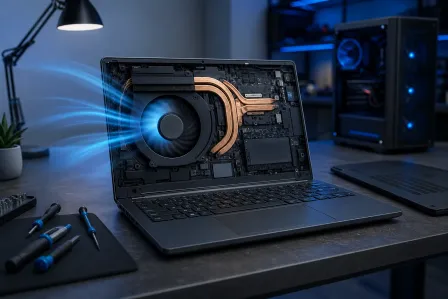
- Laptops: Fans can click if a wire is touching the blades. If the sound changes with fan speed, it might not be the drive.
If you want a second set of eyes, our laptop repair team can help confirm whether the sound is the HDD or something else inside the chassis.
When to stop DIY and go straight to professional hard drive repair and recovery
Here’s my friendly rule: if your data matters and the drive is making consistent clicking sounds, treat it like a “handle with care” situation. Some cases are recoverable with careful imaging. Others require clean-room tools and specialized parts. Either way, minimizing extra wear is the goal.
Stop immediately if you notice any of these
- Clicking is repetitive and does not stop after a minute.
- The drive is not detected reliably.
- Transfers start then fail repeatedly.
- You smell burning electronics or the drive is unusually hot.
- The drive was dropped and started clicking afterward.
What a pro typically does (in normal-human terms)
- Stabilize access to the drive long enough to copy data safely.
- Create a sector-by-sector image (a clone) to avoid repeated reads on the failing hardware.
- Recover files from the image instead of torturing the original disk.
And yes, sometimes malware can be part of the story (especially if the “clicking” is actually a stressed system with constant disk activity). If you suspect that, this resource can help you understand common red flags: Malwarebytes resources on malware symptoms and cleanup. If your PC is infected, our virus removal service can help clean it safely, but if the drive is physically clicking, data-first is still the priority.
Palm Beach County help: what to do if you’re in West Palm Beach or nearby
If you’re in Palm Beach County and you’re hearing clicking, you don’t have to figure this out alone. Fix My PC Store helps people across West Palm Beach and nearby areas like Palm Beach Gardens, Lake Worth Beach, Royal Palm Beach, Wellington, Greenacres, Jupiter, and Boynton Beach.
How to get ready before you bring it in
- Power it down if the clicking is constant.
- Do not run repair utilities “one last time.”
- Bring the whole device (laptop or desktop) if you’re not sure which drive is clicking.
- Tell us what happened: power outage, drop, slowdowns, recent errors. Details help!
If your computer is also running out of space and acting weird, that can complicate troubleshooting. Here’s a safe general guide from Microsoft: Microsoft Support guidance on freeing up drive space. (But again, if the drive is physically clicking, prioritize copying data first.)
After the recovery: preventing this scare next time
Once you’re stable again, we can make sure you never have to do the “click panic” dance twice.
Simple prevention that works
- Use a 3-2-1 backup plan: 3 copies, 2 types of storage, 1 offsite (cloud counts).
- Replace aging HDDs proactively if they store important data.
- Consider an SSD for your main drive for speed and reliability (SSDs can fail too, but they do not have moving parts).
You’ve got this. And if you’re reading this while your drive is actively clicking, your next best move is simple: protect the data first, then worry about everything else.
Need Expert Computer Support?
Get professional help from Palm Beach County's trusted computer repair specialists.
Get Help Today