Hard Drive Clicking? How to Diagnose & Recover Your Data
Listen to this article
TL;DR: A hard drive clicking noise usually means a mechanical problem inside a spinning HDD, often involving the read/write heads. The safest move is to stop using the drive immediately, protect what data you can, and choose a recovery path based on how severe the clicking is.
If you are hearing clicks right now, take a breath. This sounds scary, but I promise it is something you can respond to calmly and smartly. Let’s break this down together so you can save your data before the drive gets worse!
What a hard drive clicking noise actually means
A traditional hard disk drive (HDD) has spinning platters and tiny read/write heads that float extremely close to the surface. When things go wrong, the drive may make a repeated click-click sound as it tries to reposition the heads and re-read data.
In plain English: the drive is struggling to read. And the clicking is often the drive repeatedly “resetting” the head position to try again.
The most common causes of clicking in a mechanical hard drive
- Failing read/write heads (wear, damage, or misalignment)
- Head crash (the heads physically contact the platter surface)
- Bad sectors that the drive cannot reliably read
- Firmware issues that cause repeated recalibration attempts
- Power problems (weak power supply, unstable USB power, loose cables)
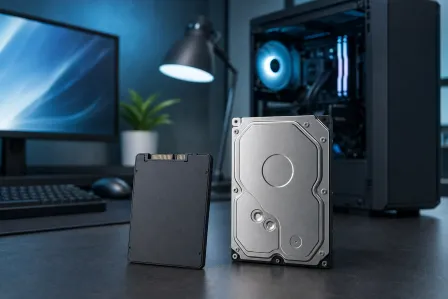
Important: Clicking is most commonly associated with HDDs, not SSDs. SSDs have no moving parts, so they do not “click” as a failure symptom.
Failing hard drive symptoms: how to confirm it is an HDD failure (safely)
When you are panicking, everything feels like a clue. You’ve got this. Here are the most common failing hard drive symptoms that often show up alongside clicking:
- Computer becomes extremely slow when opening files or booting
- Files randomly fail to open or become corrupted
- Frequent freezing, especially when accessing certain folders
- “Disk not recognized” or the drive disappears and reappears
- Boot errors like “No boot device” (if the clicking drive is your main drive)
Quick checks you can do without making things worse
- Listen for the pattern: Is it rhythmic clicking every second or two? Does it start during file access? Repeated clicking often means the drive cannot read critical areas.
- Check connections: If it is a desktop, power off and reseat the SATA data and power cables. If it is an external drive, try a different USB cable and a different USB port (preferably directly on the computer, not a hub).
- Check if the drive is detected: On Windows 10 or Windows 11, look in Disk Management. On macOS, check Disk Utility. Detection does not mean “healthy,” but it helps guide next steps.
Small win moment: if a loose cable was the issue and the clicking stops, that is a great sign. Still, back up immediately because an intermittent connection can look like drive failure and can also cause data corruption.
Hard drive head crash: why clicking is an emergency
Let’s talk about the big scary phrase: hard drive head crash. Not every clicking drive has a head crash, but clicking can be a warning that the heads are having trouble reading or positioning.
If the heads are damaged, continuing to run the drive can cause:
- More platter surface damage (which permanently destroys data)
- More failed reads, increasing stress and heat
- Worsening mechanical wear until the drive stops detecting entirely
This is why the best mindset is: every minute of unnecessary spinning is a risk. Your goal is to reduce drive activity and prioritize getting the most important data first.
What NOT to do with a clicking hard drive (this matters a lot)
I know the internet loves “quick fixes.” But with clicking HDDs, some common advice can make recovery harder or impossible. Here is your safety list.
Do not run CHKDSK, disk repair, or “optimize” tools
If the drive is clicking, it is already struggling to read. Tools like CHKDSK can cause heavy, repeated reads and writes while trying to fix file system structures. That is the opposite of what you want on a failing mechanical drive.
On Windows, that includes letting Windows automatically “scan and fix” the drive when it prompts you. If the data matters, skip repairs and focus on copying or cloning.
Do not keep rebooting and “trying again”
Every reboot forces the drive to reinitialize and seek. Repeated clicking cycles can accelerate failure. If you have already heard clicking more than once, treat it as urgent.
Do not freeze the drive or open it
Old myths die hard! Freezing can cause condensation and corrosion. Opening the drive outside a cleanroom can let dust land on platters, which is catastrophic. This is one of those learning moments where doing less is doing more.
Do not install recovery software onto the failing drive
Installing anything to the same drive can overwrite recoverable data and adds extra writes. If you use recovery software at all, it should run from a different healthy drive.
HDD failure diagnosis: decide your safest recovery path
Now let’s get practical. The right move depends on two things:
- How valuable your data is (family photos, business files, QuickBooks, legal docs, etc.)
- How “stable” the drive is (detects reliably vs. disconnecting and clicking constantly)
Scenario A: The drive clicks once at startup, then works
This can happen with some drives, but it is still a red flag in 2026. If the drive works, your mission is simple: copy the most important files first to another drive.
- Start with irreplaceable folders (Photos, Desktop, Documents)
- Copy in small batches so the drive is not hammered for hours
- If it starts clicking repeatedly, stop
After you are backed up, plan a replacement drive. If you want help with the swap, our computer repair service team can handle the hardware side safely.
Scenario B: The drive clicks repeatedly, runs slow, or disconnects
This is where data recovery from a clicking drive gets tricky. File-by-file copying may fail because the drive cannot reliably read certain areas.
The safer approach is often to clone the drive to a healthy drive using tools designed to handle read errors gently. If you are not familiar with cloning, it is okay. You do not need to be a tech expert to make a smart decision here. The smart decision might be: stop and call a pro before the drive gets worse.
If this is a laptop drive, our laptop repair service can help with careful removal and testing so you do not accidentally stress the drive further.
Scenario C: The drive is not detected, or clicking is loud and constant
This is the “hands off” zone. Loud repeating clicks, no detection, or a drive that spins down quickly can indicate severe mechanical failure (including head issues). At this point, DIY attempts can reduce what a cleanroom recovery can retrieve.
Best move: power it down and seek professional recovery.
Save data before the drive dies: your calm, step-by-step action plan
Okay. Here is your simple plan. You can do this!
Step 1: Stop using the drive for anything unnecessary
- If it is your main drive and the PC is still running, avoid opening programs and browsing around.
- If it is an external drive, eject it and disconnect it until you are ready to copy.
Step 2: Prioritize what matters most
If you only get 10 minutes of access, what would you grab first? Make a quick list:
- Photos and videos
- Work folders and project files
- Email archives
- Financial and legal documents
Step 3: Copy to a separate healthy drive (not the same one)
Use an external SSD or HDD with enough free space. Copy small batches. If the drive starts clicking more or slows to a crawl, pause and reassess.
If you are on Windows, Microsoft has a helpful overview of built-in backup options here: Microsoft Support: Back up and restore with Windows Backup.
On Mac, Time Machine is the go-to when your drive is healthy. If you can still access your data, Apple’s guide is here: Apple Support: Use Time Machine to back up or restore your Mac.
Step 4: If copying fails, stop and switch to a safer strategy
If you hit repeated errors, freezing, or constant clicking, do not keep pushing. This is where professional tools and clean handling make a huge difference.
Clicking hard drive fix: what is realistic (and what is not)
Let’s set expectations kindly and clearly: there is rarely a true “clicking hard drive fix” that repairs the mechanics and keeps the drive reliable. Clicking is usually a symptom of mechanical hard drive failure, and mechanical parts do not heal.
What is realistic:
- Recover data from the drive (DIY in mild cases, professional in severe cases)
- Replace the drive and restore your files to a new, healthy storage device
- Set up a backup routine so this never becomes a crisis again
Also worth noting: sometimes clicking is caused by power instability (especially with bus-powered external drives). Trying a different cable or powered USB hub can help with detection, but if the clicking continues, treat it as drive failure.
When professional data recovery is the only safe option
If your data is valuable or the drive is behaving badly, professional recovery is often the safest, least expensive option in the long run. (Because repeated DIY attempts can turn a recoverable drive into a dead one.)
Choose pro recovery if you notice any of these
- Constant clicking or grinding
- The drive is not detected in BIOS/UEFI or Disk Management
- The drive disconnects during copying
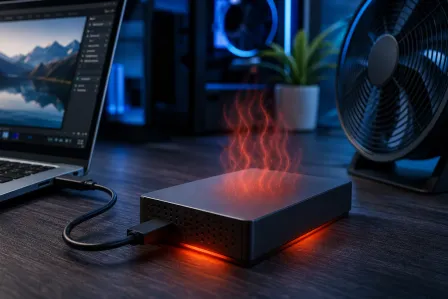
- You smell burning electronics or the drive gets unusually hot
- The drive was dropped or hit (common with external drives and laptops)
Hard drive recovery in Palm Beach County: what we can do locally
At Fix My PC Store in West Palm Beach, we help customers across Palm Beach County (including West Palm Beach, Palm Beach Gardens, Lake Worth, Boynton Beach, Wellington, Royal Palm Beach, and Jupiter) with recovery-focused diagnostics and safe next steps.
If you are dealing with a clicking HDD, start here: professional data recovery services. We can help you figure out whether your case is a straightforward logical recovery or a more delicate mechanical failure situation.
And if the clicking drive is part of a bigger computer stability issue, our computer repair team can help you replace the drive, reinstall Windows 10 or Windows 11, and get you running smoothly again.
After you recover: how to prevent this panic next time
This is the part where we turn a stressful moment into a future win. Here are simple habits that make drive failure way less scary:
Use the 3-2-1 backup rule
- 3 copies of your data
- 2 different types of storage (external drive + cloud, for example)
- 1 copy offsite (cloud counts)
Watch for early warning signs
Slowdowns, file corruption, and weird noises are your early alerts. If you catch them early, recovery is often easier and cheaper.
Rule of thumb: if you hear new noises, back up that day
Seriously. That one habit saves people all the time.
One more thing: clicking can feel like malware, but it is usually hardware
Sometimes people hear clicking, see slowness, and assume it is a virus. Clicking is typically mechanical, but slowness can be both. If you suspect you have both a failing drive and an infection, do not worry, that is solvable too.
For system cleanup and security help, our virus removal service can help you get back to a stable, safe setup after your data is protected.
Need Expert Computer Support?
Get professional help from Palm Beach County's trusted computer repair specialists.
Get Help Today