Hard Drive Clicking? Data Recovery Steps Before It Dies (2026)
Listen to this article
TL;DR: A hard drive clicking noise is often a serious warning sign, and every extra minute of use can reduce your chances of recovery. The safest move is to stop “normal” use, protect the drive from further damage, and focus on copying data out (or cloning the drive) before trying repairs.
Let’s break this down like we’re sitting at the same desk together. If your hard drive has started clicking, you are not doomed... but you are on a clock. The goal is simple: recover data before the drive fails completely. You’ve got this!
What a hard drive clicking noise usually means (and why it’s urgent)
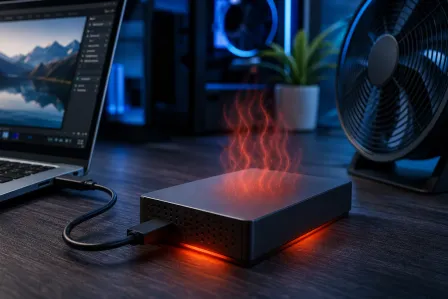
Traditional hard disk drives (HDDs) have moving parts: spinning platters and a read/write head that “floats” over the surface. When you hear clicking, it often means the drive is struggling to position that head correctly, or it’s repeatedly retrying reads.
Common clicking patterns and what they suggest
- Click... click... click (repeating): Often called the “click of death.” The drive may be failing to read servo data or recalibrate the head.
- Clicking during file access: The drive may be hitting bad sectors and retrying over and over.
- Clicking plus spin-up/spin-down: Power issues, failing motor, or internal damage that prevents stable operation.
Important note: not every weird sound is catastrophic. But a hard drive clicking noise is one of the clearest “stop and protect your data” signals you can get.
Dying hard drive symptoms and HDD failure warning signs to watch for
Clicking is loud, but other signs can be sneakier. If you notice any of these dying hard drive symptoms, treat them like a fire drill for your files.
Top HDD failure warning signs
- Frequent freezing when opening folders or saving files
- Files taking forever to copy, open, or preview
- Corrupted files that suddenly won’t open
- “Disk not recognized” or the drive disappears and reappears
- SMART warnings (some PCs show these at boot or in drive utilities)
- Boot failures or Windows taking much longer to start than usual
If you’re a small business owner storing QuickBooks files, project folders, photos, or client docs locally, this is the moment to prioritize data safety over “getting the computer working again.” We can fix the computer later. First, we save the irreplaceable stuff.
What NOT to do with a clicking drive (this is where people accidentally make it worse)
This sounds complicated, but I promise it’s not. The mistake most people make is trying the “normal repair checklist” on a drive that is physically failing. When a drive is clicking, it can be unstable, and heavy read/write activity can push it over the edge.
Do not run CHKDSK or “repair disk” tools on a clicking HDD
Tools like CHKDSK can be great for logical file system issues. But on a failing drive, they can cause lots of extra reads and writes. That can accelerate damage and turn a recoverable situation into a data recovery failed drive scenario.
Do not reinstall Windows or “reset this PC”
Reinstalling can overwrite data and forces the drive to work hard for a long time. If your drive is already clicking, that is the opposite of what we want.
Do not keep rebooting and “trying again”
Every boot attempt can mean more head movement, more retries, and more heat. If it boots once, that can be your one good window to copy the most important data.
Do not open the drive
Hard drives require a clean-room environment to open safely. Dust you can’t even see can damage the platters. If you’ve ever watched a “DIY drive surgery” video and felt tempted, I get it! But this is one of those times where curiosity can be expensive.
Safe data recovery steps for a failed drive (at-home triage)
Okay. Here’s the good news: you can absolutely do a careful, safer “triage” at home. The strategy is to minimize drive activity and get the most important data first.
Step 1: Stop using the drive for anything non-essential
- If it’s a desktop with a secondary HDD: shut down and unplug it until you’re ready to copy.
- If it’s your boot drive: avoid normal use. No updates, no big downloads, no cleanup utilities.
Small win moment: deciding to pause is already the right move!
Step 2: Gather what you need (keep it simple)
- A healthy external drive (USB) with enough free space for what you want to save
- If it’s a desktop internal drive: a SATA-to-USB adapter or external dock can help
- Time and patience (seriously, rushing is how mistakes happen)
Step 3: Prioritize your data like a pro
If the drive is unstable, you might not get everything. So grab the “can’t replace” items first:
- Documents, spreadsheets, PDFs
- Photos and videos
- Business databases (QuickBooks company files, project files)
- Browser bookmarks/export, email archives (if stored locally)
Tip: Copy in smaller batches (one folder at a time). If a copy hangs on one folder, skip it and come back later.
Step 4: If Windows still boots, copy files out with the least stress possible
If you can log in, do the simplest thing that works:
- Plug in your external drive.
- Copy your priority folders (Desktop, Documents, Pictures) first.
- If it starts clicking more, slows dramatically, or freezes: stop and shut down.
Need help finding your files? Microsoft has solid, straightforward navigation resources here: Microsoft Support for Windows troubleshooting.
Step 5: If the drive is not your boot drive, consider copying from another computer
For a secondary HDD, it can be safer to connect it externally to a healthy PC and copy data off. This avoids booting from the failing drive and reduces unnecessary activity.
If it’s a laptop drive, and you’re not comfortable opening the laptop, that’s totally normal. That’s a great time to use a professional laptop repair service to remove and connect it safely.
Step 6: Cloning is safer than “browsing and copying” (when the drive is really struggling)
If the clicking is frequent, the safest DIY approach is often to clone the drive to a healthy drive and then recover files from the clone. Why? Because cloning tries to capture as much as possible in a controlled pass, instead of lots of random reads while you browse folders.
Cloning tools exist, but results vary widely depending on how damaged the drive is. If the drive is clicking hard or dropping offline, cloning attempts can also fail. That’s your sign to stop and move to professional recovery.
When to stop DIY and call a pro (seriously, this can save your data)
Here’s my rule of thumb: if your drive is making new noises, disappearing, or causing the computer to freeze during copying, it’s time to stop experimenting. Mistakes are learning moments, but with clicking drives, the “tuition” can be your data.
Bring it in immediately if you notice any of these
- Loud, repeated clicking that starts right after power-on
- Drive not detected in BIOS/UEFI or Disk Management
- Copying fails constantly or the PC locks up when the drive is accessed
- Critical business data where downtime is expensive
If you’re in Palm Beach County, our team at Fix My PC Store can help with professional data recovery and safe diagnostics. We handle data rescue cases across West Palm Beach and nearby areas like Palm Beach Gardens, Lake Worth Beach, Boynton Beach, Wellington, Royal Palm Beach, Jupiter, and Delray Beach.
Hard drive repair Palm Beach: what professionals do differently
When people search hard drive repair Palm Beach, what they usually need is not “repair” in the traditional sense. Most clicking drives have mechanical or internal issues. The priority becomes:
- Stabilize the device (power, connection, controlled environment)
- Image the drive using specialized hardware and methods designed for failing media
- Recover data from the image, not the unstable original
- Protect privacy and keep chain-of-custody for business clients
Once your data is safe, we can help you get back up and running with computer repair options like replacing the drive, reinstalling Windows 10 or Windows 11 properly, and setting up backups so this doesn’t become a yearly stress event.
Hard drive rescue 2026: how to prevent the next panic (backup basics that actually work)
After a scare like this, you’re going to be backup-aware forever. And honestly? That’s a power-up.
A simple 3-2-1 backup plan (friendly version)
- 3 copies of important data
- 2 different types of storage (external drive + cloud, for example)
- 1 offsite (cloud counts)
Also, if you suspect malware played a role (sudden corruption, strange popups, encrypted files), pause and get help. A compromised PC can ruin clean backups too. We can check for threats with our virus removal service, and Malwarebytes has great educational reads here: Malwarebytes Blog and security resources.
Upgrade tip: SSDs are different (and usually quieter)
SSDs have no moving parts, so they don’t click. They can still fail, but the failure symptoms look different. If your system is still on an older HDD, upgrading to an SSD can be one of the biggest “my computer feels new again” wins you’ll ever do.
Quick checklist: what to do right now if your drive is clicking
- Stop using the computer for anything not related to recovery.
- Do not run CHKDSK, “repair disk,” or reinstall Windows.
- Copy the most important files first in small batches.
- If copying freezes or clicking gets worse, power down.
- Contact a pro for data recovery for a failed drive before it becomes unrecoverable.
You’re not behind, and you’re not “bad at computers.” This is just how hardware behaves sometimes. The win is acting early!
Need Expert Computer Support?
Get professional help from Palm Beach County's trusted computer repair specialists.
Get Help Today