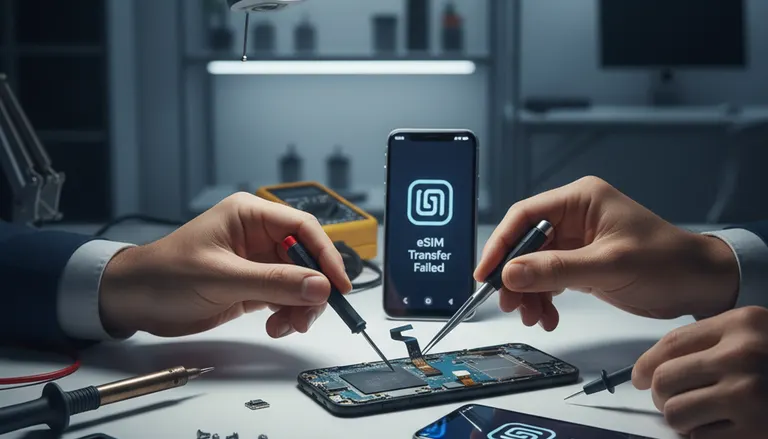
eSIM Transfer Failure in 2026: Fixes After Phone Repairs
Listen to this article
Look, I’m not judging your 8-hour screen time report. Okay, maybe a little. But I am judging the number of people who walk into Fix My PC Store with a freshly repaired phone and a brand-new problem: eSIM transfer failure. It’s 2026, carriers are leaning harder into eSIM-only activations, and device verification is tighter than ever. The result? “No Service,” “eSIM stuck activating,” and the classic “my carrier QR code not working” meltdown right after a screen or battery repair.
Good news: most of these are fixable without summoning tech support purgatory. Even better news: when it’s not fixable at home, we can usually tell if it’s a carrier provisioning issue or a real hardware problem (like an antenna contact not seated right) so you don’t waste days doing the same steps over and over.
Why eSIM transfer failure happens more often in 2026
eSIM is awesome when it works. No tiny SIM card to lose. No paperclip surgery. But eSIM depends on software + carrier provisioning + device identity all agreeing with each other. After repairs, swaps, or updates, that handshake can break.
Common triggers I see all the time
- Carrier verification got stricter: Carriers often validate the phone’s identity (IMEI) and activation status more aggressively now, especially for eSIM-only lines.
- Post-repair “No Service” panic: A screen repair shouldn’t touch your baseband or eSIM, but it can expose issues like a loose antenna contact or damaged coax cable that was already hanging on by a thread.
- Device-to-device transfers fail: Moving from old phone to new phone can stall, especially if Wi-Fi is flaky or the carrier hasn’t released the eSIM from the previous device.
- Updates reset network behavior: iOS and Android updates can trigger re-registration with the network. If the carrier profile is outdated or provisioning is incomplete, activation can fail.
Symptoms: what “eSIM transfer failure” looks like in real life
Different phones, same headache. Here’s what customers usually report:
- iPhone eSIM not activating after repair or iOS update
- Android eSIM activation error (often after a device swap or QR scan)
- Carrier QR code not working or “invalid code” messages
- eSIM stuck activating (spinning wheel that never ends)
- No service after screen repair even though Wi-Fi works fine
- IMEI not recognized or “device not eligible” from the carrier
Before you do anything: quick checks that prevent dumb mistakes
Let me save you a headache. Do these first, because they solve a surprising number of cases and they cost exactly $0.
1) Check your Wi-Fi and time settings
- Use stable Wi-Fi (not the one bar coffee shop special).
- Turn off VPN temporarily.
- Make sure Date & Time is set automatically. Activation can fail if your clock is wrong.
2) Confirm your line is actually active with the carrier
If the carrier suspended your line for non-payment or flagged a transfer, your phone can be perfect and still show “No Service.” Log into your carrier account and verify the line status.
3) Restart like you mean it
This is the phone repair equivalent of “turn it off and on again” and yes, it actually works. Power off fully, wait 20 seconds, power back on. If you toggled Airplane Mode 37 times already, congratulations, you invented anxiety. Do a real reboot.
iPhone eSIM not activating: safe fixes that actually help
Apple’s eSIM flow is usually smooth, until it isn’t. If your iPhone eSIM not activating after a repair, do these in order.
Step 1: Check for iOS updates and carrier settings updates
- Go to Settings > General > Software Update.
- Then go to Settings > General > About and wait a moment. If a carrier settings update pops up, install it.
Step 2: Verify your eSIM is present and selected
- Settings > Cellular: confirm your plan appears.
- Make sure the line is turned on and set as the default for cellular data if needed.
Step 3: iOS eSIM reset (the careful version)
If the eSIM is corrupted or half-provisioned, you may need to remove it and re-add it. Warning: only do this if you have a way to re-download the eSIM (carrier app, QR code, or carrier support ready).
- Go to Settings > Cellular
- Tap the plan and choose Remove Cellular Plan
- Re-add via carrier app or Add eSIM and follow prompts
Step 4: Reset Network Settings
This clears saved Wi-Fi networks and network configs, which often fixes the “stuck activating” loop.
- Settings > General > Transfer or Reset iPhone > Reset > Reset Network Settings
If you’re still seeing No Service, Apple has a solid baseline checklist here: Apple Support: If you see No Service or Searching on your iPhone.
Android eSIM activation error: what to try without making it worse
Android gives you more knobs and switches, which is great until you flip the wrong one at 1 a.m. If you’re getting an Android eSIM activation error, here’s the clean approach.
Step 1: Confirm the phone supports eSIM and is unlocked
- Not every Android model supports eSIM, and some carrier variants restrict it.
- If the phone is carrier-locked, eSIM activation with another carrier will fail.
Step 2: Remove old eSIM profiles you’re not using
Some devices keep multiple profiles. If an old profile is conflicting, delete it (only if you’re sure you don’t need it).
Step 3: Android network reset
Exact menu names vary by brand, but you’re looking for resetting Wi-Fi, mobile, and Bluetooth.
- Typically: Settings > System > Reset options > Reset Wi-Fi, mobile & Bluetooth
Step 4: Try activation via carrier app if the QR code fails
If the carrier QR code not working is your main issue, the carrier’s app sometimes provisions the eSIM more reliably than the camera scan flow.
For general Android network troubleshooting guidance, Google’s steps are a good reference point: Google Pixel Help: Fix mobile network issues.
Carrier QR code not working: the non-obvious reasons
QR codes feel foolproof. They are not. Here’s why they fail in the real world:
Bad scan conditions
- Cracked camera lens or smudged lens (yes, wipe it)
- Low light or glare on the paper/screen
- Zoomed camera or “document scanning” mode interfering
Wrong QR for your device or line
- Some carriers issue QR codes tied to a specific IMEI or activation attempt.
- If you already tried and it partially provisioned, you may need a new QR code.
Provisioning is blocked upstream
If the carrier’s system still thinks your old phone has the eSIM, the new phone can scan perfectly and still fail. That’s not your camera’s fault. That’s the carrier needing to “release” the line for reactivation.
eSIM stuck activating: what it usually means
“Stuck activating” is usually one of these:
- Carrier provisioning lag (the line isn’t fully assigned yet)
- Network registration issue (device can’t attach to the network)
- Corrupted profile (download started but didn’t finish)
What to do
- Stay on strong Wi-Fi and keep the phone plugged in for 10-15 minutes.
- Restart once.
- If it’s still stuck, remove the eSIM (only if you can re-add it) and re-provision.
No service after screen repair: carrier issue or hardware issue?
This is where my repair-brain kicks in. A screen repair doesn’t “erase” your eSIM. But it can reveal or cause physical connectivity issues that look exactly like an activation failure.
When it’s probably carrier/provisioning
- Cellular was already flaky before the repair
- eSIM transfer failed during a phone-to-phone move
- Phone shows the eSIM plan but won’t register on the network
When it might be hardware (and you should stop wasting time on resets)
- Sudden No Service immediately after repair and it never returns
- Phone can’t detect any cellular signal anywhere (multiple locations)
- Intermittent service when you press or flex the frame (please don’t do that much)
Insider tip: sometimes a phone comes in with an older drop damage issue, and the screen repair is just the moment the cellular antenna contact finally says “I’m done.” I miss the simplicity of my retro flip phones sometimes. Those things survived everything except your texting habits.
IMEI not recognized: what it means and what you can do
If your carrier says IMEI not recognized or “device not eligible,” that’s usually an account-side or database-side block, not an eSIM menu problem.
Common causes
- Carrier database mismatch: IMEI not properly registered to your line after a swap.
- Device locked status: Phone is still locked to another carrier.
- Account verification required: Some activations require extra verification steps.
What helps
- Confirm the IMEI in Settings matches what you gave the carrier.
- Ask the carrier to update the IMEI on the line and reissue the eSIM (new QR or app push).
- If you bought the phone used, confirm it’s not reported lost/stolen (carriers will block those).
When a repair shop can help (and what we actually check)
At Fix My PC Store, we’re not your carrier. We can’t force a carrier to provision an eSIM faster. But we can save you time by confirming whether your issue is likely software, provisioning, or hardware.
What we can do quickly
- Verify basic cellular behavior (signal detection, band scanning symptoms, consistent No Service).
- Check for obvious post-repair hardware issues (antenna contacts, flex seating, frame pinch points).
- Guide safe steps like iOS eSIM reset and Android network reset without nuking your data.
- Document what’s happening so your carrier support call is shorter and less painful.
If you need hands-on help, start with our smart device repair service. For Apple-specific issues (including “No Service” after a repair), book iPhone repair and cellular troubleshooting. Team Android? We’ve got you too with Samsung repair and network diagnostics.
Palm Beach County eSIM help: where we see this most
We help customers across Palm Beach County who need eSIM troubleshooting after repairs, upgrades, and “I swear I didn’t change anything” updates. If you’re in or near West Palm Beach, Palm Beach Gardens, Lake Worth, Boynton Beach, Wellington, Royal Palm Beach, or Jupiter, you’re in our usual orbit.
How to show up prepared (and get fixed faster)
- Your carrier login (or account PIN if required)
- The phone’s IMEI (screenshot it)
- Any QR code or activation details you were provided
- A quick note: did it fail after a repair, a swap, or an update?
Myth corner: “A screen repair deletes your eSIM”
Nope. A screen repair doesn’t erase your eSIM profile by magic. What it can do is coincide with:
- a pending carrier reprovisioning
- an update that triggers re-registration
- a hardware connectivity issue that finally shows itself
Also, while I’m here: please use a case. I sigh about this professionally.
Need Expert Mobile Device Repair?
Get professional iPhone, iPad, and Samsung repair from Palm Beach County's trusted mobile device specialists.
Get Device Help