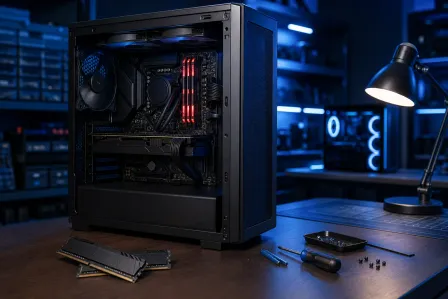
DDR5 RAM Errors 2026: Diagnose Crashes Before You Replace
Listen to this article
TL;DR: In 2026, DDR5 RAM errors 2026 are one of the sneakiest reasons for BSODs, random reboots, game crashes, and “it worked yesterday” boot failures, especially after enabling XMP or EXPO. Before you throw money at new sticks, run a clean, step-by-step memory diagnostic process to prove whether RAM is actually the villain.
Alright Palm Beach County gamers, let’s talk about the most annoying kind of problem: the kind that looks like a GPU issue, a Windows issue, or “my PC is haunted,” but it’s actually unstable memory. With DDR5 adoption surging in 2026 on modern Intel and AMD builds, we’re seeing more systems hit instability when profiles get aggressive, BIOS settings drift, or modules are slightly mismatched. The good news? You can diagnose this like a pro and save yourself a ton of cash.
Why DDR5 RAM errors happen more often in 2026 builds
DDR5 is an absolute beast. Higher bandwidth, better efficiency, and it can feed high-FPS gaming like it’s handing frames out like candy. But here’s the trade: DDR5 platforms are more sensitive to configuration than the old “plug DDR4 and forget it” days.
DDR5 + XMP/EXPO is fast, but it can be spicy
XMP (common on Intel boards) and EXPO (common on AMD boards) are pre-tuned memory profiles. Flip them on and boom, your RAM jumps to its rated speed and timings. When it works, it’s butter smooth gameplay. When it doesn’t, you get:
- Random BSODs (blue screen RAM error vibes)
- Games crashing to desktop
- Browser tabs dying like they just got one-tapped
- Boot loops or no POST after a BIOS change
Why? Because those profiles are still an overclock. And overclocking is art. Sometimes you need a tiny tweak to make it stable, especially with mixed kits, high capacities, or four DIMMs installed.
Common DDR5 instability triggers (aka the usual suspects)
- Mismatched sticks (same brand does not always mean same memory chips)
- 4-DIMM setups running high speeds (harder on the memory controller)
- BIOS updates that change memory training behavior
- Too-tight timings from XMP/EXPO or manual tuning
- Heat in small cases or laptops (yes, laptops can get RAM instability too)
Symptoms: How to tell if RAM is causing crashes
Let me paint the picture. If your PC is “cracked” one moment and then faceplants the next, RAM instability is on the shortlist. Here are the big signs.
Blue screen RAM error patterns to watch
Some BSOD codes are more RAM-suspicious than others. You might see:
- MEMORY_MANAGEMENT
- IRQL_NOT_LESS_OR_EQUAL
- PAGE_FAULT_IN_NONPAGED_AREA
- KMODE_EXCEPTION_NOT_HANDLED
Important: these codes can also be drivers, storage, or even CPU instability. That’s why we test instead of guessing. If you want the official Microsoft breakdown of bug checks, this reference is handy: Windows bug check (BSOD) code reference.
App crashes and corrupted installs
If you’re getting weird stuff like game files “randomly” corrupting, installers failing, or zip files extracting with errors, that can be unstable memory writing bad data. GG to anyone trying to troubleshoot that by reinstalling Windows three times. Let’s do this the smart way.
Memory diagnostic PC checklist: what to do before running tests
Before you run a full memory test marathon, set yourself up for clean results. This is the difference between “it runs” and “it FLIES,” because you’re eliminating variables.
Step 1: Back up anything important first
Unstable RAM can corrupt data. If you’ve got family photos, school stuff, or your content creation files, back them up before you start tweaking BIOS settings. If your system is already acting wild and you need help saving data safely, our data recovery service can help you avoid turning “random crashes” into “permanent loss.”
Step 2: Return memory settings to known-good defaults
Go into BIOS/UEFI and set memory to defaults:
- Disable XMP/EXPO temporarily
- Leave timings on Auto
- Leave CPU and GPU overclocks off during diagnosis
Yes, I love overclocking. It’s a vibe. But when we’re diagnosing, we want baseline stability first.
Step 3: Reseat RAM and check the basics
- Power off, unplug, hold power button for a few seconds
- Reseat RAM firmly until both latches click
- Check for dust or debris in DIMM slots
- Confirm you’re using the recommended slots (usually A2 and B2 for two sticks)
If you’re not comfortable cracking the case, no shame. That’s literally why we exist. Our computer repair team in West Palm Beach does hardware-level diagnostics all day.
Memory test Windows 11: built-in tools that are actually useful
Windows 11 has a built-in memory test that’s quick to launch. It’s not the most brutal stress test ever, but it’s a solid first pass.
Run Windows Memory Diagnostic
- Press Start and search for Windows Memory Diagnostic
- Choose Restart now and check for problems
- Let it run and reboot back into Windows
Microsoft’s official steps are here: Use Windows Memory Diagnostic to test RAM.
Check results in Event Viewer
After you’re back in Windows:
- Open Event Viewer
- Go to Windows Logs - System
- Search for MemoryDiagnostics-Results
If it reports errors, that’s a big red flag. If it reports no errors but you still crash, don’t declare victory yet. Intermittent DDR5 instability can dodge light tests like a clutch player.
DDR5 troubleshooting with deeper testing (the real stability grind)
If you want higher confidence, you need a more aggressive memory test. This is where you catch the “only crashes after 45 minutes of gaming” gremlin.
Use a bootable memory test for multiple passes
A common approach is using a bootable memory testing utility (run outside Windows). The goal is to run multiple passes and look for any errors. With RAM, even a single error can be too many because it means your data is being corrupted under load.
Pro tip: If errors show up only when XMP/EXPO is enabled, your sticks might be fine. Your settings might not be.
Test one stick at a time (and one slot at a time)
This is the most “trading card comparison” way to isolate the culprit:
- Test Stick #1 in the recommended slot
- Test Stick #2 in the same slot
- If one fails and one passes, you likely found the bad module
- If both pass alone but fail together, it can be memory controller stress, BIOS settings, or too aggressive profile
- If a stick fails only in one slot, you might have a motherboard slot issue
This process takes time, but it saves money. And it keeps you from rage-buying RAM at 2 a.m. after the third crash in a ranked match.
DDR5 instability fix: settings that improve stability without nuking performance
Now we get to the fun part: turning a crashy rig into a stable monster rig without sacrificing all your FPS.
Fix 1: Drop frequency one step
If your kit is rated for a high speed and it’s unstable, try stepping down one notch in BIOS. The real-world FPS difference is often small compared to the stability gain, especially if you were crashing mid-game. Stable frames beat theoretical frames every time.
Fix 2: Use the correct profile and update BIOS (carefully)
Make sure you’re using the correct profile (XMP or EXPO) for your platform. Also, BIOS updates can improve memory compatibility. If you update BIOS, follow the motherboard vendor’s instructions exactly and do not interrupt power.
Fix 3: Avoid mixing RAM kits
Even two “identical” kits bought separately can behave differently. For DDR5, a single matched kit is the cleanest path. If you want 64 GB, buy a matched 64 GB kit rather than adding another 32 GB kit later. Your future self will thank you.
Fix 4: Check temps and airflow
Heat can turn borderline-stable settings into a crash festival. Make sure your case airflow is solid, fans are oriented correctly, and nothing is cooking. Laptops can be extra sensitive here, so if your portable gaming or work machine is crashing, our laptop repair service can help diagnose thermal and stability issues safely.
PC crash diagnosis: don’t let RAM errors distract you from malware or storage issues
Not every crash is RAM. Sometimes it’s a driver conflict, failing SSD, or malware doing shady stuff in the background. Here’s how to sanity-check that you’re not chasing the wrong target.
Rule out malware (yes, it can mimic instability)
If you’re seeing browser redirects, weird popups, or suspicious background processes, do a malware scan. Malware can cause freezes and crashes that look like hardware instability. If you want a pro to handle it end-to-end, check our virus removal service.
Check storage health if Windows files keep corrupting
If Windows updates fail repeatedly, games re-download the same files, or you see disk-related errors, your SSD or HDD could be the problem. RAM can corrupt data, but so can failing storage. A proper PC crash diagnosis checks both.
When to replace DDR5 RAM (and when not to)
Here’s the honest gamer-to-gamer truth:
- Replace RAM if you get repeatable errors at default settings, or one stick consistently fails testing.
- Do not replace RAM yet if it only fails with XMP/EXPO enabled. That often means you need tuning, a BIOS update, or a different configuration.
- Do not shotgun-buy parts if you have multiple possible causes. Diagnose first, then spend.
Palm Beach County DDR5 troubleshooting help (when you want it done right)
If you’re in West Palm Beach or anywhere in Palm Beach County and your rig is crashing, boot looping, or throwing BSODs, Fix My PC Store can run a proper hardware-level diagnostic. We’ll isolate whether it’s RAM, motherboard, storage, drivers, or something else, and we’ll show you the receipts (test results) so you’re not guessing.
Need hands-on help right now? Start here: professional computer repair and crash diagnostics.
Need Expert Computer Support?
Get professional help from Palm Beach County's trusted computer repair specialists.
Get Help Today