CPU Overheating: How to Diagnose and Fix It Before It Fails
Listen to this article
TL;DR: A CPU running too hot is one of the most common reasons computers slow down, freeze, or shut off without warning. The good news? You can spot the warning signs early, use free tools to check your processor temperature, and take real steps to fix it. Let's walk through this together so you can stop the problem before it turns into something worse.
Why CPU Overheating Is a Bigger Deal Than You Might Think
Here's something a lot of people don't realize: your computer is constantly managing heat. Your CPU - the brain of your machine - generates serious heat every single second it's working. And when that heat doesn't escape fast enough, things start going wrong.
We're talking slowdowns, random shutdowns, and in serious cases, permanent hardware damage. The tricky part is that overheating often disguises itself as other problems. Your computer feels sluggish, and you think it needs more RAM. It shuts off unexpectedly, and you wonder if it's a software glitch. But the real culprit? Heat.
The good news is that once you know what to look for, this is very diagnosable. And a lot of the time, it's very fixable too!
Warning Signs Your Computer Is Running Too Hot
Let's start with the symptoms. Your computer is actually pretty good at telling you something is wrong - you just need to know the language it's speaking.
Thermal Throttling: When Your CPU Slows Itself Down on Purpose
This one surprises a lot of people. When your processor gets too hot, it doesn't just give up - it actually throttles itself. That means it deliberately runs slower to reduce heat output. This is called thermal throttling, and it's your CPU's built-in self-protection system.
The symptom? Your computer feels inexplicably slow even though nothing obvious has changed. Tasks that used to be fast now crawl. Videos stutter. Programs take forever to open. If this is happening and your machine feels warm to the touch, thermal throttling is a very likely culprit.
Random Shutdowns and Restarts
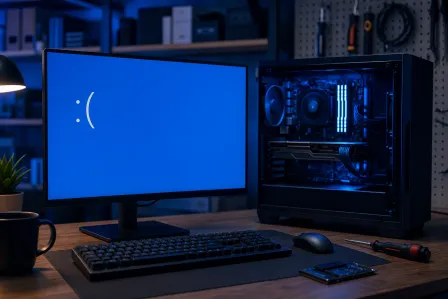
If your computer shuts off without warning - especially during heavy tasks like gaming, video editing, or running multiple programs at once - that's a classic overheating signal. Your system has a thermal limit, and when the processor temperature blows past it, the computer shuts down to protect itself. Think of it as an emergency brake.
Loud Fan Noise
Is your fan suddenly sounding like a jet engine? That's it working overtime trying to cool things down. Fans that are constantly running at max speed, or fans that make grinding or rattling noises, are telling you something important. Either the cooling system is overwhelmed, or there's a cpu fan failure starting to develop.
Physical Heat You Can Feel
Laptops especially will get uncomfortably hot on the bottom or around the keyboard area. If you can't comfortably hold your laptop on your lap, that's not normal. Desktops will pump very hot air out of their vents. Both are worth paying attention to.
How to Check Your Processor Temperature with Free Tools
Okay, here's where it gets fun. You don't need to guess whether your CPU is overheating - you can actually see the numbers in real time. And it's completely free to do.
The Best Free Temperature Monitoring Tools
For Windows users, two tools stand out. Core Temp is simple and focused - it shows you exactly what each CPU core is running at. HWiNFO goes deeper and gives you a full picture of your system's health including temperatures, fan speeds, and voltage readings. Both are free to download and easy to use.
You can also check Microsoft's official tips for improving PC performance for additional built-in Windows diagnostics that can help you spot performance issues tied to heat.
What Are Normal vs. Dangerous CPU Temperatures?
Here's a quick reference to make sense of what you're seeing:
- Idle (computer on, not doing much): 30-50°C is totally normal
- Under moderate load (browsing, documents): 50-70°C is fine
- Under heavy load (gaming, video rendering): 70-85°C is acceptable for most CPUs
- Above 90°C: This is the danger zone - throttling and shutdowns are likely
- Above 100°C: Serious risk of permanent damage - act immediately
Run your temperature monitor while doing something demanding (open a bunch of browser tabs, play a game for a few minutes) and watch what happens. If those numbers climb into the danger zone, you've confirmed the problem. That's actually a win - because now you know exactly what you're dealing with!
Common Causes of CPU Overheating
Now let's talk about why this happens. Understanding the cause points you straight to the fix.
Dried Out or Missing Thermal Paste
Between your CPU and its heat sink sits a thin layer of thermal paste - a special compound that helps transfer heat efficiently. Over time (usually after 3-5 years), this paste dries out, cracks, or loses its effectiveness. When that happens, heat transfer gets terrible and temperatures spike. This is actually one of the most common causes of overheating in older machines, and it's very fixable.
Dust Buildup Blocking Airflow
Dust is the silent enemy of every computer. It builds up on fans, clogs heat sink fins, and blocks the vents that let hot air escape. A heavily dusted machine can run 20-30°C hotter than a clean one. If you haven't cleaned your computer in a year or more, dust is probably part of the story.
CPU Fan Failure
Your CPU fan is the first line of defense against overheating. When it slows down, stops spinning, or fails completely, temperatures can skyrocket within minutes under load. CPU fan failure can be gradual (the fan gets slower over time) or sudden. Either way, it needs to be addressed quickly.
Failing or Undersized Heat Sink
The heat sink is the metal component that sits on top of your CPU and absorbs heat. If it's become loose, damaged, or was simply never adequate for the workload you're putting on the machine, it won't keep up. Heat sink replacement is sometimes the right answer, especially if you've upgraded your CPU to something more powerful.
Poor Airflow in the Case
For desktop users, case airflow matters a lot. If cables are blocking fans, if intake and exhaust fans aren't balanced, or if the computer is crammed into a tight space with no room to breathe, heat builds up fast.
How to Fix an Overheating CPU: DIY Steps
Ready to take action? Here's what you can try yourself, starting with the easiest steps.
Step 1: Clean Out the Dust
Grab a can of compressed air and give your machine a good cleaning. For desktops, open the side panel and blow out dust from all fans, the heat sink, and any vents. For laptops, blow air through the vents carefully. This alone sometimes makes a dramatic difference in processor temperature. Celebrate that win if it works!
Step 2: Make Sure Fans Are Spinning
When your computer is on and under load, you should be able to hear and confirm that fans are running. Use your temperature monitoring software - most tools like HWiNFO also show fan speeds in RPM. A fan showing 0 RPM while temps are high is a clear sign of cpu fan failure.
Step 3: Check Placement and Airflow
Is your laptop sitting on a pillow or blanket? That blocks the vents completely. Is your desktop tower stuffed in a tight cabinet? Move it somewhere with open airflow. Sometimes the fix really is that simple.
Step 4: Reapply Thermal Paste (Intermediate)
If your machine is a few years old and temperatures are high even after cleaning, reapplying thermal paste is a great next step. This involves removing the heat sink, cleaning off the old dried paste, applying a fresh pea-sized dot of quality thermal compound, and reseating the heat sink. It sounds intimidating, but it's a very doable repair if you're comfortable opening up your machine. The results can be dramatic - sometimes dropping temperatures by 15-25°C.
If you're not comfortable doing this yourself, our team handles this regularly as part of our professional computer repair service.
When DIY Isn't Enough: Signs You Need Professional CPU Cooling Repair
Sometimes the fix goes beyond what a can of compressed air and a YouTube video can handle. Here's when it's time to bring in help.
- Your CPU fan has completely failed and needs replacement
- The heat sink is damaged, loose, or needs to be replaced entirely
- Temperatures stay dangerously high even after cleaning and new thermal paste
- Your laptop's internal cooling system needs disassembly to access properly
- You're seeing signs of potential hardware damage from prolonged overheating
Laptops in particular can be tricky - their cooling systems are compact and tightly integrated, and getting to the heat sink often means disassembling most of the machine. Our laptop repair specialists handle overheating cases all the time and know exactly what to look for.
And here's something important: if your computer has been running dangerously hot for a while, it's worth getting your data checked too. Prolonged heat exposure can affect storage drives. Our data recovery team can assess whether your files are at risk and help protect what matters most to you.
Serving Palm Beach County with Expert CPU Cooling Repair
At Fix My PC Store in West Palm Beach, we see overheating computers every single week - from home laptops that haven't been cleaned in years to business workstations throttling during critical tasks. We serve customers throughout Palm Beach County including Boca Raton, Boynton Beach, Lake Worth, Delray Beach, and the surrounding areas.
Whether you need a quick thermal paste refresh, a cpu fan replacement, or a full heat sink overhaul, we've got you covered. Most overheating repairs are fast turnaround - often same day or next day. You don't have to live with a slow, hot, unreliable machine.
You've already done the hard part by diagnosing the problem. Now let's get it fixed!
Is Your Computer Running Hot?
Don't wait for a shutdown or a crash to take action. Palm Beach County's trusted computer repair team at Fix My PC Store is ready to diagnose and fix your overheating CPU fast.
Book a Repair Today