BIOS Corruption Signs & How a Repair Tech Fixes It
Quick answer: BIOS corruption can stop a PC from completing POST, especially after an interrupted firmware update. But fans spinning with no display, beep codes and boot loops can also come from RAM, the graphics card or power. A blank screen alone does not prove the BIOS is corrupted.
First identify whether the PC fails before the manufacturer logo, reaches BIOS but cannot load Windows, loses its clock or settings, or stopped working immediately after a BIOS flash. Rule out simpler hardware and settings problems before attempting firmware recovery.
Which startup symptom are you seeing?
- No POST or no display: Check the monitor, cable and correct video output, then have RAM, GPU and power checked. Fans and lights do not confirm a successful POST.
- BIOS opens, but Windows will not boot: Check drive detection and boot order. Consider a Windows or storage problem before assuming damaged firmware.
- Clock or BIOS settings keep resetting: Check the battery and saved settings using the model's manual. Settings loss is different from corrupted firmware.
- Failure immediately after a BIOS update: Record the model, revision, firmware file and what happened during the flash. Use only that manufacturer's recovery procedure.
What Is the BIOS and Why Does It Matter So Much?
BIOS stands for Basic Input/Output System. Think of it as the very first thing your computer runs when you hit the power button - even before Windows loads. Its job is to wake up all your hardware components (CPU, RAM, storage, graphics card) and make sure they're all talking to each other properly. This process is called POST, or Power-On Self-Test.
On modern systems, you'll often hear the term UEFI instead of BIOS. UEFI is essentially the newer, fancier version of BIOS with a graphical interface and more features. But for our purposes, the concepts are the same - and when either one gets corrupted, the results can be equally frustrating.
Here's the thing: without a functioning BIOS, your computer literally doesn't know how to start. It's like trying to drive a car that forgot where its engine is. The hardware is all there, but the instructions are gone.
Top Signs of BIOS Corruption You Shouldn't Ignore
These symptoms help narrow the diagnosis; none confirms corrupted firmware on its own. The timing of the failure, POST indicators and hardware checks matter more than a single symptom.
Your Computer Won't POST at All
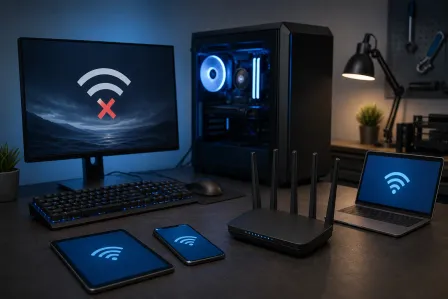
If fans and LEDs turn on but the manufacturer logo never appears, the PC may be failing POST or its video output may not be reaching the monitor. RAM, GPU, CPU compatibility and the power supply belong on the checklist before firmware recovery. Record any diagnostic LEDs or beep pattern and consult the exact motherboard manual.
Erratic or Continuous Beep Codes
Some motherboards use beep codes or diagnostic LEDs to identify a startup problem. Decode the pattern using the exact model's documentation: it may identify memory, CPU or graphics trouble. An unusual beep pattern is not proof of BIOS corruption.
PC No Display but Everything Else Seems Fine
Keyboard lights and running fans do not show that all hardware is healthy. A technician checks the monitor, cable, correct display output, graphics card, RAM and power supply before treating a black screen as a firmware fault. Motherboard video outputs work only when the system supports integrated graphics.
Boot Loops and Automatic Restarts
Repeated restarts before the logo can involve firmware or settings, but also memory, power or other hardware. Restarts after Windows begins loading need a different investigation. Note the last visible screen and any error code rather than assuming every boot loop is a damaged BIOS.
CMOS Battery Failure Symptoms
CMOS battery failure symptoms can include a resetting clock or settings that will not stay saved. Many desktop boards use a coin cell; the type and replacement procedure vary by model. A weak battery can cause startup or settings problems, but it does not mean the stored BIOS firmware is corrupted. Clearing CMOS resets settings; it does not rewrite firmware.
Failed BIOS Update That Bricked Your System
A failed or interrupted BIOS flash makes firmware recovery a more relevant possibility. A wrong file or power interruption can leave the board unable to start. Recovery may be possible if the exact model supports it; the outcome depends on the board and the fault. Do not keep trying unrelated firmware files.
What Causes BIOS Corruption in the First Place?
A failed or interrupted flash is a reason to investigate firmware. The wrong file or a modification can also leave firmware unsuitable for the board. Electrical damage can affect the board itself, so recovery is not always a software repair.
A weak CMOS battery or unstable overclock usually belongs in the settings or hardware investigation, not a confirmed-corruption diagnosis. A boot failure alone also cannot establish firmware malware.
How a Professional Repair Tech Diagnoses BIOS Issues
Let's walk through what actually happens when you bring a PC with suspected BIOS corruption to a repair shop. This is where things get really interesting!
Step 1: Ruling Out Other Hardware Failures
A good technician doesn't jump straight to "it's the BIOS." First, they'll systematically test other components. Bad RAM, a dead CPU, a failed power supply, or a faulty graphics card can all mimic BIOS corruption symptoms. The tech will swap components, test with known-good parts, and check for physical damage on the motherboard. This process of elimination is crucial for an accurate diagnosis.
Step 2: CMOS Reset and Battery Replacement
The technician follows the exact manufacturer's procedure to reset settings and checks the battery if the clock or saved settings are being lost. A CMOS reset can help with an unsuitable configuration; it does not repair a damaged firmware image. Before changing firmware or security settings, back up accessible files and locate the BitLocker recovery key if encryption is enabled. Do not clear the TPM as a general troubleshooting step.
Step 3: Using Built-In BIOS Recovery Features
Some boards support USB BIOS FlashBack, a backup BIOS or another recovery method. Availability, file naming, USB port and power requirements are model-specific. For example, ASUS's USB BIOS FlashBack instructions require the matching file and designated port and warn against interrupting the process. This is an ASUS example, not a procedure for every motherboard or Intel-based PC. Check the exact board model and revision first.
Step 4: BIOS Chip Reflash with a Hardware Programmer
If built-in recovery is unavailable or fails, a board-repair specialist may assess whether external programming is appropriate. This is not a routine DIY step or a service every repair shop can perform. A possible workflow is:
- The tech identifies the specific BIOS chip on your motherboard (usually an SPI flash chip)
- The specialist chooses a suitable connection or removal method for that board and chip
- The specialist preserves a readable backup where possible and checks the correct image and board-specific information before programming; a chip read alone does not prove corruption
- The chip is reinstalled (or the clip is removed), and the system is tested
This is genuine board-level repair work, and it's one of the things that separates a skilled computer repair technician from basic troubleshooting. It requires specialized equipment, the correct BIOS firmware file for your exact motherboard model and revision, and steady hands.
Step 5: When Motherboard Replacement Is the Only Option
If the chip or motherboard is damaged, recovery may not be practical and a replacement or specialist referral may be needed. Files are stored on the drive, but drive damage and encryption can still prevent access. Motherboard changes can trigger BitLocker recovery. Data recovery is a separate assessment, not a guarantee that every file can be recovered. Tell the technician about important files before any work begins.
Can You Fix BIOS Corruption Yourself?
Start with external checks: monitor power, input, cable and the correct video output. Photograph diagnostic LEDs or beep patterns. If Windows is accessible, back up your files.
A battery replacement, CMOS reset or vendor recovery may be suitable for an experienced owner following the exact manual. Before proceeding, record settings and locate any encryption recovery key. Follow the procedure's power requirements; ordinary internal hardware work and powered BIOS FlashBack have different requirements.
Stop if the model or firmware file is uncertain, the system loses power, a connector looks burned, or important files are inaccessible. External programming and soldering need specialist assessment. If POST completes but Windows fails, investigate Windows and storage rather than repeatedly flashing the board.
How to Prevent BIOS Corruption in the Future
Once your system is back up and running, here are some simple habits that'll help you avoid this headache in the future:
- Use a surge protector or UPS - Protecting your PC from power spikes is one of the best investments you can make
- Review manufacturer update guidance - Updates can address security, compatibility or stability. Check the exact model, release notes and recovery instructions before deciding.
- Never interrupt a BIOS update - If you do update, make sure your power source is reliable and don't touch anything until it's completely finished
- Investigate repeated clock or settings loss - Check the battery and replacement instructions for your model rather than using a fixed replacement schedule.
- Download BIOS files only from your motherboard manufacturer's official website - Never trust third-party sources for firmware
Why BIOS Repair Requires a Skilled Technician
BIOS corruption is one of those repair categories that doesn't get talked about much in everyday tech conversations. Most people know about virus removal, broken screens, and failing hard drives. But motherboard bios repair is a whole different level of diagnostics. It requires understanding firmware, having specialized hardware tools, and knowing the specific recovery methods for hundreds of different motherboard models.
For a desktop or laptop that will not start, request an evaluation at Fix My PC Store in West Palm Beach. Describe the startup stage and any failed update. We can discuss the appropriate diagnostic path and next steps before you decide on work.
The most important thing to remember? A PC that won't display anything on screen isn't necessarily dead. In many cases, a skilled technician can bring it back with the right approach. And that's a pretty exciting thing to know!
Manufacturer guidance for the next step
- ASUS no power, no boot and no display checks show why power, memory, graphics and the monitor need checking before a firmware diagnosis. Use your own manufacturer's manual for your model.
- ASUS USB BIOS FlashBack guidance applies only to supported models.
- Microsoft's BitLocker recovery-key guidance explains how to locate a key. Keep keys private; do not paste them into a contact form.