What Actually Happens During a PC Diagnostic Appointment?
TL;DR: A PC diagnostic appointment is a systematic process where a technician tests hardware, software, and system health to find the root cause of your problem. It typically takes one to two hours of hands-on work. You walk away with a clear explanation and a repair estimate before anything gets fixed.
What You Need
Before you bring your machine in, having a few things ready saves everyone time.
- Your login credentials. A technician cannot run software-level tests without being able to log into Windows or macOS. Write down your password.
- A description of the problem. When did it start? Did anything change right before it happened, like a Windows update, a drop, or a new program install? The more specific you are, the faster the process goes.
- Any peripherals that are relevant. If the problem only happens with a specific monitor, keyboard, or external drive connected, bring those too.
- Your repair history, if any. If someone else has already worked on the machine, say so. Knowing what was already replaced or reinstalled prevents duplicating work.
If you would rather not come in, a remote support session can handle software-side diagnostics for many common issues. Hardware problems require an in-person visit.
Step 1: Intake and Visual Inspection
The first thing a technician does is listen. Not metaphorically. Literally listen to what you describe, and then look at the machine before powering it on.
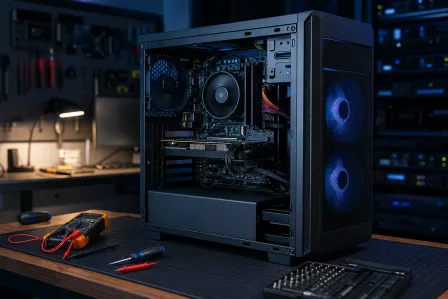
A visual inspection catches things that no software tool will flag. Cracked chassis corners suggest a drop. Discolored ports suggest liquid damage. A bent GPU bracket or a missing screw tells a story. Burn marks near the power input end the diagnostic early.
This step takes five to ten minutes but frequently narrows the field significantly. If you bring in a laptop with a broken hinge and a cracked screen, the technician is not going to spend an hour running memory tests before addressing the obvious physical damage. You can learn more about what the computer repair process covers for both desktops and laptops.
Step 2: Boot Behavior Testing
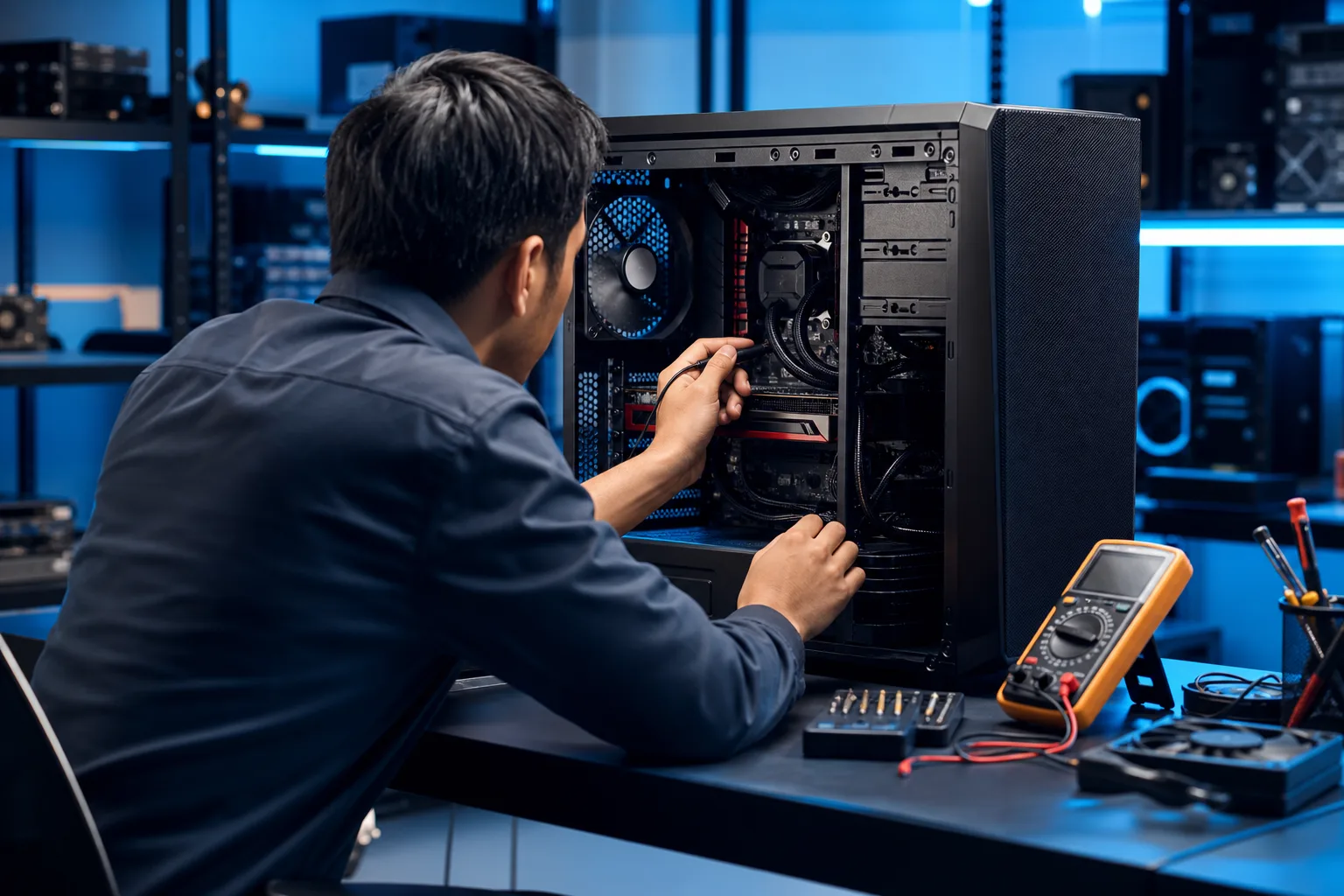
Next, the technician powers the machine on and watches carefully. Does it POST (the initial hardware self-check before the operating system loads)? Does it hang on a logo? Does it boot partway and restart? Does it make unusual sounds?
Each behavior points to a different category of problem.
- No POST at all often means a power, RAM, or motherboard issue.
- A hang at the OS loading screen usually points to storage or a corrupted boot sector.
- A successful boot that leads to a crash points to software, drivers, or a failing component under load.
- Clicking or grinding sounds from a hard drive during startup are a serious warning. Data recovery may need to happen before any other repair.
This phase is observational. The technician is building a hypothesis before running tests.
Step 3: Hardware Diagnostics
With a working hypothesis in hand, the technician runs targeted hardware tests. These are not quick scans. Thorough hardware diagnostics take time.
RAM testing involves running a tool like MemTest86, which passes multiple read and write patterns through every memory address. A single pass takes 20 to 40 minutes depending on how much RAM the system has. Multiple passes are often necessary to catch intermittent errors.
Storage testing checks both the health reported by the drive itself (via SMART data) and the actual integrity of the file system. A drive can have perfect SMART scores and still have corrupted sectors causing crashes. Both checks matter.
CPU and GPU stress testing puts the processor and graphics card under sustained load to see if they overheat, throttle, or produce errors under real-world conditions. This is how overheating problems get confirmed rather than guessed at. Thermal paste condition and fan function are checked here.
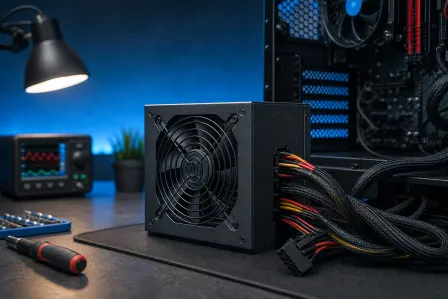
Power supply testing is often done with a multimeter or a dedicated PSU tester to confirm the voltages being delivered are within specification. An out-of-spec power supply can cause random crashes, failed boots, and component damage over time.
For laptop repair, battery health is also checked here, including charge cycle count and maximum capacity compared to the original design.
Computer acting up? Get a real diagnosis. Book a diagnostic
Step 4: Software and OS Diagnostics
If the hardware checks out, or once hardware issues are confirmed and set aside, the technician shifts to the software layer.
This includes:
Event logs. Windows Event Viewer and macOS Console logs record errors, warnings, and crashes with timestamps. A technician knows which entries are noise and which ones point to real problems. A driver crash showing up repeatedly before every blue screen is actionable. A generic warning that fires every boot for years is not.
Malware scanning. Not the built-in scanner, typically. A technician will boot from an external drive or use an offline scanner to check for infections that have disabled or bypassed the system's own defenses. This is standard practice, not an assumption that you did something wrong.
Startup programs and services. Bloatware, outdated drivers, and conflicting software cause more problems than most people expect. Reviewing what is running at startup often reveals obvious culprits.
Driver integrity. Outdated, corrupted, or mismatched drivers, particularly for graphics cards and chipsets, are a frequent source of instability. The technician checks driver versions against current stable releases.
If your machine is a Mac, Mac repair diagnostics follow a similar structure but use macOS-specific tools like Apple Diagnostics and system report data.
Step 5: Findings Summary and Repair Estimate
This is the part most people care about. After running through the above, the technician puts together a clear explanation of what was found.
A good findings summary tells you:
- What is definitively wrong.
- What is probably wrong but needs further confirmation.
- What is fine and does not need attention.
- What the repair will cost and approximately how long it will take.
- Whether a repair is economically sensible given the age and value of the machine.
You should not feel pressured to approve anything on the spot. A written or digital estimate gives you time to think. If you have questions, ask them. A technician who cannot explain what they found in plain terms is a technician worth being skeptical of.
If your machine is used for business and the diagnostic reveals something like a failing backup system or a security gap, that is worth a separate conversation. Business IT services and backups and disaster recovery planning exist precisely because the cost of prevention is almost always lower than the cost of the incident.
Common Mistakes
1. Waiting too long. Intermittent problems are easier to diagnose than total failures. A hard drive that occasionally stutters is much easier to address than one that has already failed. The data is still there in the first scenario.
2. Not mentioning everything. Technicians are not judging you. If your laptop got wet three months ago and has been acting strange since, say that. Omitting context makes diagnosis slower and sometimes leads to incorrect conclusions.
3. Asking for a diagnosis without authorizing enough time. A five-minute look at a machine tells you almost nothing. Full hardware diagnostics require time, particularly RAM and stress tests. If someone offers a complete diagnostic in under 20 minutes, they skipped steps.
4. Confusing a diagnostic with a repair. The diagnostic tells you what is wrong. The repair fixes it. These are separate steps. Knowing what is wrong is valuable even if you decide not to repair.
5. Ignoring the findings. A technician who finds a failing drive and recommends backup before anything else is not upselling you. A drive that is failing will fail completely. The diagnostic is telling you something important.
6. Assuming software fixes hardware problems. If the RAM is bad, reinstalling Windows will not help. Hardware problems require hardware solutions. This is one reason the diagnostic exists: to confirm which layer the problem lives in before spending time and money on the wrong fix.
If you want to understand more about how to approach this yourself before booking, the complete computer repair guide covers a lot of useful ground.
Bottom Line
A PC diagnostic appointment is structured, not theatrical. It follows a logical sequence: visual inspection, boot behavior, hardware testing, software analysis, and a clear written summary. You should walk out knowing exactly what is wrong and what it will cost to fix it.
If your machine is giving you trouble and you are in the West Palm Beach or South Florida area, you can schedule a repair or diagnostic appointment directly. If you are not sure whether an in-person visit is necessary, remote support is a reasonable first step for software-side issues.
Most problems are preventable in hindsight. The diagnostic is how you find out which kind you are dealing with.
Computer acting up? Get a real diagnosis.
Fix My PC Store has repaired thousands of machines across West Palm Beach. Honest pricing, no upsell games, and a free diagnostic for new customers with our email coupon.