SSD vs HDD: Which Upgrade Gives You the Biggest Speed Boost
TL;DR: An SSD will make a dramatically larger difference to everyday speed than an HDD in virtually every use case. The price gap has narrowed enough that choosing an HDD for a primary drive is hard to justify on a modern machine. Where HDDs still earn their place is bulk storage, where capacity-per-dollar still matters.
At a Glance
| Factor | SSD | HDD |
|---|---|---|
| Access to small files | Usually faster | Mechanical seek adds delay |
| Large transfers | Depends on interface/model; often faster | Depends on model and workload |
| Moving parts | None | Spinning platters and head |
| Typical role | Operating system and active apps | Capacity-focused archive or backup |
Actual boot and app times depend on the whole computer; Samsung’s example is one tested configuration, not a universal promise.
What Actually Makes a Drive Fast (or Slow)
Before picking a winner, it helps to understand why these two technologies behave so differently.
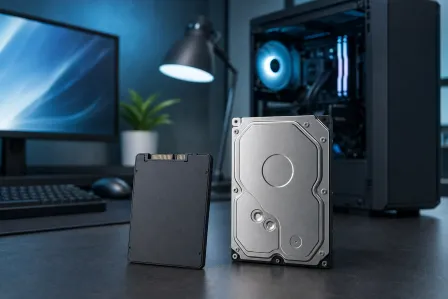
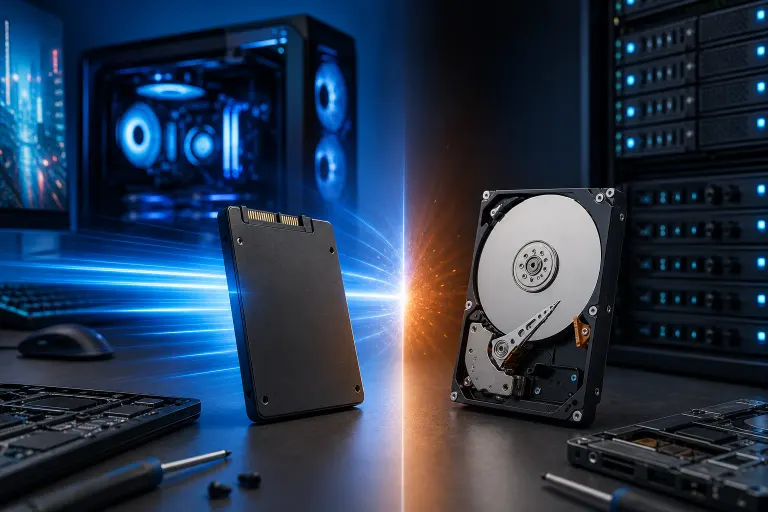
A hard disk drive uses spinning magnetic platters and a physical read/write head that has to move to the correct location before reading data. That mechanical movement takes time, measured in milliseconds. It adds up every time the operating system needs to read dozens of scattered files just to launch a single program.
A solid state drive stores data in flash memory chips with no moving parts. Access is nearly instantaneous because there is no physical head to move. The difference shows up most in random read/write performance, which is exactly what an operating system does all day: constantly reading and writing small, scattered chunks of data.
Replacing an HDD system drive with an SSD often improves storage-bound tasks. First check whether the drive is actually the bottleneck.
SSD Performance: What You Will Actually Notice
The speed improvement from an SSD is not subtle. Here is what changes in practice:
- Boot and app loading can improve. Replacing an HDD system drive with a compatible SSD often shortens storage-bound waits, but the result depends on CPU, memory, startup apps, drive model, and software.
- File operations can be smoother. Small random reads benefit most from lower access latency.
- Other bottlenecks remain. An SSD will not fix insufficient RAM, malware, or a failing processor.
These are not benchmark improvements you see in a spreadsheet. They are things you feel within the first 30 minutes of using the upgraded machine.
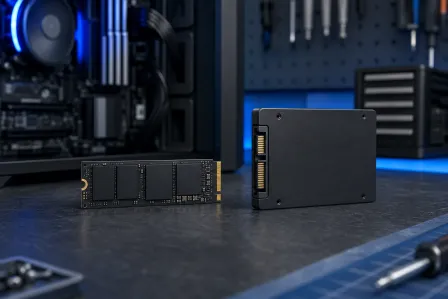
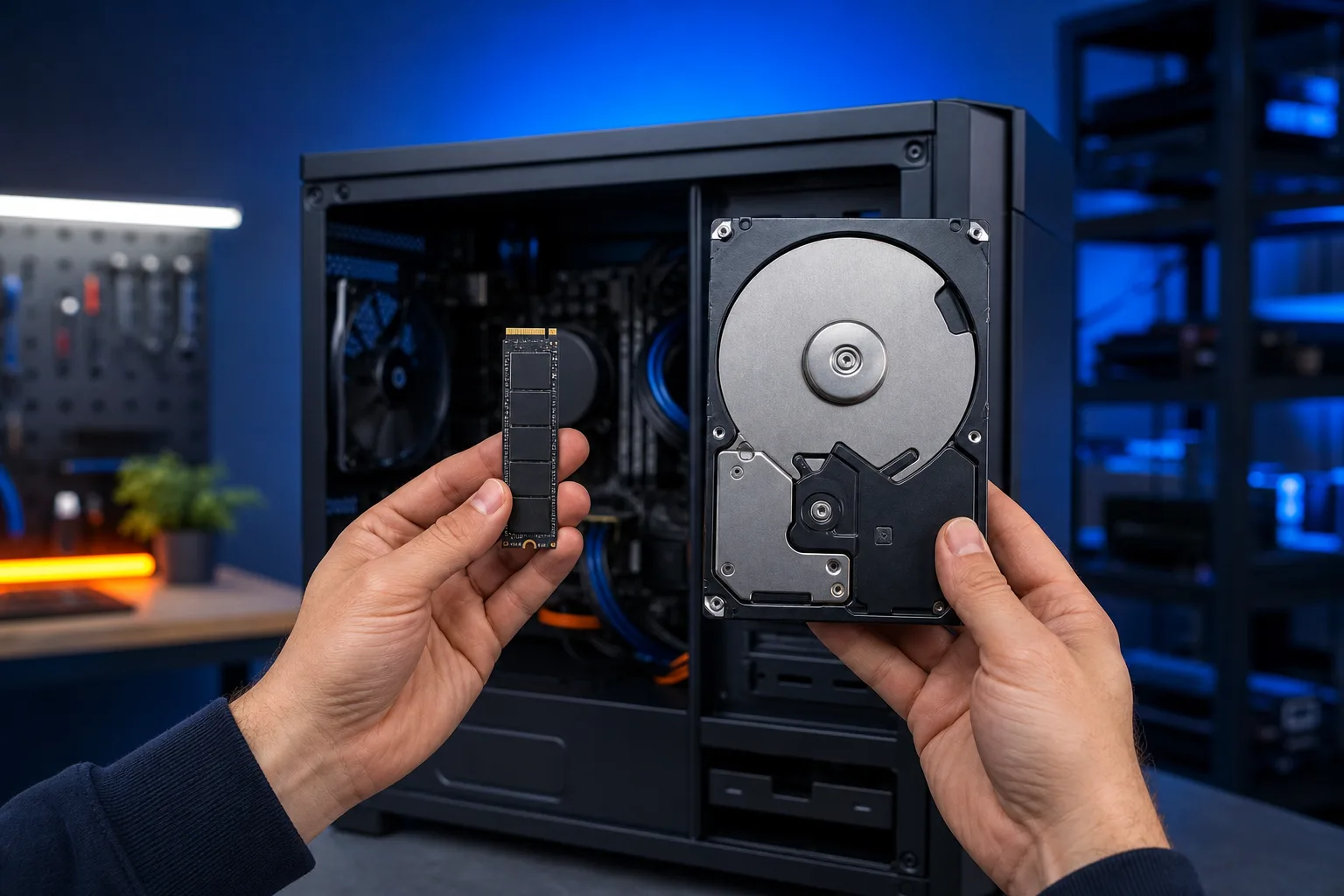
SSD types also vary. A SATA SSD is a large improvement over any HDD. An NVMe M.2 SSD, which connects directly to the CPU via PCI Express lanes rather than the SATA bus, is faster still, particularly for large sequential transfers. For most everyday computing tasks, a quality SATA SSD is already excellent. NVMe drives shine for video editing, large database work, and high-end gaming load times.
If you are considering a custom gaming PC build, NVMe is worth the modest premium at that level. For a standard office machine or home laptop, a SATA SSD is a reliable and cost-effective choice.
HDD Performance: Where It Falls Short and Where It Holds Up
Spinning drives are not useless. They are just misused when installed as a primary operating system drive as a primary operating-system drive.
Where HDDs still make sense:
- Bulk archive storage. Multi-terabyte HDDs are significantly cheaper per gigabyte than equivalent SSDs. If you are storing large video libraries, backups, or rarely accessed files, an HDD does this job economically.
- Network-attached storage (NAS). Many home and small business NAS setups use HDDs because you need 8TB, 12TB, or more per drive and cost matters at that scale.
- Secondary drives. Pairing an SSD as the OS and application drive with an HDD for media storage is a practical setup for desktop machines with multiple drive bays.
Where HDDs consistently disappoint:
- As the primary drive in any machine you actually use daily.
- In laptops, where physical shock from movement can cause read/write errors or premature failure.
- In any workload that involves heavy multitasking or frequent small file access.
Both drive types can fail with or without useful warning. HDDs have mechanical failure modes; SSDs have electronics and flash wear. Keep a separate, tested backup regardless of drive type.
Computer acting up? Get a real diagnosis. Ask about an initial check
Comparing Current Costs
Compare current price per capacity for the exact models you can install. Prices vary over time; a small primary SSD and a larger HDD for bulk files can be a practical combination.
At modest capacities, compare current drive prices, compatibility, and required migration work rather than assuming a fixed premium.
HDDs can offer lower cost per terabyte at large capacities, but check current prices and performance for the actual models.
The cost of the drive itself is also only part of the picture. Factor in:
- Labor for a clean install or data migration
- A fresh Windows installation or proper cloning to maintain performance
- The time you lose every day on a sluggish machine
An SSD upgrade may save time if storage is the bottleneck. Compare the upgrade quote with device condition and expected use; a guaranteed productivity payback cannot be assumed.
Reliability and Longevity: Honest Assessment
Neither drive type is immortal. The right question is which fails more predictably and which handles your specific environment better.
HDDs have moving parts. Physical shock, vibration, heat, and age degrade them. Drive head crashes, spindle bearing failures, and platter damage are real failure modes. In a desktop tower sitting still on a desk in an air-conditioned office, a quality HDD can run for years. In a laptop that travels, it is a liability.
SSDs have a finite number of program/erase cycles on each flash cell. Enterprise workloads that write enormous amounts of data daily will wear cells faster. Consumer use cases, typical web browsing, documents, email, occasional large file transfers, rarely stress SSDs to the point where write endurance becomes a practical concern within the drive's useful lifespan.
For laptop repair situations where a customer comes in with a slow or failing drive, we almost always recommend an SSD replacement. The performance improvement and the elimination of moving parts both make sense for portable machines.
For business machines, the same logic applies. A slow workstation drags down productivity across the day. If you are managing a fleet of machines and want a systematic approach to hardware health, that falls under managed IT support rather than one-off fixes.
How to Decide Which Drive You Need
Work through this in order:
- Is this for a primary OS drive? If yes, choose an SSD. No further analysis needed.
- Is this for a laptop? SSD. Full stop. The absence of moving parts matters in a portable device.
- Is this for archive or bulk media storage on a desktop with multiple drive bays? HDD makes economic sense here.
- Is this for a NAS or backup appliance where you need several terabytes? HDD is still competitive at that capacity range.
- Are you building or upgrading a gaming rig? NVMe SSD for the OS and games, optionally an HDD for game archives you rarely play.
- Is this a business machine? SSD for the primary drive, and make sure there is a backup solution in place regardless of which type you choose.
If you have a machine that has been slow for a while and you are not sure whether the drive is the problem, there are diagnostic steps a technician can run, including S.M.A.R.T. health checks and benchmark comparisons, before recommending a specific upgrade path. You can also reach us through remote support if you want a second opinion without bringing the machine in.
Verdict
The SSD wins the speed comparison by a wide margin. For a primary drive in any computer you use regularly, there is no meaningful argument for choosing an HDD based on performance. The cost difference at typical consumer capacities is small, and the daily experience difference is substantial.
HDDs remain valid for one specific role: bulk or archive storage where capacity-per-dollar is the primary metric and performance is a secondary concern.
If your system still boots from an HDD, an SSD may be a worthwhile upgrade after checking compatibility and other causes of slowness. Back up and verify data before migration.
If you are in West Palm Beach or South Florida and want a professional assessment of whether a drive upgrade is right for your specific machine, book a repair and we will run the diagnostics before recommending anything.
Computer acting up? Get a real diagnosis.
Fix My PC Store assesses storage upgrades in West Palm Beach. Initial checks are free for most standard in-store repairs; advanced work may have a disclosed fee.