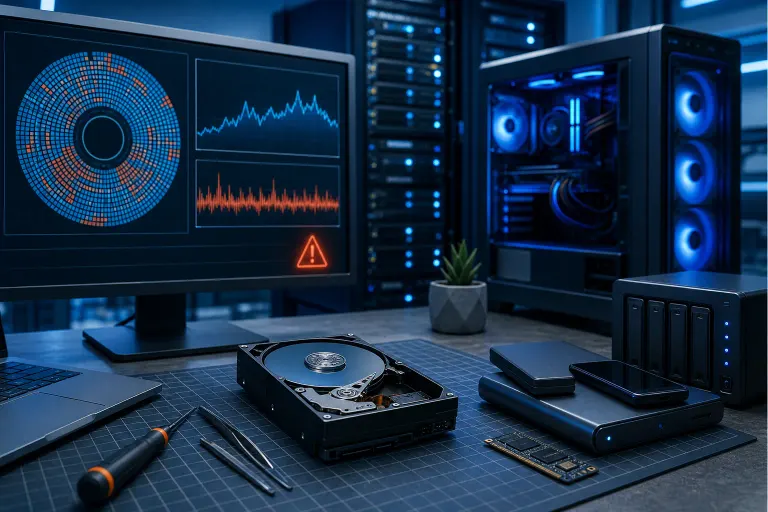
How to Tell If Your Hard Drive Is Failing Before You Lose Everything
TL;DR: A drive may fail with or without warning. Clicking, unreadable files, and SMART alerts deserve prompt attention. Protect important files before running intensive tests, and stop using a physically failing drive if recovery matters.
What You Need
- A Windows or Mac computer with the drive you want to check
- CrystalDiskInfo (Windows, free) or DriveDx / Disk Utility (Mac)
- A USB drive or external drive for backup, or a cloud backup already running
- About 30 to 60 minutes, depending on drive size
- Admin access to your machine
If you are running a business machine, the stakes are higher. A single drive failure can take down billing records, client files, and years of work. The section on SMART data below applies equally, but you should also look at managed IT services that include proactive drive monitoring rather than waiting for someone to notice a problem.
Step 1: Know the Warning Signs You Are Probably Ignoring
Before you touch any software, you need to recognize the symptoms that most people chalk up to "the computer being slow."
Sounds that mean trouble:
- Clicking or grinding noises during startup or file access. A traditional spinning hard drive (HDD) should hum quietly. Clicks or grinding can indicate a mechanical problem. Stop normal use; if irreplaceable data lacks a backup, ask a recovery specialist before further access.
- A repetitive ticking pattern, sometimes called the "click of death," usually means the head cannot find its home position. Data recovery at that stage is possible but expensive.
Performance symptoms:
- Files that take noticeably longer to open than they did a few months ago
- The system freezing or hanging when accessing specific folders
- Programs crashing or refusing to load, particularly at startup
- Windows taking two or three times longer to boot than normal
- Error messages about files being corrupt or unreadable
Visible errors:
- Blue Screen of Death (BSOD) errors mentioning disk, NTFS, or bad sectors
- Files that appear in your file browser but cannot be opened
- Folders that disappear and reappear
- Windows prompting you to run CHKDSK on startup
None of these symptoms are guaranteed signs of imminent failure on their own, but two or more together should be treated as a serious warning. Do not keep working normally and hope it clears up.
Step 2: Run a SMART Check
SMART stands for Self-Monitoring, Analysis, and Reporting Technology. Every modern hard drive and solid-state drive has a SMART chip onboard that tracks health metrics in real time. Most people never look at it.
On Windows:
- Download CrystalDiskInfo from the official site. Choose the correct drive and read its health status and attributes. A warning merits a backup and further diagnosis; “Good” does not guarantee safety.
On Mac:
- Open Disk Utility (Applications > Utilities > Disk Utility).
- Select your drive in the sidebar and look at the S.M.A.R.T. Status at the bottom. It will say "Verified" (healthy) or "Failing."
- For more detail, third-party tools like DriveDx give you the full attribute breakdown that Apple hides.
What to look at in the detailed SMART attributes:
The numbers that matter most are:
- Reallocated Sector Count: A non-zero value here means the drive has found bad sectors and moved data off them. Any value above zero on a drive less than a few years old is a red flag.
- Current Pending Sector Count: Sectors the drive suspects are bad but has not yet confirmed. If this is climbing, the drive is actively degrading.
- Uncorrectable Sector Count: Sectors the drive tried to reallocate and could not. This one is serious at any non-zero value.
- Spin Retry Count (HDDs only): How many times the drive had to retry spinning up. Elevated counts suggest a motor or bearing problem.
- Temperature: Drives running consistently above 50°C are under thermal stress. In South Florida, a hot room or a laptop with blocked vents can push a drive over that threshold faster than you might expect.
You do not need to memorize all 30-plus attributes. Focus on the five above. Interpret attributes using the drive maker’s documentation; raw values and thresholds vary. A warning merits prompt backup and assessment.
Step 3: Protect your files before intensive tests
If the drive clicks, grinds, becomes unreadable, or reports a serious SMART warning, stop normal use. If the files are irreplaceable and not backed up, consult a recovery professional before repeatedly scanning or restarting it. A failing read head may behave unpredictably during a full chkdsk /r pass. Microsoft explains this risk.
If the drive still reads reliably, copy the most important files to a different physical device or a backup service first. Confirm that several copied files open. A sync folder can be useful, but check its version history and whether all needed folders are included. A backup partition on the same drive offers no protection from drive failure.
Computer acting up? Get a real diagnosis. Ask about an initial check
Step 4: Run appropriate checks after safeguarding data
SMART reports recorded health attributes, but a clean status cannot guarantee the next failure will be predicted. Error-checking tools assess file-system problems; they do not repair a physically failing drive. CrystalDiskMark measures speed, not surface health, so do not use it as a diagnostic scan.
On Windows, open drive Properties > Tools > Error checking for a file-system check when data is protected. Use chkdsk repair options only when you understand the target drive and have a backup; /r performs a lengthy read of sectors and is a poor first action for a clicking or unstable disk.
On Mac, Apple recommends a current backup before Disk Utility First Aid. Run First Aid on volumes, then containers, then the device as its guidance describes. If Disk Utility says the disk is about to fail, back up what you can and replace it; First Aid cannot fix physical failure.
Step 5: Decide Whether to Replace the Drive
Once your data is backed up, you have a decision to make.
- SMART shows "Good": Continue routine backups and investigate symptoms anyway; a clean result does not predict every failure.
- SMART shows "Caution": Protect data and review the specific attribute; replacement may be appropriate after diagnosis.
- SMART shows "Bad" or uncorrectable errors: Protect or recover data, then replace the drive. Do not store anything new on it. Do not trust it to hold data you care about.
- You hear clicking or grinding: Stop using the drive. Continued use can cause physical damage that makes professional data recovery harder or impossible.
For an HDD replacement or SSD upgrade, you can bring the machine into our computer repair shop in West Palm Beach. We swap drives, migrate your data, and reinstall the OS. For laptops specifically, see our laptop repair service. Mac users have specific drive compatibility requirements depending on the model year, which our Mac repair team can sort out.
If you cannot bring the machine in, a remote support session can walk you through the diagnostic steps, backup process, and recovery options in real time.
Common Mistakes
Ignoring the first symptom. One clicking sound, one slow boot, one blue screen. Most people dismiss it. Data loss can happen with or without an earlier warning.
Relying on SMART alone. SMART does not catch every failure mode. Some drives, particularly low-cost consumer SSDs, fail without reporting any SMART warnings at all. A clean SMART report is reassuring, not a guarantee.
Running a surface scan on a visibly failing drive. If your drive is clicking or SMART already says "Bad," a full surface scan forces the drive to read every sector repeatedly. That extra stress can push it past the point where data recovery is possible. Protect data first. If the drive is mechanically failing, ask a recovery specialist whether further scans are safe.
Backing up to the same physical drive. A backup partition on the same failing drive is not a backup. It is just more data at risk.
Assuming SSDs are immune. Solid-state drives do not click or grind. Their failure modes are quieter, often showing up as sudden read-only mode, unexpected reboots, or files going missing without warning. SMART monitoring is just as important for SSDs.
Waiting until you are "ready" to deal with it. Drive failure does not wait for a convenient time. If you are seeing warning signs, clear your afternoon and deal with it.
Bottom Line
Hard drive failure is almost always predictable. The tools are free. The process takes less than an hour. The cost of ignoring it is everything on that drive.
If you see a drive warning, protect important files promptly. If the drive is clicking or unreadable, avoid repeated scans and seek a recovery assessment for irreplaceable data.
If you are already past the warning stage and the drive is clicking or unreadable, stop using it and contact a professional. Recovery options depend on the failure; continued use can worsen physical damage.
For South Florida residents and businesses in the Palm Beach and Treasure Coast area, our team at Fix My PC Store handles drive diagnostics, data recovery coordination, and SSD upgrades. Book a time or reach out here. No drama, no guessing. Just an accurate assessment and a clear plan.
Computer acting up? Get a real diagnosis.
Fix My PC Store handles drive assessment in West Palm Beach. Initial checks are free for most standard in-store repairs; advanced diagnostics or data recovery may have a disclosed fee.