How to Fix My PC: 7 Steps Before Calling a Technician
TL;DR: Some common Windows problems can be narrowed down at home. Record symptoms, restart, check updates and storage, and stop if you suspect failing hardware or data loss. These seven steps can help you decide when a technician is needed.
What You Need
Before you start, gather a few basics. Nothing exotic, nothing expensive.
- A working internet connection (even on your phone is fine)
- About 30 to 60 minutes of uninterrupted time
- A notepad or phone to jot down any error messages you see
- Windows update access and administrator login credentials
- Optional: a USB flash drive with at least 8 GB of space
That is genuinely it. Most of these steps require no tools and no downloads.
Step 1: Write Down the Symptoms Before You Do Anything
This sounds obvious, but most people skip it and then forget exactly what happened.
Ask yourself: When does the problem occur? At startup? After an hour of use? Only when a specific program opens? Is there an error code on the screen? A sound? A color change?
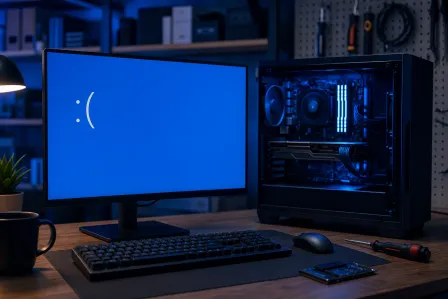
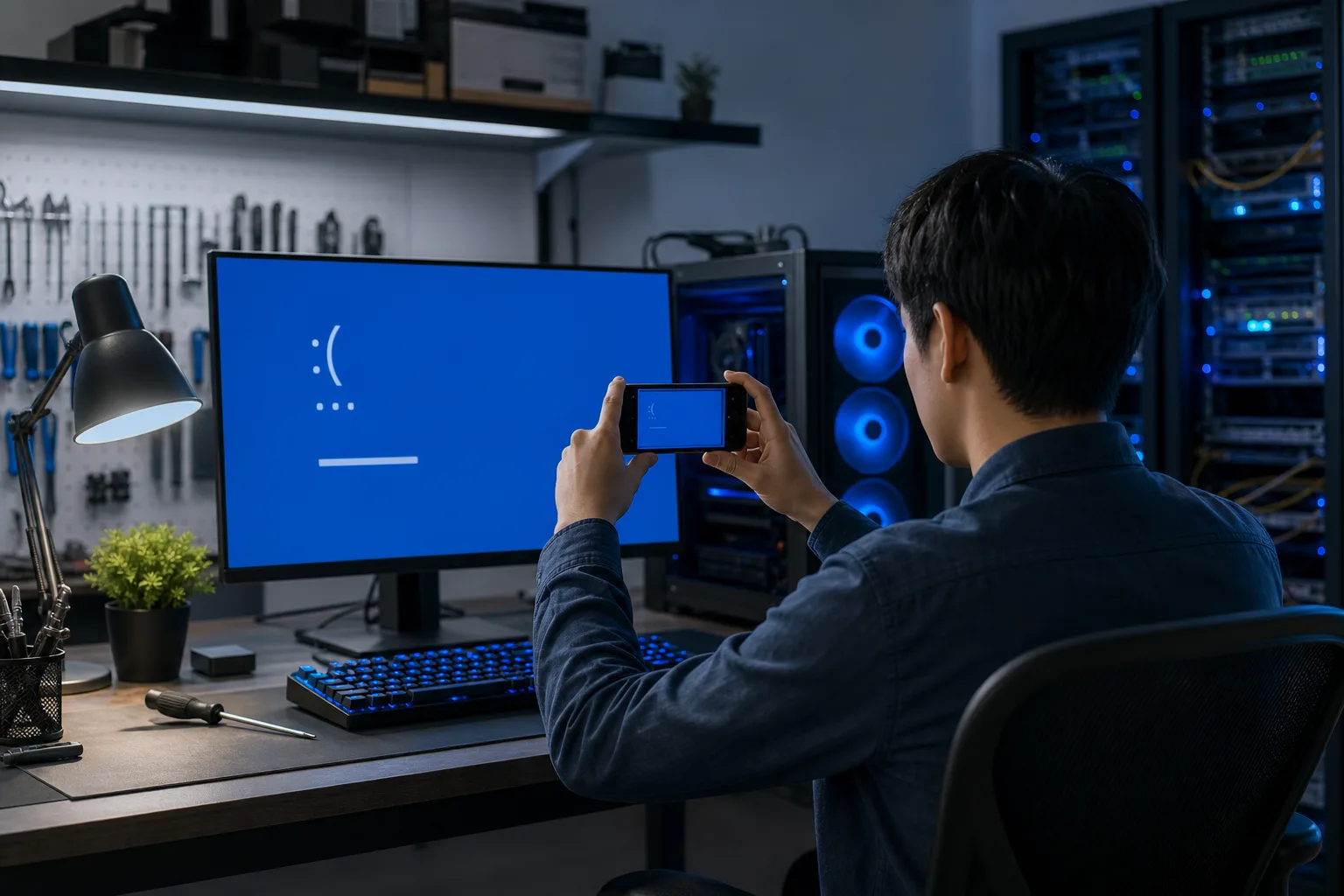
Write down every detail. If your PC shows a blue screen, photograph it with your phone. That error code is a direct clue. Searching it verbatim on Google often points you straight to the cause.
Good notes save you time at every step below. They also save a technician time if you do end up needing help, which means a faster, cheaper repair.
Step 2: Restart the Computer Properly
Not sleep. Not hibernate. A full restart.
Windows 10 and 11 use something called Fast Startup by default. It looks like a shutdown but actually saves a snapshot of the system state. Problems hiding in that snapshot come right back. A real restart clears it.
Click Start, then Power, then Restart. Not Shut Down.
If the machine is completely frozen, hold the power button for ten seconds to force it off. Wait thirty seconds, then press it again to boot fresh.
You would be genuinely surprised how many issues this fixes. Corrupted temporary files, stuck background processes, driver hiccups, many disappear with a clean restart.
Step 3: Run Windows Update and Restart Again
Outdated Windows installations are one of the most common causes of instability, and this step costs you nothing.
- Open Settings > Windows Update and check for recommended updates. Install the updates that apply to your device and restart when prompted. Optional drivers are selected manually; use them when addressing a relevant device issue or following its manufacturer’s guidance.
Driver updates matter a lot here. Your graphics card, network adapter, and storage controller all rely on drivers. An outdated graphics driver can cause freezes that look exactly like hardware failure. An outdated chipset driver can slow your whole system.
If updates are stuck or keep failing, that itself is a clue. A stuck update loop is a known issue with a specific set of fixes, and it is worth noting down as a symptom.
Step 4: Check Your Storage Drive
A failing or nearly full hard drive causes an enormous range of problems. Slow boots, crashes, file errors, programs that refuse to open. This is one of the first things a technician checks, and you can do a basic version yourself.
Check available space first. Open File Explorer and inspect your C: drive. Low free space can interfere with updates and temporary files, but no fixed 85–90% threshold proves the cause. Remove only files you recognize or use Windows Storage settings.
Before repair scans, protect your files. If a drive clicks, grinds, becomes unreadable, or reports a serious health warning, stop intensive testing and ask for data-recovery advice. For a healthy drive with a backup, use File Explorer > drive Properties > Tools > Error checking to check file-system errors. Avoid chkdsk /r as a routine first step; Microsoft notes a failing read head can make it behave unpredictably.
A file-system check may take time and may not diagnose hardware failure. Review its result rather than repeatedly running repair passes.
If drive errors repeat or you hear clicking or grinding, minimize use. If important files are not backed up, consult a recovery specialist before stressing the drive further.
Computer acting up? Get a real diagnosis. Ask about an initial check
Step 5: Scan for Malware
Malware does not always announce itself. Many infections run silently in the background, consuming CPU and memory, stealing data, or holding your system hostage gradually.
Windows Defender, built into Windows 10 and 11, is genuinely good and completely free. Here is how to run a full scan.
- Press the Windows key, type Windows Security, and open it.
- Click Virus and threat protection.
- Under Current threats, click Scan options.
- Select Full scan and click Scan now.
This takes anywhere from 20 minutes to over an hour depending on your drive size. Do not interrupt it.
If Defender finds something, follow its prompts to quarantine or remove it, then restart and run the scan again to confirm it is clean.
For a second opinion, Malwarebytes offers a free version that catches things Defender occasionally misses. Download it only from the official site.
If you find malware on a business computer, the stakes are higher than just one PC. A single infected machine can spread to your whole network. That is a situation where talking to someone about business cybersecurity is worth the conversation.
Step 6: Check for Overheating
Heat is a silent killer for computers, especially in South Florida. High ambient temperatures, dusty environments, and aging thermal paste all contribute. When a processor or graphics card gets too hot, it throttles itself to avoid damage. That looks exactly like a slow computer or random shutdowns.
Look for the signs:
- The fan runs loud constantly, even when the computer is idle
- The case feels unusually hot to the touch
- The system shuts off suddenly without warning, especially under load
- Performance drops noticeably after 20 to 30 minutes of use
What you can do right now:
- Make sure vents are not blocked. Do not put a laptop on a bed or carpet.
- Use a can of compressed air to blow dust out of the vents. Do this outside or it gets messy.
- Download HWMonitor from CPUID to check your actual CPU and GPU temperatures. Under normal desktop use, CPU temps should generally stay below 80 degrees Celsius. Gaming and heavy workloads push that higher, but consistent spikes above 90 to 95 degrees are a concern.
If your laptop overheats regularly, the thermal paste on the processor may need replacing, something a laptop repair technician handles routinely.
Step 7: Test with a Fresh User Account
This step trips people up because it sounds technical. It is not.
If your problems, crashes, slow performance, strange behavior, only happen in your main Windows account, the issue may be in your user profile, not the hardware or core system. A corrupted user profile is surprisingly common and surprisingly annoying.
- Press Windows key, go to Settings, then Accounts, then Family and other users.
- Click Add someone else to this PC.
- Set up a local account (no Microsoft account needed for testing).
- Sign out of your account and sign into the new one.
- Use the computer normally for a while and see if the problems repeat.
If everything works fine in the new account, your original profile is the culprit. Microsoft has documented steps for repairing a corrupted profile. If everything still breaks in the new account too, you have confirmed the problem is deeper, hardware, drivers, or the Windows installation itself.
At that point, you have solid information. You know what you tried, what the symptoms are, and what you have ruled out. That is genuinely useful, whether you decide to keep troubleshooting or bring the machine to someone who does this every day.
Common Mistakes When You Try to Fix Your PC Yourself
Reinstalling Windows as the first move. It can address some software faults, but it can remove apps or data. Back up important files and review Microsoft’s recovery options first.
Downloading random "PC optimizer" tools. Most are either useless or actively harmful. Stick to Windows built-in tools and the reputable names mentioned above.
Ignoring backup before anything else. If your machine is acting strangely, copy your important files to an external drive before you start poking around. Recovery gets much harder after a crash mid-repair.
Dismissing the error message. Those blue screen codes and Windows error dialogs are specific. They tell you what broke. Look them up before assuming the worst.
Skipping the restart between steps. Changes to drivers, updates, and scans often need a restart to take effect. Do not skip it.
Bottom Line
Knowing how to fix your PC starts with slowing down and being systematic. Some alarming problems have straightforward causes, while others need hardware diagnosis. A restart, applicable update, malware scan, or ventilation check can help narrow the issue.
Work through these seven steps in order and you will either solve the problem yourself or arrive at a much clearer picture of what is actually wrong. Both outcomes are wins.
If you get to the end of this list and the computer is still misbehaving, that is not a failure. You have done real diagnostic work. Bring those notes to a shop that knows what to do with them.
Fix My PC Store is right here in West Palm Beach. You can book a repair, drop by, or ask whether remote support fits a computer that can still connect. For business machines or anything with sensitive data, our team also covers managed IT and can make sure one problem does not become ten.
You have got this. And if you do not, we are close by.
Computer acting up? Get a real diagnosis.
Fix My PC Store handles PC repair in West Palm Beach. Initial checks are free for most standard in-store repairs; advanced work may have a disclosed fee.
Frequently Asked Questions
How do I know if my PC problem is software or hardware?
Is it safe to run chkdsk on my computer?
chkdsk is a Windows file-system tool, but repair options can change data and /r performs a lengthy sector read. Back up first; avoid stressing a clicking or unstable drive and seek recovery advice for irreplaceable files.