How to Back Up Your Computer to Reduce Data Loss From a Crash
TL;DR: Use the 3-2-1 rule: three copies of your data, on two different media types, with one copy offsite. Set it up once, automate it, and test it. Most people skip the test, which is exactly why they cry when their drive dies.
What You Need
Before you touch a single setting, gather these:
- An external hard drive or SSD with at least 1.5x the storage of your current drive (more is always better)
- A cloud backup account, either a dedicated service or an existing subscription you may already have
- About 30-60 minutes of focused setup time
- A second device to test your restore, ideally
You do not need expensive software for most home setups. Windows and macOS both ship with decent built-in backup tools. You just have to actually use them.
Step 1: Understand the 3-2-1 Rule Before You Do Anything Else
This is the foundation. If your backup strategy does not follow this, you are flying without a net.
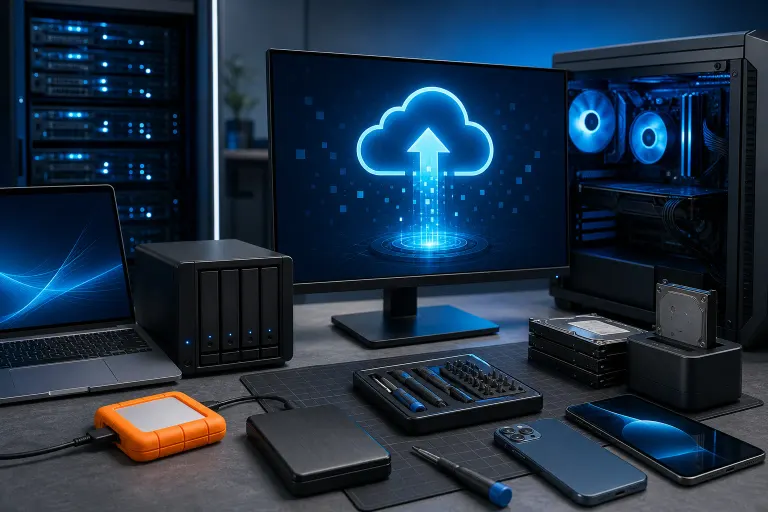
3 copies of your data. Your original files count as one. Your local backup is two. Your offsite or cloud backup is three.
2 different media types. Use two storage types, such as a local drive plus an independent cloud backup. Two drives in the same room do not satisfy the offsite part.
1 copy offsite. This is the one everyone skips. If your external drive and your laptop both live on your desk and your house floods, you lose everything. South Florida is not exactly known for forgiving weather. Ask anyone who has been through a hurricane season.
A properly configured cloud backup can provide the offsite copy; verify it includes the files you need. More on that in Step 4.
Step 2: Set Up a Local Backup on Windows
Windows 10 and 11 include File History, and it works well for documents, photos, and personal files.
How to enable File History:
- Plug in your external drive.
- Open Control Panel, then System and Security > Save backup copies of your files with File History.
- Select a drive and choose Turn on.
- Confirm the folders you care about are included, then restore a test file.
File History is great for versioned file recovery, meaning you can roll back to an older version of a document you accidentally wrecked. It does not, however, create a full system image by default.
File History is for personal files, not a full image of Windows and installed programs. If you need full-device recovery, discuss a current, tested imaging plan with your technician; do not assume File History covers it.
If you ever find yourself past the point of backup and staring at a dead machine, our computer repair team can often recover data even from failed drives, but prevention is always cheaper and faster.
Step 3: Set Up Time Machine on Mac
Mac users have it slightly easier here. Time Machine is genuinely good software.
How to enable Time Machine:
- Connect a suitable external drive. APFS or APFS Encrypted is Apple’s preferred format for a new Time Machine disk; macOS may offer to erase and reformat an incompatible disk, so check it for existing files first.
- MacOS will usually ask if you want to use it for Time Machine. Say yes.
- If it does not ask, go to System Settings, then General, then Time Machine.
- Click "Add Backup Disk" and select your drive.
- Let Time Machine run its automatic backups, and check its status and available space periodically.
That is genuinely all you need to do for local Mac backups. The hard part is remembering to actually plug the drive in.
One important note: if you have a newer Mac with Apple Silicon, A Time Machine backup can transfer files, apps, accounts, and settings to a new Mac with Migration Assistant; it does not replace macOS on that Mac. That is powerful. Do not waste it by never running it.
If your Mac is giving you trouble and you are not sure whether your data is safe before attempting any repair, Mac repair starts with data protection first. Always.
Computer acting up? Get a real diagnosis. Book a diagnostic
Step 4: Add a Cloud Backup (This Is the Offsite Copy)
Cloud backup and cloud storage are not the same thing. This matters.
Cloud storage (Dropbox, Google Drive, OneDrive) syncs files. If you accidentally delete a file, that deletion can sync to your other devices. Some sync services offer version history or recovery windows, but check their limits and keep an independent backup.
Dedicated cloud backup services can keep independent copies and versions of selected files. Coverage, retention, and recovery options differ by plan, so confirm what is included and test a restore.
Compare a dedicated cloud backup plan’s current coverage, retention, price, and restore process before subscribing. Set it up to include your important folders, and check its status after the first backup.
If you already pay for Microsoft 365, you have OneDrive included, but use it for document sync and pair it with a true backup service. Do not rely on OneDrive alone as your backup strategy.
For businesses, the requirements are more serious. A sync service going down or corrupting data can mean compliance issues, lost client work, and real financial damage. Managed backups and disaster recovery are worth a proper conversation if you are running any kind of operation with critical data.
Step 5: Automate Everything and Set a Calendar Reminder to Test It
The backup that requires you to remember to do something is the backup that fails when you need it.
For local backups, connect the drive regularly and verify new backups complete. Consider a rotated or offline copy so ransomware or other damage to a connected drive does not take every copy.
For cloud backup, allow scheduled uploads to finish, then check status, included folders, and restore options regularly.
Test your backup every 3-6 months. This is the step that almost nobody does, and it is the only step that actually tells you whether your backup works.
Testing means: go into your backup software, pick a random file you have not touched in a while, restore it to a different folder, and confirm it opens correctly. If you are comfortable with it, go further and try restoring a full system image to a test environment or a spare machine.
If you have ever heard someone say "I had a backup but it did not work," this is usually why. Backups are not self-certifying. You have to verify them.
For anything time-sensitive or complex, remote support can walk you through a test restore without you needing to bring anything in.
Step 6: Handle Special Cases (Photos, Gaming Saves, Business Files)
A few things that standard backup setups miss:
Photos and videos. If you shoot a lot, your photo library can be enormous. Make sure your cloud backup is actually capturing your photo library folder. On Mac, if your Photos library is on an external drive, ensure it is backed up to a different device; do not use that same drive as the Time Machine destination.
Gaming save files. Steam Cloud handles saves for many games automatically, but not all. For games that store saves locally, check where they live on your drive and make sure they fall inside your backup scope. PC gamers who build custom rigs through our custom gaming PC builder often have substantial libraries worth protecting.
Business files. If you run any kind of business from your computer, your backup needs are different in kind, not just degree. Client records, contracts, financial data, and custom software configurations require a more robust approach than a home user's photo collection. Business IT support and a proper managed IT relationship can take that off your plate entirely.
Common Mistakes
Only having one copy. An external drive by itself is not a backup strategy. Drives fail. That is literally what they do eventually.
Treating sync as backup. Covered above, but worth repeating: Google Drive, iCloud, and OneDrive primarily sync files and may have recovery features; check their limits and keep an independent backup. The distinction matters the moment you accidentally delete something important.
Never testing the restore. You do not know if your backup works until you try to use it. Test it.
Backing up to the same physical location as the original. Hurricane season in South Florida is not a metaphor. Offsite means actually offsite.
Pausing cloud backup because it "feels slow." Pausing backup creates gaps. If uploads affect your connection, adjust the schedule or bandwidth settings and verify that backups resume.
Forgetting to update what is being backed up. If you add a new folder for a project or move your documents, check that your backup scope covers the new location.
Bottom Line
A working backup strategy is three things: local, offsite, and tested. Windows and macOS give you the local tools for free. A properly configured cloud or other offsite backup can cover the offsite requirement. Test restores periodically; the time and cost depend on your files and service.
Set it up today, not next week. Drives do not wait for a convenient time to fail.
If you have already had a crash and you are hoping to recover data from a damaged drive, or if you want help setting up a backup system you know will hold, reach out and book a time with us. We work with home users and businesses across West Palm Beach and South Florida, and we have seen what happens when a backup plan stays on the to-do list too long.
Computer acting up? Get a real diagnosis.
Fix My PC Store has repaired thousands of machines across West Palm Beach. Initial checks are free for most standard in-store repairs; ask about any advanced diagnostic fee before work begins.