What to Do the Moment You Think You Have a Virus
TL;DR: If you suspect an infection, stop using the computer for sensitive work and disconnect that computer from Wi-Fi and Ethernet. A popup alone does not prove infection. Record what you saw, use a trusted security tool if appropriate, and get professional help promptly if files are encrypted or this is a work device. See the CISA response guidance.
What You Need
- A clean phone or second computer for reading official guidance and contacting support
- Access to the affected computer’s Wi-Fi setting or Ethernet cable
- Notes or a photo of any alert, ransom message, or unfamiliar program
- Knowledge of whether you have a backup from before the suspected infection
You do not need to go buy anything. You do not need to call that number on the scary popup. (That number is a scam. I promise. We'll get to it.)
Step 1: Disconnect From the Internet Immediately
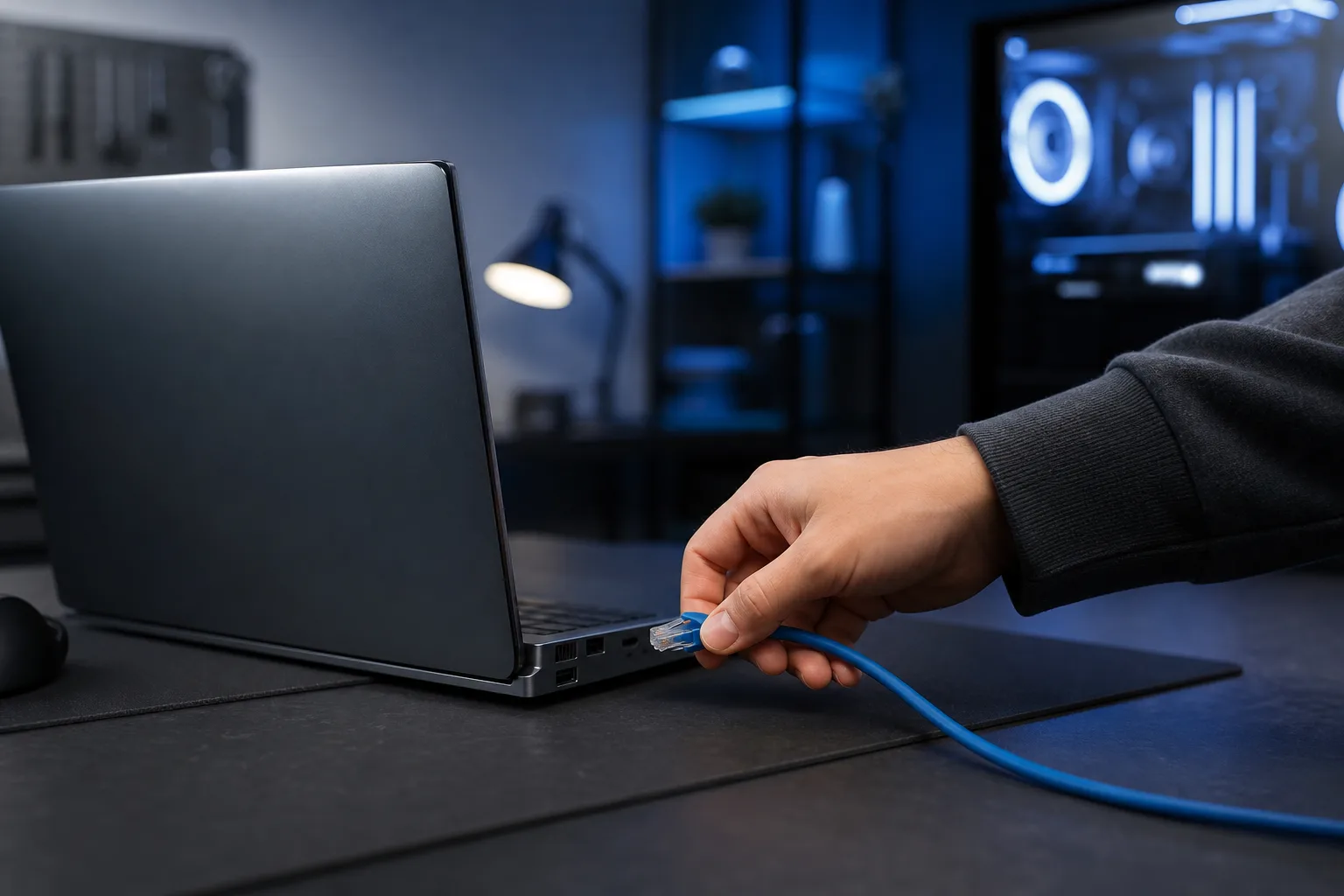
Unplug the affected computer’s Ethernet cable and turn off its Wi-Fi. For a business, tell your IT contact immediately so they can coordinate isolation. Avoid unplugging the shared router unless your IT team directs it; that may disrupt other users without isolating every connection.
Isolating a computer with signs of active compromise is a CISA response step. Use a clean device to look up guidance rather than continuing to browse on the suspect computer.
A lot of modern malware is not just sitting there. It is actively phoning home, downloading more garbage, or waiting for instructions from a command server. Disconnecting limits one route for further communication or spread while you assess what happened. A slow computer or popup alone does not establish that malware is present.
Kill the connection first. Ask questions later.
Step 2: Decide Whether to Shut Down
If you can isolate the computer, leave it powered on while you record what happened and contact IT or a security professional, especially for a business incident. They may need the running state for investigation. But do not treat “never shut down” as a rule: CISA says to power down if you cannot disconnect an affected system from the network and need to stop further spread.
A Windows Microsoft Defender Offline scan deliberately restarts the computer. Follow the trusted tool’s instructions after you have noted important symptoms. If files are actively being encrypted, prioritize isolation and professional response over routine scanning.
Step 3: Write Down What You Saw
This sounds boring. Do it anyway.
What was the first sign something was wrong? A popup? A browser redirect? A program you didn't install? Antivirus alert? System running slow out of nowhere? A ransom message? (That last one is a different situation entirely, and I'll address it below.)
Write it down or take a photo with your phone. When a tech looks at this later, that context saves real diagnostic time. "It started after I downloaded a PDF from an email" is a lot more useful than a shrug.
Step 4: Run a Scan With a Trusted Tool, Not Whatever Popped Up
If you already have a reputable antivirus installed and it's up to date, run a full scan now. Not a quick scan. A full scan.
On Windows, start with the built-in Windows Security scan options. If the installed scanner is unavailable or cannot remove a threat, consult the vendor’s official guidance or a technician before bringing files or tools from another device onto the suspect machine.
Do NOT download a scanner from a popup or a random search result. Some purported removal tools can be deceptive or unsafe. This is called scareware, and it is everywhere. The popup that says "YOUR COMPUTER HAS 47 VIRUSES, CLICK HERE TO FIX," that is not Microsoft, that is not your antivirus, that is the scam.
If you use Windows, open Windows Security and choose an appropriate scan. A full scan examines files and programs; Defender Offline may help with persistent threats and restarts the computer. A clean result is useful evidence, not proof that every possible threat is gone.
Let the scan finish completely before you do anything else.
Worried your business is one click from a breach? Get a security review
Step 5: Read the Results, Then Decide Your Next Move
Scan came back clean? Good. That either means you caught it early, the tool didn't find it, or you had a false alarm. Watch the machine closely for the next 24 to 48 hours. Weird behavior, slow performance, programs opening by themselves, those are signs to keep digging.
Scan found something and removed it? Do a second scan with a different tool to confirm it's actually gone. One scanner catching one thing doesn't mean that's all there is.
Scan found something it could not remove, or repeatedly detects the same threat? That does not diagnose a rootkit by itself. Stop routine use and seek help. Microsoft documents Defender Offline as one option for persistent malware; a computer repair technician can assess whether a clean reinstall or other recovery is safer.
If you see a ransom note or files being encrypted, isolate the affected computer and contact your IT or incident-response provider. Preserve the note and relevant details. Follow CISA’s ransomware response checklist; it covers containment and when power-down is appropriate. A professional can evaluate backups and whether a verified decryptor from No More Ransom applies. Do not assume that paying will restore files.
Step 6: Change Your Passwords From a Different Device
Once you're offline and mid-scan is a good time to do this from your phone or a separate clean computer.
Start with email. Email is the master key to every other account. If someone has your email password, they can reset everything else. Then banking, then anything with payment info stored.
Do not change passwords from the infected machine until it's been fully cleaned and you're confident the keylogger, if there was one, is gone. Typing your new password into a still-infected machine is just handing the attacker your updated credentials.
Step 7: Check Whether You Have a Backup
If things go sideways and a full wipe is needed, you want to know right now what you have to fall back on.
External drive backup? Cloud backup? Windows backup? Nothing at all? (If it's that last one, file that information away and fix it once this is over. We can help with backups and disaster recovery for businesses, and the same principles apply for personal machines.)
Knowing your backup situation changes your options. If you have a clean backup from before the infection, a full reinstall and restore might be faster and cleaner than trying to surgically remove every trace of malware.
Step 8: Decide Whether This Is a DIY Job or a Pro Job
Be honest with yourself here.
DIY is reasonable if: the scan found and removed something minor, the machine is behaving normally afterward, and you're comfortable monitoring it yourself for a few days.
Call a pro if: the scan keeps finding the same thing, the machine is still acting strange after a clean scan, files are missing or encrypted, you saw a ransom message, or you're a business and any of this happened on a work machine.
For business owners specifically, one infected machine on a network is not just one problem. It's a potential entry point to everything else. That's not me being dramatic, that's how network-based infections work. If you run a business in South Florida and this happened on a work computer, get your business IT or cybersecurity situation looked at now, not after the weekend.
If the suspect computer is isolated, do not reconnect it solely for remote support. Use a clean phone to discuss whether remote support is appropriate or an in-person assessment is safer.
Common Mistakes
Calling the number in the popup. Never do this. That is a tech support scam. The real Microsoft does not call you or show you a phone number in a browser popup. Hang up if you already called. Do not give anyone remote access to your machine from a cold contact like that.
Rebooting without a response plan. Record symptoms first. A restart may be required for trusted security tools; if you cannot isolate a potentially compromised device, powering it down can be the safer containment step.
Downloading five different "virus removers" from random sites. One trusted tool at a time. Stacking sketchy scanners on top of each other causes conflicts and sometimes makes the original problem undiagnosable.
Waiting to see if it gets better. It won't. Malware does not self-correct. The longer you wait, the more it does.
Assuming a slow computer means a virus. Slow performance has a lot of causes, most of them not malicious. Don't jump to conclusions, but also don't ignore it completely. If you're not sure what's going on with your machine's performance, we can take a look.
Skipping the password changes. People run the scan, declare victory, and forget that the malware may have already logged everything they typed. Change the passwords. From a clean device.
Bottom Line
When you see credible signs of infection, isolate the affected device from its network, document the symptoms, and use trusted security guidance or professional support. Whether to keep it on depends on the situation; do not call an unsolicited number displayed in a popup.
The right recovery depends on what happened, what data was affected, and whether you have a known-clean backup. Some cases need a clean reinstall rather than removal alone.
If you're in West Palm Beach or anywhere on the Treasure Coast and you're not sure what you're dealing with, bring it in or use our remote support service and we'll tell you straight what's going on. We can help you assess the next step. You can book a time here.
Worried your business is one click from a breach?
Ask our local team to review your security setup and response options.