What Does a Motherboard Failure Actually Look Like?
TL;DR: A dead or dying motherboard rarely announces itself clearly. It usually masquerades as something else, a bad RAM stick, a failed power supply, or a GPU on the way out. Run through the symptoms and tests below in order before you spend a dime on parts.
What You Need
- A working power outlet and a known-good power cable
- A screwdriver (Phillips #2 for most desktop cases)
- A can of compressed air (optional but useful)
- A spare stick of RAM if you have one, or a friend who does
- A POST diagnostic card (around $10-15 on Amazon, optional but helpful)
- About 45 minutes and patience (the grumpy kind works fine)
You do not need to be an electrician. You do need to be methodical. Skipping steps is how people end up buying three new parts before figuring out it was the board the whole time.
Step 1: Confirm the Symptoms First
Before you crack anything open, write down exactly what the machine is doing. Or not doing.
Motherboard failure tends to show up in a handful of ways:
No power at all. You press the power button and nothing happens. No fans, no lights, no beeps. Dead silence. (This also describes a bad PSU, bad power button header, or a tripped surge protector. Do not panic yet.)
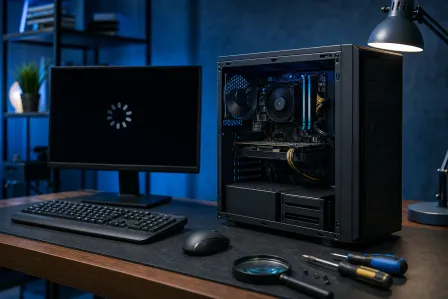
Partial power, no boot. Fans spin up, RGB lights glow, drives click to life, but you get nothing on screen. No BIOS, no logo, nothing. Just a blank monitor staring back at you like it is personally disappointed.
Continuous or unusual beep codes. If your board has a speaker attached, it will try to tell you something is wrong via beep patterns. Three beeps usually means RAM. One long, two short often points to a video problem. Check your motherboard manual or the manufacturer's support page for your specific codes.
Random crashes and bluescreens. If the PC boots but keeps throwing BSODs with different error codes each time, that is a red flag. One consistent error code usually points to a driver or software issue. Random, rotating errors suggest the hardware underneath is unreliable.
USB or peripheral ports stopped working. Half the USB ports are dead, the keyboard is unresponsive on some ports but fine on others. Onboard audio quit. These are signs of damaged or fried controllers on the board itself.
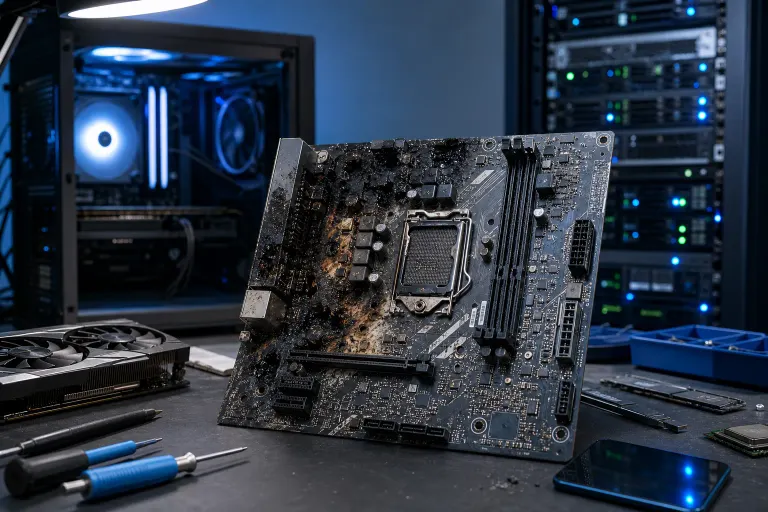
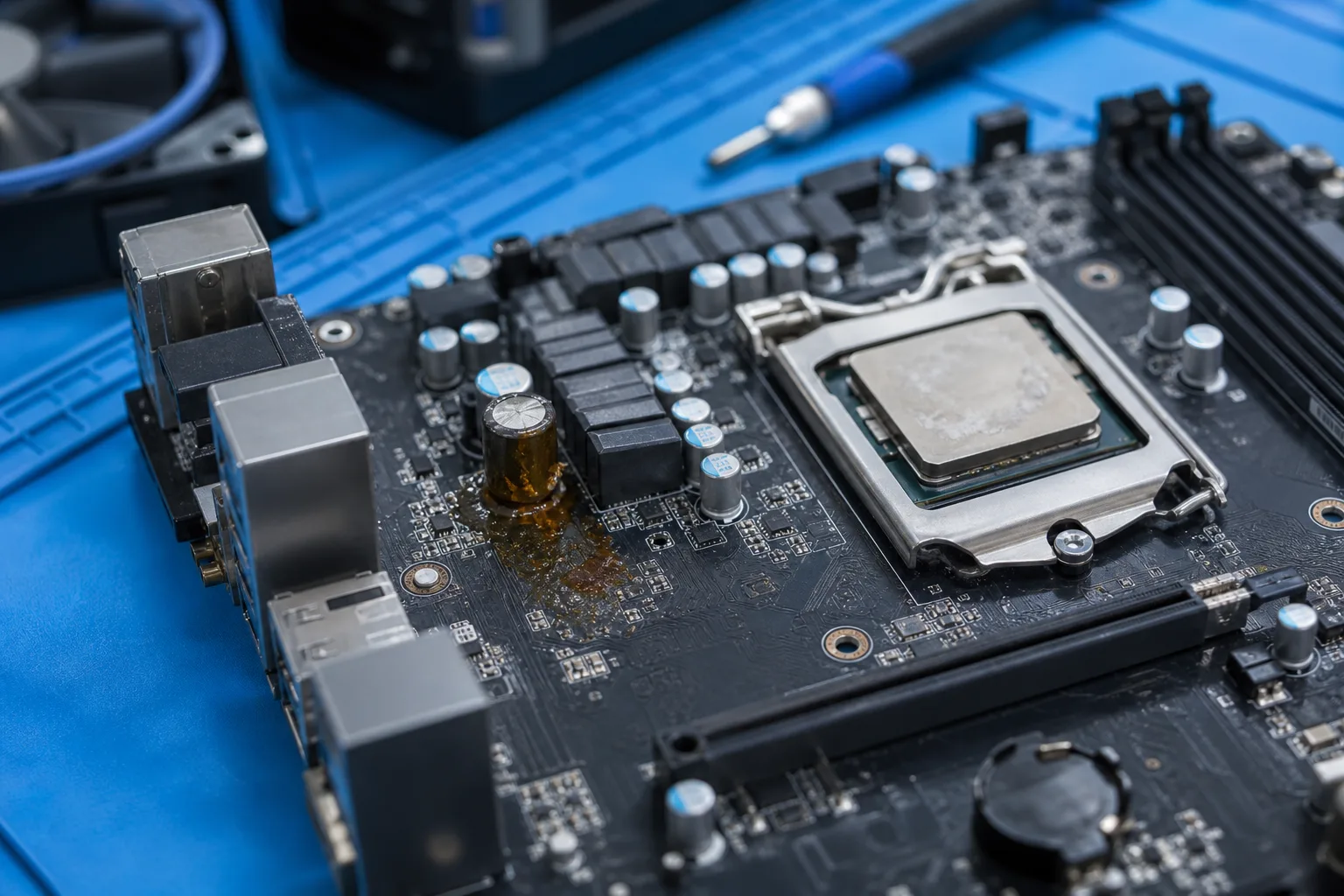
Burning smell or visible damage. If you open the case and see a swollen capacitor (they look like tiny soda cans that have been squeezed too hard), scorch marks, or anything that smells like burnt electronics, stop. That board is done.
Step 2: Rule Out the Easy Stuff First
This is where most people go wrong. They assume motherboard and start shopping. Do not do that.
Check the power supply first. Unplug everything from the wall, wait 30 seconds, plug back in. Try a different outlet. If you have a PSU tester (they are cheap), use it. A failing power supply causes no-post symptoms that look exactly like a dead motherboard.
Reseat the RAM. Power down, unplug the machine, pop the RAM sticks out, blow out the slots with compressed air, and push them back in firmly. You should hear a click. Try booting with one stick at a time, in different slots. Failed or unseated RAM is the single most common cause of a no-post situation I see come through the door.
Disconnect everything non-essential. Pull out any add-in cards, extra drives, and USB devices. Boot with just CPU, one RAM stick, and your monitor connected. If the machine posts now, something you unplugged was causing the conflict.
Try a different monitor and cable. Before you blame the motherboard for no display, rule out the monitor. Swap the cable. Try a different port on the GPU or try the onboard video output if your CPU has integrated graphics.
If you work through all of that and still get nothing, the board has moved up the suspect list.
Step 3: Run a POST Diagnostic Card
A POST card is a small add-in card that plugs into a PCIe or PCI slot and displays a two-digit hex code that tells you where the boot process is stalling. They cost about $10-15 and are worth keeping in a drawer.
Plug it in, power the machine on, and look at the code. Cross-reference it with your motherboard manual or search the code alongside your board model. Common codes to watch for:
- 00 or FF: The board is not completing basic initialization. Often points to a CPU or motherboard failure.
- C0 or C1: Early memory initialization failure. Could be RAM, could be the board's memory controller.
- A2: Usually a storage device issue, not the board itself.
If the card shows nothing at all, that is telling. The board may not be providing power to the PCIe slot, which is a bad sign on its own.
Computer acting up? Get a real diagnosis. Book a diagnostic
Step 4: Inspect the Board Visually
With the machine unplugged and the power button held for a few seconds to discharge residual power, take a flashlight to the board.
Look for:
- Swollen or leaking capacitors. They should have flat tops. If they are domed or have brown crust around the base, they are blown.
- Burn marks or discoloration. Usually near the VRM area (the components around the CPU socket) or near power connectors.
- Bent pins in the CPU socket. On Intel boards especially, the socket has pins that bend easily. One bent pin can prevent the system from booting entirely.
- Cracked traces on the board. Hard to spot without good light. Usually caused by physical stress, a drop, or overtightening standoffs.
Any of that visible damage is your answer. You do not need more tests.
Step 5: Test the CPU in a Known-Good Board (If You Can)
This step requires access to a compatible system, which not everyone has. But if you do, it is the cleanest way to isolate the problem.
Move your CPU to a board you know works. If the system posts fine, your original board is the problem. If it still does not post, the CPU may be the failure point, or may have been damaged by the bad board.
(I have seen a failed board take a CPU with it on the way out. Not common, but it happens. That is why you do not keep running a machine that is throwing weird symptoms.)
If you are not comfortable doing this yourself, bring it in. We do component-level diagnostics at Fix My PC Store and can tell you what failed and what is worth saving.
Step 6: Check for BIOS or Firmware Issues
Occasionally what looks like a dead board is actually a corrupted BIOS. This is more common after a failed BIOS update or a power surge during operation.
Some boards have a BIOS reset button on the back panel or a jumper on the board labeled CLRTC or similar. Consult your manual. Clearing the CMOS resets the BIOS to factory defaults and can sometimes bring a board back from the dead.
If the board has dual BIOS (some higher-end boards do), there may be a physical switch to flip to the backup BIOS. Worth trying before you write the board off.
Common Mistakes
Buying RAM or a GPU before diagnosing properly. The symptoms overlap. Do the work first.
Skipping the PSU test. A dying power supply is the most common cause of "dead motherboard" calls I get. Test it or swap it before anything else.
Overtightening the CPU cooler. Cracked boards and bent sockets are more common than you would think. Tighten to snug, not gorilla-tight.
Running the machine after it starts throwing random BSODs. Every time it crashes on a failing board, you risk corrupting your drives or frying the CPU. Back up and diagnose fast. If you need help with data protection before this gets worse, our backups and disaster recovery page has options worth reading.
Assuming the board is fine because the lights turn on. RGB and fans can spin on partial power. Lights mean the PSU is delivering some voltage. They do not mean the board is healthy.
Trying to repair a board yourself if you have never done it. Capacitor replacement and trace repair are real skills. Watching one YouTube video does not make you ready. If you need laptop repair or desktop diagnosis done right, bring it somewhere that has actually done it before.
Bottom Line
Motherboard failure is real, but it is diagnosed last, not first. Work through the PSU, the RAM, the GPU, and the cables before you condemn the board. If you do all that and the symptoms still point to the motherboard, then yes, it probably needs replacing.
The cost of a replacement motherboard varies a lot depending on socket type and platform. Some older boards are not worth replacing because finding a compatible CPU to go with a new board sends the total cost past what the machine is worth. That is a conversation worth having with someone who knows components, not just someone trying to sell you a new PC.
If you are in West Palm Beach or anywhere in South Florida and you are stuck mid-diagnosis, you can bring it in or book a remote support session. We will tell you straight what is wrong and what it would actually cost to fix, with no upsell nonsense attached.
Computer acting up? Get a real diagnosis.
Fix My PC Store has repaired thousands of machines across West Palm Beach. Honest pricing, no upsell games, and a free diagnostic for new customers with our email coupon.