PC Turns On But No Display? Here's How to Fix It
TL;DR: A PC that powers on but shows no display is almost always caused by a loose cable, a wrong input source, a RAM seating issue, or a failing GPU. Work through each check in order before assuming the worst. Most people fix this without replacing any hardware.
What You Need
- A working monitor (or a TV with an HDMI port, for testing)
- A known-good display cable (HDMI, DisplayPort, or VGA)
- A clean, static-safe workspace
- A small Phillips-head screwdriver
- About 20-40 minutes
- Patience, because one step at a time really does work
You do not need to be a technician to get through this list. Each step builds on the last, so do not skip ahead.
Step 1: Rule Out the Obvious Stuff First
Before you open anything, check the simple stuff. You would be surprised how often this is the whole problem.
Check the monitor:
- Is the monitor plugged in and powered on? Look for a small power LED.
- Is the brightness turned all the way down? Some monitors have a physical brightness dial that gets bumped.
- Press the monitor's input select button. Confirm it is set to the correct source (HDMI 1, DisplayPort, etc.).
Check the cable:
- Unplug the display cable from both ends and plug it back in firmly.
- If you have a spare cable, swap it. Cables fail more often than people expect.
- If your monitor has multiple input ports, try a different one.
Test with a different monitor or TV: Connect your PC to a completely different screen. If it works, the problem is your monitor, not your computer.
Step 2: Check Which Video Output You Are Using
This one trips up a lot of people, especially after adding a graphics card or updating hardware.
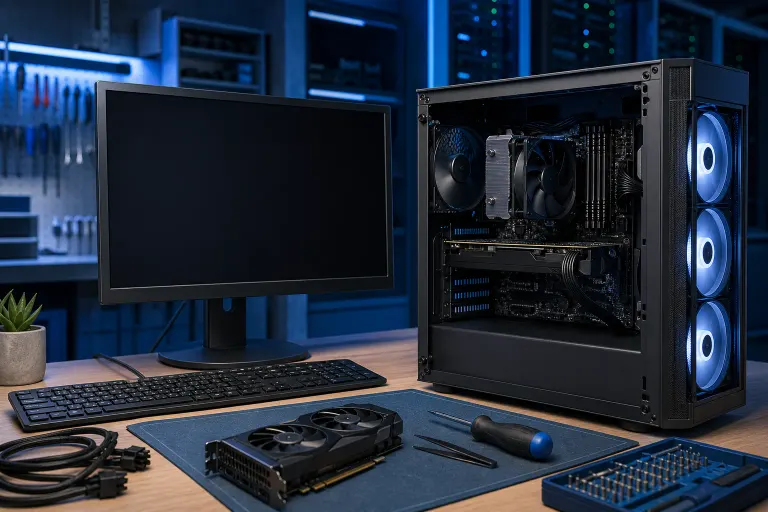
If your PC has a dedicated GPU (a separate graphics card), your monitor must be plugged into the GPU's ports on the back of the case, not the motherboard's built-in video output.
Look at the back of your PC:
- The motherboard's video ports sit near the USB ports, usually higher up.
- The GPU's ports are lower, on a card that sticks into the case.
If you are plugged into the wrong one, simply move the cable. That single move fixes this problem more often than you would expect.
If you recently had work done on your machine, or if you are not sure whether your PC even has a dedicated GPU, our team at Fix My PC Store can sort that out quickly.
Step 3: Reseat the RAM
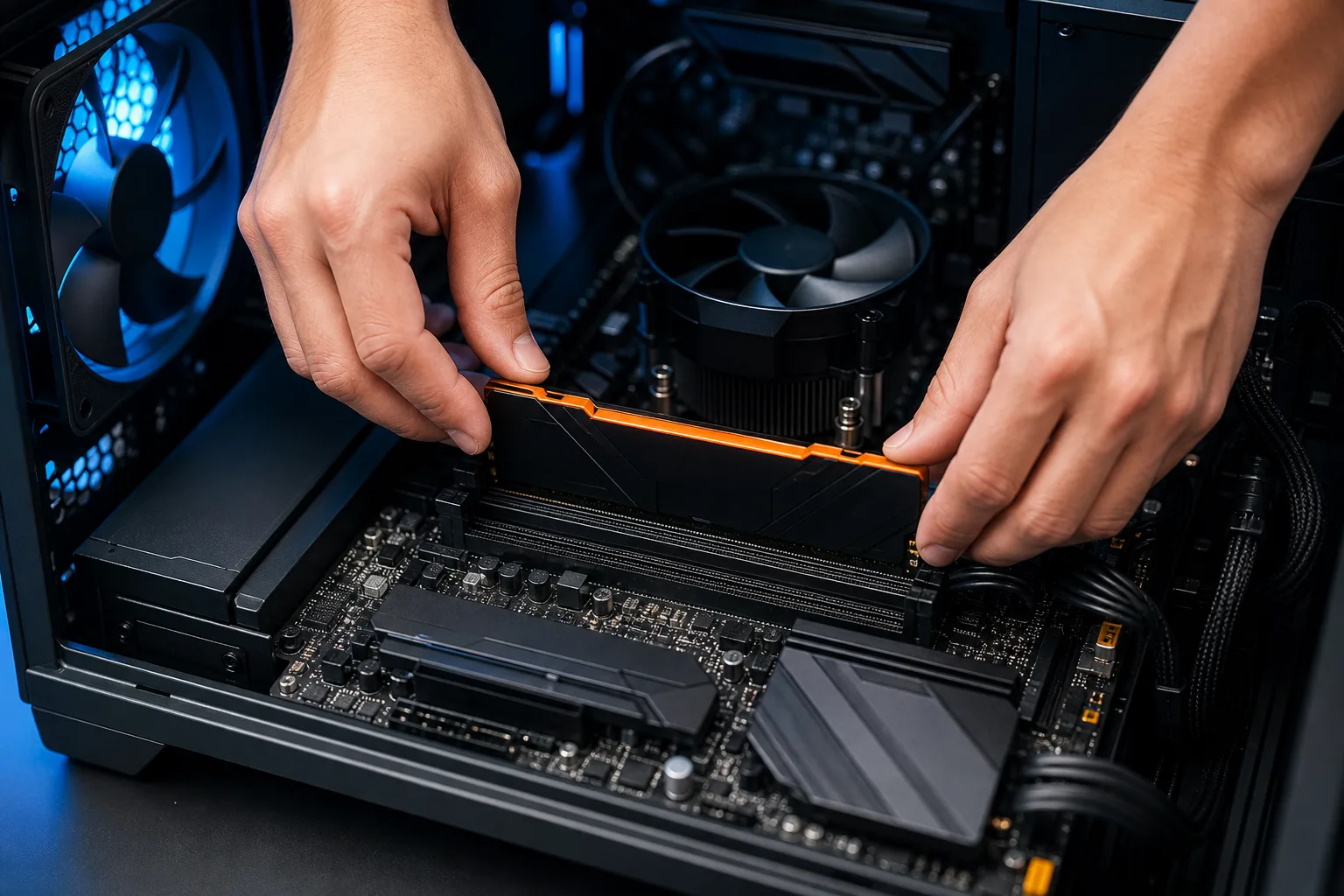
RAM that has worked its way slightly loose is one of the most common causes of a no-display boot. The PC powers on because it has power, but it cannot complete POST (the startup self-check) without stable memory.
How to reseat RAM:
- Shut down completely and unplug the power cord.
- Press the power button once after unplugging to drain residual charge.
- Open the side panel.
- Press down on the plastic clips at each end of the RAM slot until the stick pops up.
- Remove the RAM stick completely.
- Look at the gold contacts. If they look dark or dirty, the recommended primary method is to sparingly apply isopropyl alcohol (90% or higher) to a lint-free cloth or cotton swab and gently wipe the contacts, then allow them to dry completely before reinserting to avoid moisture damage. As a last resort only, you may lightly rub the contacts with a clean pencil eraser, but use this with caution, as eraser residue (rubber and graphite particles) can contaminate the contacts if not thoroughly brushed away with a dry lint-free cloth afterward.
- Press the RAM firmly back into the slot until both clips click.
- Plug in and power on.
If you have two RAM sticks, try booting with just one installed. Swap to the other if the first does not work. A faulty stick is more common than a faulty slot.
Step 4: Reseat the Graphics Card
A GPU that has shifted slightly in its slot will kill your display output without showing any other signs of failure.
- Shut down and unplug as before.
- Remove the single screw holding the GPU bracket to the case.
- Press the release clip on the PCIe slot and slide the GPU out.
- Inspect the gold contacts.
- Firmly reseat the card until the clip clicks.
- Reconnect any power cables going into the GPU. These are easy to miss.
- Reinstall the bracket screw.
- Power on and test.
While you have the card out, check the PCIe power connectors. A partially seated power connector is a quiet killer. Press each connector in until it clicks.
If your machine has no dedicated GPU and relies on integrated graphics, skip this step.
Computer acting up? Get a real diagnosis. Book a diagnostic
Step 5: Clear the CMOS
The CMOS is a small battery on your motherboard that stores settings. A corrupted or conflicting BIOS setting can prevent your display from initializing. Clearing the CMOS resets those settings to factory defaults, which often resolves weird no-display issues after a hardware change or failed update.
How to clear CMOS:
- Shut down and unplug.
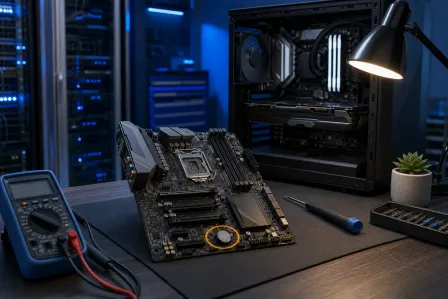
- Locate the small round coin-cell battery on the motherboard (it looks like a watch battery).
- Pop it out gently using your fingernail or a non-conductive plastic spudger or pry tool, avoid metal tools, which can scratch the motherboard or damage surrounding components.
- Wait 60 seconds.
- Reinstall the battery.
- Power on.
Some motherboards have a dedicated CMOS reset button or jumper instead. Check your motherboard's manual if you do not see a removable battery.
If a BIOS issue is making you nervous, our guides library has resources that can help you understand what is happening under the hood.
Step 6: Listen for Beep Codes
If your motherboard has a speaker (internal or external), it will beep when something is wrong during POST. Each pattern of beeps means something specific.
Common patterns (these vary by manufacturer, so treat them as general guidance):
- One long beep, then short beeps: often a RAM problem
- Continuous long beeps: usually RAM or a stuck key
- Three short beeps: commonly a memory error
If you hear nothing, that is also information. A completely silent boot with no display can point to a power supply problem or a dead motherboard.
Look up your motherboard brand and model along with the beep pattern you hear. The manufacturer's support page will have the exact code list.
Step 7: Test the Power Supply
A weak or failing power supply (PSU) can deliver just enough power to spin the fans and light the LEDs while starving the GPU and RAM of what they need to function.
Signs your PSU might be the issue:
- The PC powers off and on randomly
- You hear a faint high-pitched whine from the case
- The system worked fine until recently without any hardware changes
Testing a PSU properly requires a multimeter or a PSU tester, which most people do not have at home. If you have reached this step without finding the problem, this is a good point to bring the machine in. Our computer repair team can test your PSU and the rest of the components quickly.
Common Mistakes
Assuming the monitor is fine without actually testing it. Monitors fail silently. Always test with a second screen before going deeper.
Plugging into the motherboard output when a GPU is installed. This is the number one cause of this problem that we see walk through the door.
Skipping the power drain step. When you unplug and immediately open the case, residual charge can cause unexpected behavior. Always press the power button after unplugging.
Reseating RAM without cleaning the contacts. A quick wipe makes a real difference, especially on older machines.
Panicking and swapping multiple parts at once. Change one thing, test, then change the next. If you swap three things simultaneously and it works, you still do not know what was broken.
Forgetting to reconnect GPU power cables. It is easy to pull a GPU out, clear the CMOS, reseat the card, and forget to plug the 6-pin or 8-pin back in.
If you want to dig deeper into what can go wrong at startup, check out our complete computer repair guide for a broader picture of how these systems interact.
Bottom Line
A PC that powers on with no display is almost never dead. Work through the steps above in order: check the monitor and cable, confirm the right video output, reseat the RAM, reseat the GPU, clear the CMOS, and listen for beep codes. Most people find the fix somewhere in steps 1 through 4.
If you have gone through every step and the screen is still black, the problem is likely a failing component, such as a GPU, RAM stick, or PSU, that needs testing with proper tools. That is exactly what our computer repair team is set up for.
You can book a repair or drop by and we will figure it out together. No guessing, no unnecessary part replacements, just a clear answer on what is actually wrong.
Computer acting up? Get a real diagnosis.
Fix My PC Store has repaired thousands of machines across West Palm Beach. Honest pricing, no upsell games, and a free diagnostic for new customers with our email coupon.