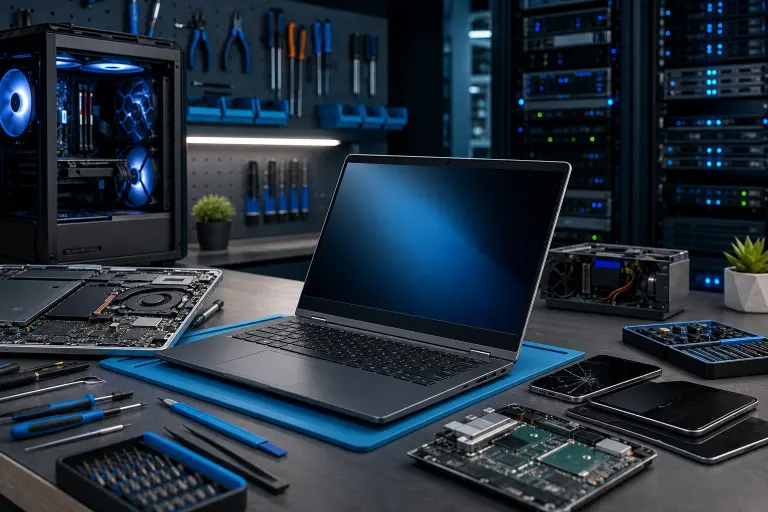
Tech workbench with open laptop, disassembled components, screwdrivers, circuit boards, and a glowing PC tower in background.

    Laptop Repair 101: Most Common Issues and Fixes

    laptop repair
    computer repair
    troubleshooting
    west palm beach
    hardware
    mobile repair
    Author: Old Man Hemmings, Senior Repair TechnicianPublished: 6/14/2026Last Updated: 6/14/2026
    Reviewed by Andrew Harris, President

    Most laptop problems follow predictable patterns. Knowing what is actually wrong, and whether it is a quick fix or a sign of deeper trouble, saves you time, money, and a lot of unnecessary panic. Here is what to look for and what to do about it.

    TL;DR: Most laptop failures come down to a handful of culprits: overheating, failing storage, bad batteries, software bloat, and physical damage. Some of these you can handle yourself. Others need a technician before they get worse and more expensive.

    Laptop repair is one of the most common reasons people walk through our door here in West Palm Beach. Sometimes the problem is obvious. More often, people have been limping along with a half-broken machine for months, convinced that a restart will eventually fix things. Spoiler: it will not.

    This guide covers the issues we see most often, what actually causes them, and honest guidance on when a DIY approach is reasonable versus when you should stop poking around and bring it in.


    1. The Laptop Is Running Slow

    This is the number-one complaint we hear. And yes, it can mean a dozen different things.

    The most common culprits are a nearly full storage drive, too many startup programs, malware running in the background, or a hard drive that is starting to fail. On older machines, running a modern operating system on outdated hardware is often the real issue.

    What you can try yourself:

    • Open Task Manager (Windows) or Activity Monitor (Mac) and look for anything eating CPU or RAM that should not be.
    • Check your storage. If your drive is over 85 to 90 percent full, that alone will slow everything down. Delete or move files.
    • Disable startup programs you do not need. On Windows, that is Task Manager, then Startup tab. On Mac, System Settings, then General, then Login Items.
    • Run a malware scan with a reputable tool like Malwarebytes.

    When to bring it in: If the slowness is combined with clicking or grinding sounds, the drive may be failing. That is not a wait-and-see situation. Get it looked at before you lose your files. Our computer repair team can run diagnostics and tell you exactly what is going on.


    2. Overheating and Unexpected Shutdowns

    Laptops shut themselves down to prevent permanent damage when they get too hot. If yours is shutting off randomly, running the fans at full blast constantly, or is too hot to touch on the bottom, heat is almost certainly the issue.

    The usual cause is dust buildup inside the chassis blocking the cooling vents. Over one to three years of daily use, enough dust accumulates to seriously reduce airflow. Thermal paste between the CPU and heat sink also dries out and loses effectiveness over time.

    What you can try yourself:

    • Make sure you are not using the laptop on a pillow, bed, or couch. Those surfaces block the bottom vents completely.
    • Use a can of compressed air to blow out the vents. This helps a little, but does not fully replace a proper internal cleaning.

    When to bring it in: If compressed air does not improve things, the machine needs to be opened, the fans cleaned properly, and the thermal paste replaced. This is a common laptop repair job and not expensive. Ignoring it is expensive. Overheating is one of the top causes of motherboard failure.


    3. Dead, Flickering, or Cracked Screen

    Screen issues come in a few flavors. A completely black screen could be the display itself, the backlight, the video cable, or the graphics hardware. Flickering usually points to a failing backlight or a loose display cable. A cracked screen is a cracked screen.

    What you can try yourself:

    • Plug an external monitor into the laptop. If the external display works fine, the problem is isolated to the screen, not the GPU or motherboard. That is actually good news because screens are replaceable.
    • If the screen has random horizontal lines or flickering, try gently opening and closing the lid while the laptop is on. If the flickering changes, the display cable is likely loose or damaged near the hinge.

    When to bring it in: Screen replacements are almost always a job for a technician. The parts have to match the exact model and getting the panel in and out without cracking the frame or tearing the cable takes practice. A Mac with a screen issue is a different situation entirely, and you can read more about that on our Mac repair page.


    4. Battery That Will Not Hold a Charge

    Lithium-ion batteries degrade. That is not a flaw. It is chemistry. Most laptop batteries are rated for somewhere between 300 and 500 full charge cycles before capacity noticeably drops. If your laptop dies at 40 percent or you have to keep it plugged in constantly, the battery is the most likely reason.

    What you can try yourself:

    • On Windows, run a battery report. Open Command Prompt as administrator and type: powercfg /batteryreport. It will show your battery's design capacity versus current capacity. If it has dropped significantly, replacement is the right move.
    • On Mac, hold Option and click the battery icon in the menu bar. If it says "Service Recommended" or "Service Battery," do not ignore that.

    When to bring it in: Battery replacement is generally straightforward on most Windows laptops, though some newer ultrabooks glue the battery in place, which makes it trickier. If you are not comfortable with small screws and ribbon cables, let a tech handle it. The part cost plus labor is almost always worth it compared to buying a new machine.


    Cracked screen or a phone that won't hold a charge? Get a repair quote

    5. Keyboard Keys That Stick, Skip, or Stop Working

    A few dead keys might seem minor. It is annoying until the day the spacebar goes and then it is a crisis.

    Sticky keys usually mean something was spilled, even something small. Skipping or unresponsive keys on a laptop that has never been wet are often a sign of a failing keyboard membrane or, on MacBooks, the well-documented butterfly keyboard issues.

    What you can try yourself:

    • For surface-level gunk, compressed air angled under the keys can dislodge debris. Isopropyl alcohol on a cotton swab works for stickiness on individual keys, but be careful and use 90 percent or higher concentration.
    • Check if the issue is software before assuming hardware. On Windows, go to Settings, Accessibility, Keyboard, and make sure Filter Keys and Sticky Keys are off.

    When to bring it in: A full keyboard replacement is one of the more affordable laptop repair jobs. If more than a few keys are dead or the key feel is mushy across the board, replacement beats repairs on individual switches.


    6. Laptop Will Not Turn On

    This is the one that sends people into a spiral. The screen is black. Nothing happens. Panic sets in.

    Before assuming the worst, work through the basics.

    What you can try yourself:

    • Verify the charger is actually working. Try a different outlet. Check the charging brick for any indicator light.
    • Hold the power button for a full 30 seconds. Some laptops have a forced reset triggered this way.
    • Disconnect the charger, remove the battery if it is removable, hold the power button for 30 seconds to drain residual power, then reconnect and try again.
    • Listen and look. Do the fans spin at all? Any lights? Any beep codes? Those details matter.

    When to bring it in: If none of that works, diagnosing a no-power situation requires a meter and some experience. It could be the DC jack, the charging circuit, a blown fuse on the board, or in worse cases the motherboard itself. The sooner you bring it in, the better the odds of a cost-effective fix. You can also reach us through remote support if you want a quick consult before coming in.


    7. Wireless That Drops Constantly or Will Not Connect

    A laptop that cannot stay connected to Wi-Fi is nearly useless in 2024. The cause could be the router, the laptop's wireless card, a driver issue, or interference from neighboring networks.

    What you can try yourself:

    • Restart both the router and the laptop before anything else. This solves more problems than people want to admit.
    • On Windows, go to Device Manager and check if there are any yellow warning icons on the Network Adapters entry. A driver update might be all it needs.
    • Forget the network and reconnect fresh. Sometimes the saved network profile gets corrupted.
    • Test the laptop on a different network, like a phone hotspot. If it works fine there, the issue is more likely your router or home network setup.

    When to bring it in: If the wireless card is failing, it can often be replaced. Some are soldered to the motherboard, which is a bigger job. If you are having broader connectivity issues across multiple devices at home or at your business, that might be a networking infrastructure issue rather than a laptop problem. Our business networking team handles that side of things.


    Bottom Line

    Laptop repair does not always mean expensive or complicated. A lot of the most common problems have clear solutions once you know what you are looking at. Overheating needs a cleaning. Slow performance usually needs a storage or software fix. Dead batteries need replacement. Screen and keyboard issues are swap jobs.

    What we see cause the most damage is waiting. A laptop that is running hot and ignored can turn a 100-dollar fan cleaning into a 400-dollar motherboard job. A drive making noise that gets ignored eventually becomes unrecoverable data.

    If you are in West Palm Beach or anywhere in South Florida and your laptop is giving you trouble, book a diagnostic with us. We will tell you exactly what is wrong, what it will cost, and whether it makes sense to fix it. No pressure, no upsell. Just a straight answer.


    Cracked screen or a phone that won't hold a charge?

    Bring it in. Most phone and tablet repairs are same-day, with parts that actually last.

    Get a repair quote

    Frequently asked questions

    How much does laptop repair usually cost?

    It depends heavily on the problem. A cleaning and thermal paste refresh might run 60 to 100 dollars. A screen replacement varies by model but is often in the 100 to 250 dollar range. Battery replacements are typically 80 to 150 dollars including labor. A diagnostic will tell you exactly what you are dealing with before you commit to anything.

    Is it worth repairing a laptop or should I just buy a new one?

    If the repair cost is under 50 percent of what a comparable replacement would cost, repair usually makes sense, especially if the machine otherwise runs well. The exception is if the motherboard is failing on an older machine. In that case, the math often points toward replacement.

    Can a laptop that got wet be repaired?

    Sometimes, yes. The key is acting fast. Power it off immediately, do not try to turn it back on, and get it to a technician as soon as possible. The longer corrosion sits on the board, the worse your odds. Do not put it in rice. That is a myth and it wastes time.

    Why does my laptop get so hot on the bottom?

    Most likely the cooling vents are partially blocked by dust or you are using it on a soft surface that covers the intake vents. Both restrict airflow and cause heat to build up. A proper internal cleaning and thermal paste replacement usually brings temperatures back to normal.

    How long does a typical laptop repair take?

    Simple jobs like battery replacements or keyboard swaps can often be done same day or next day. Screen replacements depend on part availability, which varies by model. More complex repairs like motherboard work take longer. We will give you a realistic time estimate upfront.

    Do I need to back up my data before bringing in my laptop for repair?

    Yes, always. Even for repairs that should not touch your storage, it is good practice. If you are not sure how to back up your files, we can help with that too. Our team can also assist with backup solutions if you want something more reliable going forward.

    Frequently Asked Questions

    How much does laptop repair usually cost?
    It depends heavily on the problem. A cleaning and thermal paste refresh might run 60 to 100 dollars. A screen replacement varies by model but is often in the 100 to 250 dollar range. Battery replacements are typically 80 to 150 dollars including labor. A diagnostic will tell you exactly what you are dealing with before you commit to anything.
    Is it worth repairing a laptop or should I just buy a new one?
    If the repair cost is under 50 percent of what a comparable replacement would cost, repair usually makes sense, especially if the machine otherwise runs well. The exception is if the motherboard is failing on an older machine. In that case, the math often points toward replacement.
    Can a laptop that got wet be repaired?
    Sometimes, yes. The key is acting fast. Power it off immediately, do not try to turn it back on, and get it to a technician as soon as possible. The longer corrosion sits on the board, the worse your odds. Do not put it in rice. That is a myth and it wastes time.
    Why does my laptop get so hot on the bottom?
    Most likely the cooling vents are partially blocked by dust or you are using it on a soft surface that covers the intake vents. Both restrict airflow and cause heat to build up. A proper internal cleaning and thermal paste replacement usually brings temperatures back to normal.
    How long does a typical laptop repair take?
    Simple jobs like battery replacements or keyboard swaps can often be done same day or next day. Screen replacements depend on part availability, which varies by model. More complex repairs like motherboard work take longer. We will give you a realistic time estimate upfront.
    Do I need to back up my data before bringing in my laptop for repair?
    Yes, always. Even for repairs that should not touch your storage, it is good practice. If you are not sure how to back up your files, we can help with that too. Our team can also assist with backup solutions if you want something more reliable going forward.

    Share this article

    You May Also Like