How to Fix a Computer: Diagnose and Solve Common Issues
TL;DR: Most computer problems, slow performance, random crashes, won't boot, come down to a handful of root causes. Work from the least disruptive checks toward more invasive recovery; stop when data, safety, or an unfamiliar step makes professional help sensible. If you get stuck, we're here.
What You Need
Before you touch anything, gather a few things. You don't need a toolbox full of exotic gear for most of this.
- A working internet connection (on your phone if your PC is dead)
- A USB flash drive only if recovery media is needed; check the current tool's capacity requirement
- Access to another computer if yours won't boot
- Your Windows or macOS login credentials
- Enough time to note symptoms and back up important files before risky steps
That's it. The rest is method.
Step 1: Write Down Exactly What the Computer Is Doing
This sounds obvious. Nobody does it. They come in here and say "it's just slow" or "it keeps freezing" and that tells me almost nothing.
Before you do anything else, answer these questions in writing:
- What exactly happens, and when? Is it on startup, during specific programs, randomly?
- Are there any error messages? Write them down word for word.
- Did anything change recently? Windows update, new software, someone else used the machine, power surge?
- How long has this been happening?
Symptoms point to causes. A computer that freezes two minutes after boot is a different problem than one that freezes only when you open Chrome. Don't skip this step.
Step 2: Restart and Check for Updates
I know you've heard this a thousand times. There's a reason. Restarting can clear a temporary software state; installing a pending update is a separate step. Save work and back up important files first if storage may be failing.
If the computer is responsive, restart it normally. A forced shutdown is a last resort if it will not respond.
While you're at it:
- Windows: Go to Settings, Windows Update, and install anything pending. Restart again after.
- Mac: Apple menu, System Settings, General, Software Update.
If your problem disappears after this, great. If it comes back, keep going.
Step 3: Check How Full Your Storage Is
Low available storage can slow a PC or prevent updates, but there is no universal 85-to-90-percent threshold. Microsoft recommends checking free space and using Storage settings.
- Windows: Open File Explorer, right-click your C: drive, Properties. Check the pie chart.
- Mac: Apple menu, About This Mac, More Info, Storage.
If storage is low, free space carefully and test whether performance improves; other faults may coexist. Clear out the Downloads folder, empty the Recycle Bin, and uninstall programs you don't use. Windows offers Storage Sense and Cleanup recommendations; review what will be deleted before confirming.
Don't let anyone sell you a "PC cleaner" app to do this. Avoid unknown cleanup tools that promise a one-click repair; use the operating system's built-in controls first.
Step 4: Run a Malware Scan
Not a "tune-up" tool. An actual malware scanner.
Open Windows Security, choose Virus & threat protection, and select a scan appropriate to the symptoms. Microsoft describes quick, full, custom, and offline scans.
If concerns remain, follow your organization's security process or choose a reputable second-opinion tool; do not assume every slowdown is malware.
Signs you might have malware: browser redirects, pop-ups you can't close, programs you didn't install, performance that tanks out of nowhere, or your antivirus has mysteriously turned itself off.
If the scan finds something and can't remove it, that's when you call a professional. Some incidents need offline scanning, isolation, or a carefully planned reinstall after data and account risks are assessed. We handle that at our computer repair shop.
Computer acting up? Get a real diagnosis. Ask about a diagnostic
Step 5: Test Your RAM
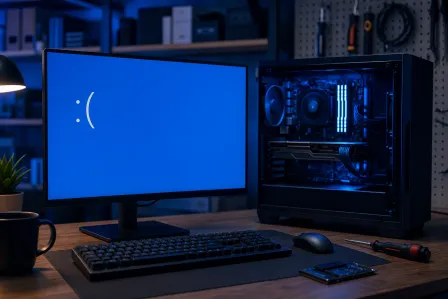
Bad RAM causes some of the weirdest symptoms in the book. Random blue screens (BSODs) with different error codes each time. Programs crashing with no clear pattern. Files getting corrupted for no reason.
Windows: Search for "Windows Memory Diagnostic" in the Start menu. Run it. The computer will restart, run the test, and report back. An error points to a memory subsystem problem; RAM, settings, slots, or the board may need further diagnosis.
Mac: Apple Diagnostics uses different startup steps for Apple silicon and Intel models. Follow the steps for your specific Mac.
Only remove memory if the model supports user access and you can follow its service guide. A passing test does not rule out every intermittent fault.
Step 6: Check for Overheating
Excess heat can cause throttling or shutdown, but sudden slowdowns have other causes too. Check fan behavior, vents, workload, and the manufacturer's temperature guidance.
If the device offers reliable temperature readings, compare them with the CPU and GPU makers' model-specific specifications. There is no universal safe temperature for every chip.
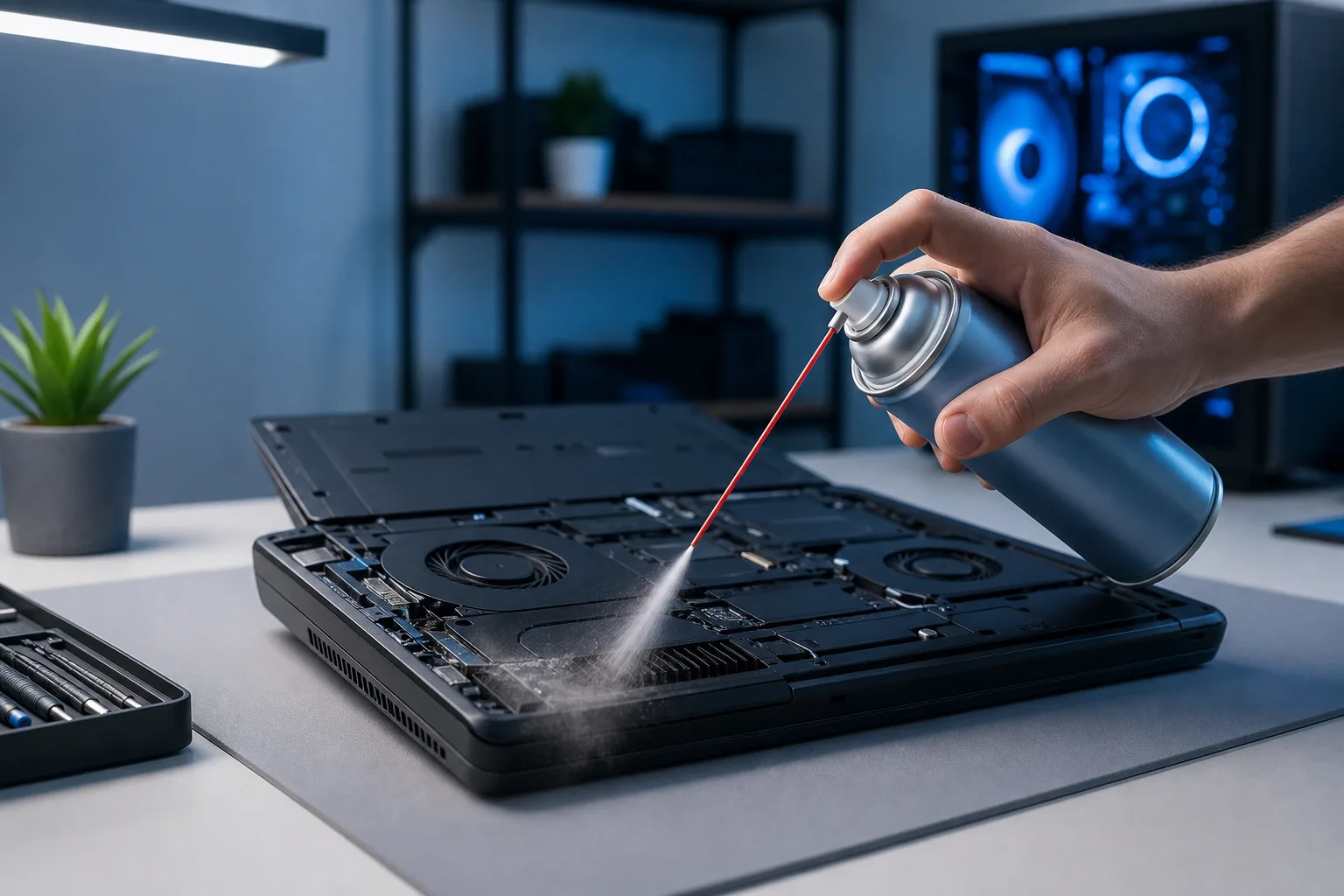
If your temps are high, the fix might be as simple as blowing dust out of the vents with a can of compressed air. Follow manufacturer instructions for cleaning vents; avoid opening an unfamiliar laptop or power supply.
If cleaning doesn't help, the thermal paste between the CPU and heatsink may have dried out. Thermal-paste service is model-specific and should follow a diagnosis. Don't improvise with toothpaste. (Yes, people try this. No, it doesn't work.)
For laptop repair, ask which cooling service your specific model needs.
Step 7: Diagnose a Computer That Won't Boot
This one scares people. It shouldn't, necessarily. "Won't boot" covers a lot of ground.
If you see a black screen with nothing: Check the monitor cable. Try a different cable or port. Make sure the monitor is on and set to the right input. This sounds dumb until you realize how often it's the actual problem.
If you see a spinning circle or loading screen that never finishes: If the system remains stuck, consult Microsoft's recovery options. Repeated forced shutdowns are not a routine diagnostic method; preserve data and find any BitLocker recovery key before using recovery tools.
If you get a specific error like "No Boot Device Found" or "BOOTMGR is missing": This can reflect drive, connection, firmware boot settings, or startup-file problems. First protect data, then use model-appropriate Windows Startup Repair if appropriate. Avoid generic boot commands; they can be wrong for modern UEFI/GPT systems.
If you hear clicking from the hard drive: Stop. Do not keep restarting. Repeated clicking from a mechanical hard drive can indicate hardware trouble. Stop repeated attempts if files are important and seek data-recovery advice. Get it to a professional immediately. If you have a backup, you're in good shape. If you don't, check our guide on backups and disaster recovery before this happens to you.
Mac won't boot: Recovery startup differs between Apple silicon and Intel Macs. Follow Apple's instructions and consider data backup before Disk Utility or reinstalling; Mac repair can assess hardware faults.
Step 8: Reinstall Windows (Last Resort for Software Problems)
A reinstall is a later option after diagnosis, backup, and less disruptive recovery methods. It does not repair hardware faults.
Windows recovery paths vary by version. Microsoft explains Reset this PC and other options, including which may remove apps, settings, or files.
Back up first. Always. Confirm a recoverable backup; do not rely on a reset option as your only copy of important files.
If Windows will not start, built-in recovery may be available before installation media. A clean USB installation can remove files; follow Microsoft's recovery decision guide. Download it on another computer, create the USB, boot from it, and follow the prompts.
If any of this feels like more than you want to handle, remote support may help if the device can start and connect; boot and hardware failures often require in-person service.
Common Mistakes
Replacing hardware before diagnosing software. Bought a new RAM stick when the real problem was a corrupted Windows update. Happens constantly.
Clicking "Fix All" in some random optimization app. Those tools range from useless to actively harmful. Windows has everything you need built in.
Ignoring SMART warnings from your hard drive. Your drive has been telling you it's dying for weeks. You clicked through the notification. Now you're crying over lost photos. Run CrystalDiskInfo on Windows to read your drive's health status.
Skipping backups because nothing bad has happened yet. Something bad is going to happen. Drives fail. Ransomware exists. Laptops get dropped. The backup conversation should happen before the emergency, not during it.
Trying to fix a business machine the same way you'd fix a home PC. Business environments have domain controllers, group policies, and other layers that change the rules. If you're dealing with a work computer, talk to whoever handles your business IT before you start pulling things apart.
Panicking and buying a new computer. Some no-start faults are inexpensive; others are not repairable economically. Diagnose before buying parts. Get a diagnosis before you give up on it.
Bottom Line
Knowing how to fix a computer is mostly about working through a logical sequence and not jumping to conclusions. Slow machine, check storage and temps first. Random crashes, check RAM and look for BSOD codes. Won't boot, don't assume the worst until you've ruled out the simple stuff.
Many faults can be repaired, but some fail without warning. Maintain backups regardless of current symptoms.
If you've worked through this whole guide and you're still stuck, or if you found a hardware problem you don't want to tackle yourself, schedule a repair and let us take a look. We're in West Palm Beach and we've seen pretty much everything.
Computer acting up? Get a real diagnosis.
Fix My PC Store serves West Palm Beach. Initial checks are free for most standard in-store repairs; ask about advanced diagnostic fees before work begins.