Gaming PC Crashes Mid-Game: How to Diagnose and Fix Them
Listen to this article
TL;DR: Mid-game crashes are one of the most frustrating things that can happen to a gamer - and they're almost never caused by just one thing. This guide walks you through every major culprit, from GPU instability and overheating to PSU failure and driver conflicts, with real steps to diagnose and fix each one. Whether you're hitting a gaming PC blue screen or a random restart mid-session, we've got the playbook to get you back in the game.
Why Your Gaming PC Crashes Mid-Game (And Why It's So Hard to Diagnose)
Okay, let's be real. There is nothing - and I mean nothing - more rage-inducing than being in the zone, clutching a ranked match, and then... black screen. Your PC restarts. Your session is gone. GG, right? Except it's not GG at all, it's a nightmare.
Here's the thing that makes gaming PC crashes so brutal to figure out: the symptoms can look identical even when the causes are completely different. A failing GPU, a dying PSU, bad RAM, a driver conflict, or a CPU cooking itself can all produce the same crash. That's why random game crashes get misdiagnosed constantly - people replace the wrong part and wonder why nothing changed.
So let's do this right. Step by step, cause by cause. Let's find your crash and kill it.
Step 1: Read the Crash - Blue Screen, Black Screen, or Hard Restart?
Before you do anything else, you need to identify what kind of crash you're getting. This is your first clue, and it matters a lot.
Gaming PC Blue Screen (BSOD)
A Blue Screen of Death during gaming almost always points to a driver issue, RAM error, or Windows system file corruption. The stop code on the screen is gold - write it down or photograph it. Codes like VIDEO_TDR_FAILURE scream GPU driver problems. MEMORY_MANAGEMENT points straight at your RAM. Check out Microsoft's official Blue Screen troubleshooting guide for a full list of stop codes and what they mean.
Black Screen with PC Still Running
Fans still spinning, RGB still glowing, but no display? That's almost always a GPU crash. Your graphics card gave up the ghost mid-render, but the rest of the system kept chugging. Classic GPU instability or VRAM crash territory.
PC Restart While Gaming (No Warning)
Instant restart with zero warning - no BSOD, no black screen, just a sudden reboot? That's your PSU waving a white flag, or possibly thermal protection kicking in. When your system pulls a massive power load during an intense gaming scene and the PSU can't deliver, it just cuts out. Brutal.
Step 2: Check Your Temperatures - Overheating Is the Silent Killer
I cannot stress this enough: overheating is responsible for more mid-game crashes than any other single cause. And here in South Florida, with our heat and humidity, this hits Palm Beach County gamers extra hard. Your rig is already fighting the ambient temperature before it even boots up.
How to Monitor GPU and CPU Temps
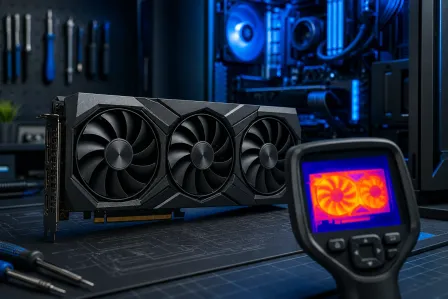
Download GPU-Z by TechPowerUp for GPU monitoring, and use HWiNFO64 or MSI Afterburner for a full system overview. Run a demanding game or benchmark and watch your temps in real time.
- GPU safe zone: Under 85°C under load. Above 90°C is danger territory. Above 95°C and your GPU will thermal throttle or crash to protect itself.
- CPU safe zone: Under 85-90°C under load depending on your chip. Modern CPUs will throttle hard and fast when they get too hot.
Fixes for Overheating Crashes
If your temps are spiking, start here: clean out your case with compressed air (dust buildup is a frame killer), replace dried-out thermal paste on your CPU and GPU, improve your case airflow with better fan placement, and make sure your GPU heatsink isn't clogged. If you're on a gaming laptop, the thermal situation is even more critical - our team handles gaming laptop repair and thermal repasting regularly for exactly this reason.
Step 3: Diagnose GPU Instability and VRAM Crashes
If your temps look fine but you're still crashing - especially with that black screen symptom - your GPU or VRAM might be the culprit. This is one of the trickiest crashes to nail down, but here's how you do it.
GPU Driver Conflicts and Rollbacks
New driver dropped and now your game crashes? Classic. GPU driver updates can introduce instability with specific game engines. Here's the move: use DDU (Display Driver Uninstaller) in safe mode to completely nuke your current drivers, then reinstall a known stable version. For NVIDIA users, check the forums for which driver version is stable for your specific GPU generation. AMD's Adrenalin software has a similar rollback option built in. This alone fixes a massive percentage of random game crashes.
VRAM Crash Fix - Overclocked GPU Memory
Running an overclocked GPU? Pushed the memory clock too far? VRAM instability will crash your game every time, especially in VRAM-hungry titles. Open MSI Afterburner and dial back your memory overclock by 50-100MHz increments until the crashes stop. Sometimes the most cracked overclock isn't worth the instability. Stability is king.
Test Your GPU in Another System
If you have access to another PC, swap your GPU in and run the same game. If it crashes there too, the GPU hardware itself is failing. If it runs fine, the problem is in your original system - PSU, drivers, or motherboard.
Step 4: Test Your RAM - The Most Underrated Crash Cause
Faulty RAM causes some of the weirdest, most random game crashes you'll ever see. Games load into RAM heavily during play, so bad memory sticks will show up as crashes, freezes, or BSODs that seem completely random.
How to Run a RAM Diagnostic
Windows has a built-in memory diagnostic tool - just search "Windows Memory Diagnostic" in the Start menu and let it run overnight. For a more thorough test, boot from a MemTest86 USB drive and run at least two full passes. Any errors at all mean your RAM is suspect.
The Slot Swap Test
If you have two RAM sticks, pull one out and test with just a single stick. If the crashes stop, your other stick is bad. Swap sticks and test again to confirm which one is the culprit. Also make sure your RAM is seated in the correct dual-channel slots - check your motherboard manual. Wrong slots can cause instability that looks exactly like a hardware failure.
Step 5: Investigate Your PSU - Power Delivery Problems
Your Power Supply Unit is the unsung hero of your build, and when it starts failing, it takes everything else down with it. A PSU that's underpowered for your rig, aging out, or just low quality will crash your system the moment your GPU hits peak power draw - which happens constantly in demanding games.
Signs Your PSU Is Causing Game Crashes
- PC restarts with zero warning, no BSOD, usually during intense scenes
- Crashes happen more often in graphically demanding games vs. lighter ones
- System is stable during desktop use but crashes under gaming load
- PSU is more than 5 years old or is a budget no-name brand
The PSU Fix
Calculate your system's actual power draw using a PSU calculator and make sure your unit has at least 20% headroom above that number. If you're running a high-end GPU on a 550W PSU, that's a problem waiting to happen. A quality 80+ Gold or Platinum rated PSU from a reputable brand is a game changer - literally. This is one upgrade where going budget is a terrible idea.
Step 6: Check Windows and Game File Integrity
Sometimes the crash isn't hardware at all - it's corrupted Windows system files or broken game data. Before you start swapping hardware, run these quick software fixes.
Windows System File Checker
Open Command Prompt as Administrator and run sfc /scannow followed by DISM /Online /Cleanup-Image /RestoreHealth. These commands scan for and repair corrupted Windows files that can cause gaming crashes and blue screens. Takes about 15-20 minutes and has saved countless builds from unnecessary hardware swaps.
Verify Game Files
On Steam, right-click your game, go to Properties, Local Files, and hit "Verify integrity of game files." Epic Games Launcher has a similar option. Corrupted game files cause crashes that look exactly like hardware problems. Always check this before assuming your GPU is dying.
When DIY Diagnosis Isn't Enough - Get Professional Help
Look, I love a good DIY fix as much as anyone. But sometimes crashes are caused by hardware failures that need proper diagnostic tools, component-level testing, or even a full system teardown to identify. If you've worked through every step in this guide and your gaming PC is still crashing mid-game, it's time to bring in the pros.
For Palm Beach County gamers, our team at Fix My PC Store has the tools and expertise to run full hardware diagnostics, identify failing components, and get your rig back to butter-smooth performance. Whether it's a gaming PC repair and diagnosis in-store or a remote support session for software-related crashes, we've got you covered. We serve West Palm Beach, Boca Raton, Boynton Beach, Lake Worth, and the surrounding Palm Beach County area.
Don't keep throwing money at random parts hoping something sticks. A proper diagnosis saves you time, money, and a whole lot of rage-quitting.
Still Crashing? Let's Fix That Rig.
Palm Beach County's gaming PC specialists are ready to diagnose your crashes and get you back to full performance. In-store and remote options available.
Level Up Now