¿Por qué mi computadora está tan lenta? Así es como realmente se soluciona
Resumen rápido: Las computadoras lentas pueden tener varias causas, entre ellas: demasiados programas al inicio, RAM insuficiente, un disco duro que está fallando o lleno, o malware haciendo lo que quiere en segundo plano. Sigue estos pasos en orden y o lo resuelves tú mismo, o sabes exactamente qué decirle a un técnico.
Lo que necesitas
- Un teclado y un mouse que funcionen (obvio)
- Entre 30 y 60 minutos de paciencia
- Acceso de administrador a tu propia máquina
- Un bloc de notas o tu teléfono para anotar cualquier cosa rara que notes
- Opcionalmente, una memoria USB con al menos 8 GB libres
No necesitas ningún software de pago para la mayor parte de esto. Si alguien intenta venderte una aplicación "optimizadora de PC", cierra esa pestaña. (Esas cosas casi siempre son una porquería, y algunas son directamente estafas.)
Paso 1: Descubre qué está usando realmente tus recursos
Antes de empezar a borrar cosas al azar, abre el Administrador de tareas. Presiona Ctrl + Shift + Esc. Haz clic en la pestaña "Procesos".
Ordena por CPU y luego por Memoria. Obsérvalo durante unos 30 segundos.
Busca procesos que consuman muchos recursos de CPU, memoria o disco cuando no los estás usando; un porcentaje fijo no demuestra por sí solo que exista una falla. Anota los nombres. Los culpables más comunes: análisis del antivirus que se ejecutan en el peor momento posible, Windows Update haciendo lo suyo a media mañana, extensiones del navegador que se descontrolaron, y aplicaciones de inicio aleatorias que nadie recuerda haber instalado.
Si ves algo con un nombre vago como "svchost.exe" acaparando todo, generalmente es Windows haciendo trabajo legítimo en segundo plano. Si no cede después de 10 minutos, vale la pena investigarlo más. Si ves algo que definitivamente no reconoces, no lo borres todavía, solo anótalo.
Paso 2: Elimina los programas de inicio
Esto puede mejorar el arranque si hay aplicaciones innecesarias que se inician automáticamente. Cada vez que instalas software, la mitad de él quiere iniciarse solo cuando arranca Windows. Después de algunos años, tu lista de inicio parece una fiesta a la que nadie fue invitado.
Abre el Administrador de tareas otra vez y ve a la pestaña "Inicio". Haz clic derecho y deshabilita todo lo que no necesites que se ejecute al arrancar. Spotify no necesita iniciarse con Windows. Tampoco Discord, Zoom, la sincronización de OneDrive (a menos que la uses de verdad), ni esa utilidad de impresora del 2019.
Deshabilitar las entradas de inicio no desinstala nada. El programa sigue funcionando cuando lo abres tú mismo. Solo le estás diciendo que deje de ser insistente.
Reinicia después de hacer esto y observa cómo cambia el tiempo de arranque. Compara el resultado después de reiniciar; la mejora depende de la causa de la demora.
Paso 3: Revisa tu disco de almacenamiento
Este es el que la gente se salta, y a menudo es todo el problema.
Si tu computadora tiene un disco duro tradicional de platos giratorios (HDD) en lugar de una unidad de estado sólido (SSD), ese es probablemente tu mayor cuello de botella. Los HDD son mecánicos. Se desgastan, se vuelven más lentos, y comparados con un SSD se sienten como cargar una página web con dial-up.
Para revisar tu disco, abre "Este equipo" en el Explorador de Windows. Haz clic derecho en tu unidad C:, elige Propiedades. Si queda poco espacio libre, las actualizaciones y los archivos temporales pueden tener problemas; no existe un umbral universal del 90%. Windows necesita espacio libre para respirar.
Para revisar el estado del disco, descarga CrystalDiskInfo, es gratuito y legítimo. Ejecútalo. Si el disco muestra una advertencia, evita pruebas innecesarias y protege pronto los archivos importantes. Un disco también puede fallar sin aviso; un estado normal no sustituye las copias de seguridad.
Especialmente con los clientes de reparación de laptops, vemos muchas máquinas que se sienten imposiblemente lentas simplemente porque el HDD ha estado fallando en silencio durante meses. Reemplazarlo por un SSD suele ser la mejora más rentable que puedes hacer en una máquina antigua.
Paso 4: Revisa tu RAM
Abre el Administrador de tareas, ve a la pestaña Rendimiento y haz clic en Memoria. Observa el porcentaje en uso mientras realizas tareas normales, sin ejecutar nada pesado.
Si la memoria se mantiene casi llena durante el uso normal y el equipo se vuelve lento, la RAM podría ser un límite; revisa la carga real y si el equipo permite ampliarla.
La memoria necesaria depende de la versión de Windows, las aplicaciones y el uso. Ocho gigabytes pueden limitar la multitarea exigente. Si tienes 4 GB, lo vas a notar. Los navegadores en especial consumen mucha memoria. Tener 15 pestañas de Chrome abiertas en una máquina de 4 GB es como pedirle a alguien que cargue 15 bolsas del supermercado con dos dedos.
Agregar RAM es una de las mejoras de hardware más económicas, dependiendo de tu máquina. Algunas laptops tienen la RAM soldada y no se puede actualizar en absoluto, por eso es importante verificarlo antes de comprar. Si no estás seguro de lo que soporta tu máquina, tráela y podemos revisarlo.
¿Tu computadora está fallando? Obtén un diagnóstico real. Consulta por una revisión inicial
Paso 5: Analiza en busca de malware correctamente
No con el "análisis gratuito" que apareció en tu navegador. (Ese casi seguro es el malware.)
Microsoft Defender Antivirus viene integrado en Seguridad de Windows. Microsoft recomienda un análisis completo si sospechas software no deseado. Abre Seguridad de Windows desde el menú Inicio y ejecuta un análisis completo. No el análisis rápido, el completo. Tarda más pero revisa más.
Si Defender no encuentra nada pero algo todavía se siente raro, descarga Malwarebytes Free. Ejecuta también un análisis con esa herramienta. Detecta adware y programas potencialmente no deseados que el antivirus tradicional a veces pasa por alto.
El malware puede ejecutar mineros de criptomonedas en silencio, enviar spam o filtrar tus datos mientras tu máquina lucha por cargar una hoja de cálculo. Si eres una empresa y estás lidiando con esto, esa no es una situación de "reiniciar y esperar lo mejor". Eso requiere llamar a alguien que se ocupa de ciberseguridad empresarial.
Paso 6: Ocúpate de Windows Update y la configuración de energía
Dos cosas que silenciosamente estrangulam el rendimiento y que casi nadie revisa.
Primero, las actualizaciones. Ve a Configuración, Windows Update. Si tienes actualizaciones pendientes de instalar, a menudo ejecutan procesos en segundo plano que frenan todo. Instálalas, reinicia y ve si las cosas mejoran. Mantener Windows actualizado también cierra brechas de seguridad, lo cual no es poca cosa.
Segundo, la configuración de energía. En una laptop especialmente, si estás en modo "Ahorro de energía", Windows está limitando deliberadamente tu CPU para ahorrar batería. Ve al Panel de control, Opciones de energía, y cambia a "Equilibrado" o "Alto rendimiento" cuando estés conectado a la corriente. Te sorprendería la frecuencia con la que este es todo el problema.
Paso 7: Limpia el polvo térmico (sí, físicamente)
El calor destruye el rendimiento. Cuando una CPU se calienta demasiado, se limita a sí misma para evitar daños. Esto se llama throttling térmico, y puede reducir el rendimiento, pero el efecto varía según el equipo y la carga.
Si las ventilaciones están bloqueadas o los ventiladores tienen polvo visible, una limpieza puede ayudar. La antigüedad por sí sola no demuestra que el polvo sea la causa. Puede haber una capa de polvo que aísla todo como una cobija de lana en julio. (Estamos en el sur de Florida. Hay polvo y humedad. Esto es peor aquí que en la mayoría de los lugares.)
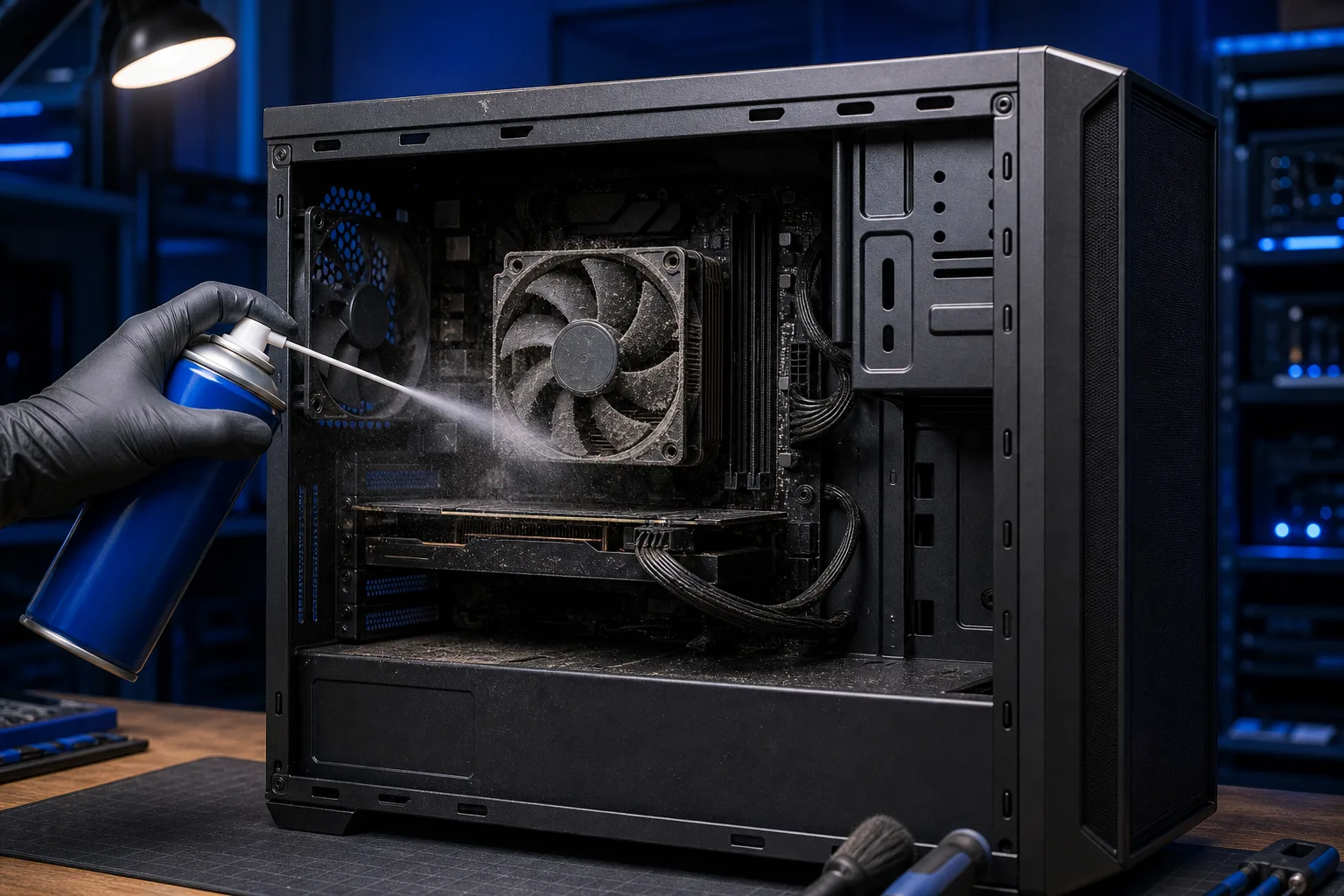
Para computadoras de escritorio, puedes abrir el gabinete y usar aire comprimido en lata para soplar el polvo, especialmente alrededor del disipador de la CPU y los ventiladores de la GPU. Hazlo afuera o sobre un bote de basura. No uses una aspiradora, la electricidad estática puede dañar los componentes.
Para laptops, el proceso es más complicado. La mayoría requiere desarmado para limpiar correctamente el disipador y el ventilador. Si no te sientes cómodo con eso, es algo razonable para llevar a un taller de reparación de computadoras en lugar de arriesgarte a romper un cable plano.
Errores comunes
Borrar archivos de sistema al azar. No empieces a sacar cosas de la carpeta de Windows porque un video de YouTube lo dijo. Puedes convertir una computadora lenta en una computadora dañada muy rápido de esa manera.
Confiar en herramientas de "limpieza de disco" de fuentes desconocidas. La Liberación de espacio en disco integrada de Windows (búscala en el menú Inicio) está bien. Los limpiadores de registro de terceros son en su mayoría un espectáculo en el mejor caso, y dañinos en el peor.
Asumir que lenta significa vieja y comprar una máquina nueva. Muchas máquinas que vemos en el taller y que los clientes creen que están muertas solo necesitan un cambio de SSD y más RAM. Compara un presupuesto de reparación por escrito con la antigüedad, el estado y el costo de reemplazo del equipo.
Ignorar las señales de advertencia. Si tu computadora está lenta Y hace sonidos de clic Y ocasionalmente no arranca, eso no es "simplemente lenta". Eso es un disco que está fallando. Deja de jugar con las pestañas de inicio y respalda tus archivos ahora mismo.
No reiniciar con regularidad. Las máquinas con Windows que funcionan durante semanas sin reiniciar acumulan fugas de memoria y otros problemas. Reinicia al menos cada pocos días. No es un consejo glamoroso, pero ayuda.
Si has pasado por todo esto y la máquina sigue yendo a paso de tortuga, o si encontraste algo alarmante en CrystalDiskInfo, es momento de que alguien más le eche un vistazo. Ofrecemos soporte remoto si quieres que alguien lo revise sin salir de tu casa, o puedes agendar una entrega en el taller.
Conclusión
Muchas computadoras lentas pueden mejorar, pero algunas tienen hardware defectuoso o cuya reparación no conviene económicamente. Comienza con el Administrador de tareas, limpia tu lista de inicio, verifica el estado del disco, asegúrate de tener suficiente RAM y analiza en busca de malware correctamente. Sigue los pasos en orden antes de sacar conclusiones apresuradas.
Si llegas a un punto muerto, o si algo que encuentras parece serio, no adivines. Adivinar con un disco duro que muestra sectores defectuosos es como la gente pierde años de fotos y documentos sin ninguna copia de seguridad a la que recurrir.
Llevamos años reparando computadoras en West Palm Beach. Los problemas casi siempre son los mismos. Las soluciones también suelen serlo.
¿Tu computadora está fallando? Obtén un diagnóstico real.
Fix My PC Store ha reparado miles de máquinas en toda el área de West Palm Beach. La revisión inicial es gratuita para la mayoría de las reparaciones estándar en el taller. Los diagnósticos avanzados y la recuperación de datos pueden tener un costo informado antes del trabajo.
Preguntas frecuentes
¿Cómo sé si mi computadora lenta es un problema de hardware o de software?
Comienza con el Administrador de tareas y un análisis de malware. Si todo parece limpio en el lado del software pero la máquina sigue siendo lenta, revisa el estado del disco con CrystalDiskInfo y observa el uso de RAM bajo carga. Las temperaturas consistentemente altas después de limpiar el polvo generalmente apuntan a un problema de hardware que vale la pena que un técnico diagnostique en persona.
¿Vale la pena reparar una computadora vieja y lenta o debería comprar una nueva?
Depende de la máquina y de lo que esté fallando. Una laptop antigua con un SSD o una ampliación de RAM compatible puede mejorar mucho; pide un presupuesto para ese modelo antes de comparar reparación y reemplazo. Una máquina con una tarjeta madre que falla, una pantalla rota y múltiples componentes defectuosos es otra historia. Tráela y obtén una evaluación honesta antes de gastar dinero en cualquier dirección.
¿Restablecer mi computadora de fábrica la hará más rápida?
A veces, sí. Un restablecimiento puede quitar aplicaciones y resolver muchos problemas de software, pero no garantiza eliminar toda infección. Haz una copia de seguridad y revisa las opciones antes de hacerlo. Pero no solucionará un disco duro que está fallando, RAM insuficiente ni hardware que se sobrecalienta. Si el problema subyacente es el hardware, el restablecimiento solo te da una máquina lenta pero limpia.
¿Con qué frecuencia debo limpiar el polvo de mi computadora?
Al menos una vez al año, con mayor frecuencia si tienes mascotas o vives en un lugar con mucho polvo. Revisa ventilaciones y ventiladores según el polvo, el calor y el ruido reales, no solo por una regla regional. Si tu máquina se está calentando mucho o los ventiladores suenan como una sopladora de hojas, no esperes a la limpieza anual.
¿Demasiadas pestañas del navegador pueden realmente ralentizar toda mi computadora?
Absolutamente. Los navegadores modernos, especialmente Chrome, tratan cada pestaña como un proceso separado y cada una consume RAM. Si tienes 20 pestañas abiertas en una máquina con 8 GB de RAM, lo sentirás en todas partes, no solo en el navegador. Usa marcadores, cierra lo que no estés leyendo activamente y considera una extensión del navegador como OneTab si tienes el hábito de acumular pestañas.
¿Cuál es la mejor mejora para acelerar una computadora antigua?
Cambiar el disco duro tradicional de platos giratorios por una unidad de estado sólido. La diferencia en el rendimiento cotidiano es enorme y generalmente es la mejora más rentable disponible en hardware antiguo. Los tiempos de arranque, los tiempos de carga de aplicaciones y la capacidad de respuesta general mejoran significativamente. Agregar RAM es la segunda mejor opción si constantemente te quedas sin ella.
El diagnóstico de computadora cuesta $60 y se acredita a su reparación. Los clientes nuevos pueden obtenerlo gratis con nuestro cupón por correo electrónico (formulario en inglés).