Windows 11 25H2 Update Crashes: Repair Steps Before Reinstalling (2026)
Listen to this article
TL;DR: If you are dealing with a Windows 11 25H2 crash fix situation (boot loop, BSOD, or endless restarts), you usually do not need to wipe your PC. Start with Windows Recovery Environment (WinRE), then Safe Mode, then SFC and DISM repairs, and only move to an in-place repair install if the system files are too damaged.
This sounds complicated, but I promise it is not! Let’s break this down and get you back to a stable Windows desktop with the least risk to your files. You’ve got this.
Why Windows 11 25H2 can crash after an update (and why it is usually fixable)
Major Windows 11 feature updates can sometimes trigger:
- Boot loops (restarts over and over)
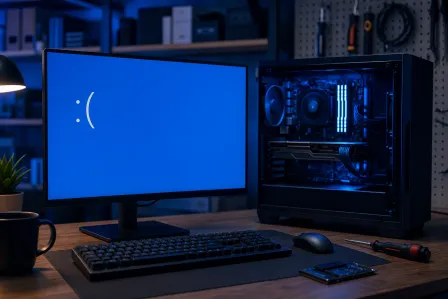
- BSOD after update Windows 11 (blue screen errors)
- Black screen or stuck logo loading
- Login issues (spinning circle forever, profile errors)
The most common causes are very down-to-earth:
- Driver conflicts (graphics, Wi-Fi, storage, security software)
- Corrupted system files from an interrupted update
- Failed update components that leave Windows half-changed
- Disk errors that only become obvious after a big update
Good news: Windows includes several built-in recovery tools designed specifically for this. Our goal is to repair first, protect your data, and avoid unnecessary downtime.
Before anything else: quick safety checks (small wins first!)
These steps sound basic, but they genuinely solve a surprising number of update-crash situations.
1) Unplug extras and power cycle
- Disconnect external drives, docks, printers, and non-essential USB devices.
- Shut down fully (hold the power button if you have to).
- Wait 15 seconds, then power back on.
Why this helps: Windows can get stuck loading a problematic USB device driver during boot.
2) If BitLocker appears, pause and be careful
If you see a BitLocker recovery screen, do not guess. You may need your recovery key (often saved to your Microsoft account or provided by your organization). If you are unsure, it is okay to stop here and get help, because repeated wrong attempts can lock you out longer.
Windows recovery environment (WinRE): your control room for crash repair
If Windows will not boot normally, you will use the Windows recovery environment (WinRE). Once you see it, it will totally click.
You can usually reach WinRE by interrupting boot 3 times:
- Turn the PC on.
- As soon as you see the spinning dots or Windows logo, hold the power button to turn it off.
- Repeat 2 more times.
- On the next boot, you should see Preparing Automatic Repair and then Advanced options.
If that does not work, you can boot from a Windows 11 installation USB and choose Repair your computer instead of Install.
Microsoft has a helpful overview here: Microsoft Support: Windows Recovery Environment (WinRE).
Windows 11 update boot loop repair: try Startup Repair first
In WinRE, go to:
Troubleshoot > Advanced options > Startup Repair
Startup Repair checks boot configuration and common startup problems. It is safe and fast. If it works, celebrate that win! If it fails, no worries. That just tells us we need a more targeted fix.
Safe Mode troubleshooting: remove the thing that broke boot
If you can get into Safe Mode, you can often reverse the exact change that caused the crash.
How to boot Safe Mode from WinRE
Go to:
Troubleshoot > Advanced options > Startup Settings > Restart
Then choose:
- 4 for Safe Mode
- 5 for Safe Mode with Networking (useful if you need a driver download)
Driver rollback after update (especially graphics and Wi-Fi)
Driver conflicts are a top culprit for BSOD after update Windows 11. In Safe Mode:
- Right-click Start > Device Manager
- Expand Display adapters (and also check Network adapters and Storage controllers if relevant)
- Right-click the device > Properties > Driver
- Select Roll Back Driver if it is available
If rollback is not available, you can choose Uninstall device (optionally check “Attempt to remove the driver” if shown), then reboot. Windows will often load a stable default driver on restart.
Friendly note: If you have a gaming GPU or a newer laptop, graphics drivers are often the first thing to try. A broken display driver can look like a “Windows problem” when it is really a driver mismatch.
Uninstall the most recent quality update (if the timing matches)
If the crashes started immediately after an update, you can uninstall the latest update from WinRE:
Troubleshoot > Advanced options > Uninstall Updates
- Try uninstalling the latest quality update first.
- If you recently installed a feature update and Windows offers it, you can try uninstalling that too.
This is one of my favorite “quick wins” because it can restore boot without touching your personal files.
SFC and DISM repair Windows 11: fix corrupted system files the right way
If the update left Windows system files damaged, you want the built-in repair tools: SFC and DISM. Let’s walk through this together.
Run SFC (System File Checker)
If you can boot normally or into Safe Mode:
- Open Start, type cmd
- Right-click Command Prompt > Run as administrator
- Run: sfc /scannow
If you cannot boot, you can run it from WinRE using Command Prompt, but the Windows drive letter may not be C:. (WinRE sometimes assigns different letters.)
Microsoft’s SFC guidance is here: Microsoft Support: Use SFC to repair Windows system files.
Run DISM to repair the Windows image
After SFC, run DISM (still in an admin Command Prompt):
- DISM /Online /Cleanup-Image /RestoreHealth
DISM repairs the underlying Windows component store that SFC relies on. If DISM succeeds, run sfc /scannow one more time afterward. That “double pass” is often the magic combo.
If DISM fails: what that usually means
If DISM errors out, it often points to one of these:
- Disk issues (bad sectors, file system errors)
- Windows Update components are too corrupted
- Not enough free space for repairs
At that point, you are not out of options. It just means we should switch to recovery tools like System Restore or an in-place repair install.
System Restore Windows 11: rewind settings without wiping files
System Restore is like a “settings time machine.” It can remove problematic drivers and updates, while leaving personal files alone.
From WinRE:
Troubleshoot > Advanced options > System Restore
Pick a restore point from before the crashes started. If it succeeds and Windows boots, that is a huge win. Then you can update drivers carefully afterward.
Heads up: Not every PC has restore points enabled. If you do not see any, that is not your fault. It is just a Windows configuration thing.
When an in-place repair install is safer than a full wipe
If you have tried WinRE options, Safe Mode driver rollback, and SFC DISM repair Windows 11 with no success, your next best step is often an in-place repair install (also called a repair install).
What it does (and why I like it)
- Reinstalls Windows system files
- Keeps your personal files
- Often keeps apps and settings (depending on the repair path and what Windows allows)
This is usually lower-risk than “Reset this PC” or a full reinstall, especially if you are trying to avoid data loss.
What you need
- A stable internet connection and enough free disk space
- A Windows 11 installer source (like Microsoft’s official installation media)
If your PC cannot stay on long enough to run setup, that is when we shift to shop-level troubleshooting, because hardware or storage issues may be contributing.
Don’t forget the “hidden” causes: security software, disk health, and malware checks
Let’s keep it real: sometimes an “update crash” is actually something else that the update exposed.
Third-party antivirus conflicts
If you use third-party security software, try temporarily uninstalling it in Safe Mode (not just disabling). Windows Security will step in while you test stability.
Disk and SSD problems
If the drive is failing, updates tend to be the moment everything falls apart. If you hear clicking, see frequent file corruption, or DISM/SFC cannot complete, prioritize protecting your data.
If you suspect your files are at risk, our data recovery services can help you pull important documents and photos off a non-booting system before anything gets worse.
Malware that breaks updates
Malware can interfere with update components and drivers. If you have random pop-ups, browser redirects, or unknown apps, consider a malware scan once you can boot again. If you need a hand cleaning things up safely, our virus removal service is designed for exactly this kind of situation.
Palm Beach County computer repair help: when to stop DIY and bring it in
I love a good DIY fix. But I also love saving you time (and protecting your files). Consider professional help if:
- Your PC keeps blue-screening even in Safe Mode
- Startup Repair and System Restore fail repeatedly
- DISM/SFC cannot complete or report unrepairable corruption
- You suspect SSD failure or you need to safeguard important data
- You rely on this device for work and downtime is costing you
At Fix My PC Store, we help Palm Beach County users get stable again without jumping straight to a wipe. If you are in West Palm Beach or nearby areas like Palm Beach Gardens, Lake Worth, Wellington, Royal Palm Beach, or Boynton Beach, you are in our backyard.
If it is a desktop or all-in-one, start here: Windows computer repair in Palm Beach County. If it is portable and acting extra finicky after the update, our laptop repair service can help with driver issues, overheating, and storage problems that show up during big updates.
Quick checklist: Windows 11 25H2 crash fix steps in order
- Unplug external devices and power cycle
- Enter WinRE and run Startup Repair
- Boot Safe Mode and do driver rollback after update (graphics first)
- Use WinRE to Uninstall Updates (quality update first)
- Run SFC, then DISM, then SFC again
- Try System Restore Windows 11
- Consider an in-place repair install before a full wipe
- If you suspect drive failure, prioritize data recovery
Even if you only get through the first two steps today, that is progress. Tech problems are rarely “one button.” They are usually “one good step at a time.”
Need Expert Computer Support?
Get professional help from Palm Beach County's trusted computer repair specialists.
Get Help Today