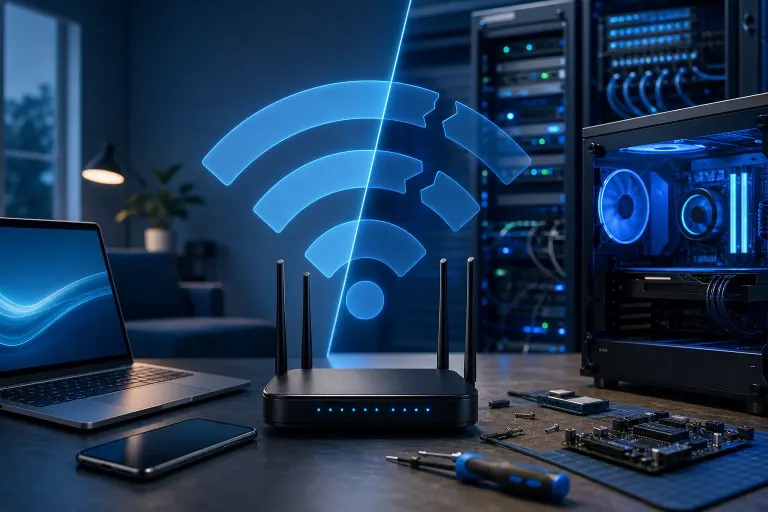
Why Your Wi-Fi Keeps Dropping and How to Fix It
TL;DR: Wi-Fi drops are usually caused by channel congestion, outdated router firmware, a flaky network adapter, or interference from other devices. Work through the steps below in order, and you'll nail the culprit without guessing.
What You Need
- Your router's admin login (usually printed on the router label)
- A laptop or desktop connected via ethernet (optional but helpful for testing)
- About 20-45 minutes of focused troubleshooting
- Basic comfort navigating your router's settings page
- Your device's model number if you suspect a hardware issue
No special tools required. Most of this is software and settings. Let's go.
Step 1: Rule Out Your Device First
Before you blame the router, confirm whether the drop happens on one device or all of them. This is the single most important diagnostic step that people skip.
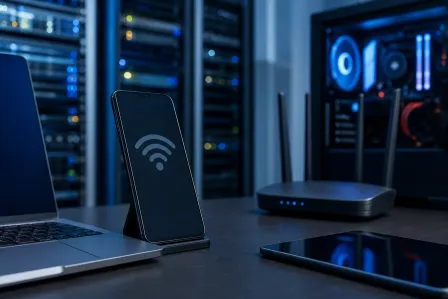
Grab your phone, laptop, and maybe a tablet. Do they all lose connection at the same time? If yes, the router or your ISP is the problem. If only one device drops, that device has the issue, probably a flaky network adapter or a bad driver.
On Windows, open Device Manager, expand Network Adapters, right-click your Wi-Fi adapter, and check for driver updates. If you're on a Mac, go to System Information and check the Wi-Fi section for any flagged errors.
If you've got a laptop with chronic Wi-Fi issues, it's worth having it checked out. Our laptop repair team sees this constantly, and sometimes the adapter itself is physically failing.
Step 2: Restart Your Router the Right Way
Yes, really. But not the way you're thinking.
Most people flip the power switch or pull the cord and wait five seconds. That's not enough. Here's the proper way:
- Power off your router and modem completely.
- Wait a full 60 seconds. Not 10. Sixty.
- Power on the modem first, wait 30 seconds.
- Then power on the router.
- Wait another 60 seconds before testing your connection.
This full power cycle clears the router's memory, resets its DHCP lease table, and forces it to renegotiate its connection with your ISP. A quick flip doesn't do any of that.
If the drops stop after a proper restart but come back within days, you likely have a firmware issue or an overheating router. More on that next.
Step 3: Check and Update Your Router Firmware
Router firmware is software, and outdated software breaks things. Most routers don't update automatically unless you've specifically turned that on.
Here's how to check:
- Open a browser and type your router's IP address into the address bar. Common ones are 192.168.1.1 or 192.168.0.1. It's on the label if you're not sure.
- Log in with your admin credentials.
- Find the firmware or software update section. It's usually under Administration, Advanced, or System.
- Check the current version and compare it to the latest version on the manufacturer's website.
- If there's an update available, apply it. Don't interrupt the process.
Firmware updates fix stability bugs, security vulnerabilities, and connection-handling issues. If yours is more than a year out of date, this alone might solve your problem.
Speaking of security, if you haven't thought about your home or business network's security posture lately, our business cybersecurity page has useful context, even for non-enterprise setups.
Step 4: Switch Your Wi-Fi Channel
Here's the thing about Wi-Fi channels: if you and your neighbors are all on the same channel, you're basically all trying to talk at the same time. It creates interference and dropped connections, especially in denser neighborhoods and apartment buildings here in South Florida.
For 2.4 GHz networks, the non-overlapping channels are 1, 6, and 11. Pick one of those. Many routers default to Auto, which sounds smart but often picks congested channels.
For 5 GHz networks, there are far more non-overlapping channels available, so congestion is less common. But 5 GHz has a shorter range. If you're far from your router and on 5 GHz, switching your device to 2.4 GHz might actually improve stability.
To change your channel:
- Log into your router admin panel (same as Step 3).
- Go to Wireless Settings.
- Set the channel manually instead of Auto.
- Save and let the router reboot.
Free tools like Wi-Fi Analyzer (Android) or the built-in Wireless Diagnostics on Mac can show you which channels your neighbors are using. Pick the least crowded one.
Computer acting up? Get a real diagnosis. Book a diagnostic
Step 5: Check for Interference Sources
Wi-Fi runs on radio frequencies. Lots of things in your home disrupt those frequencies and most people never suspect them.
Common culprits:
- Microwave ovens. They operate on 2.4 GHz. Running the microwave while you're on a 2.4 GHz network will absolutely cause drops.
- Cordless phones. Older 2.4 GHz cordless phones are a nightmare.
- Baby monitors. Same frequency problem.
- Thick walls and floors. Concrete and brick are brutal for Wi-Fi range. Drywall is fine. Cinderblock is not.
- Neighboring Wi-Fi networks. Covered in Step 4 above.
- Bluetooth devices. Bluetooth and Wi-Fi share the 2.4 GHz band. Heavy Bluetooth use can cause minor interference.
If your drops happen at specific times of day, think about what else is running on that schedule. Microwave popcorn at 8pm every night matching your drops is not a coincidence.
Step 6: Check Router Placement and Heat
Routers are not decorative. Stop hiding them behind the TV stand inside a cabinet.
For best performance:
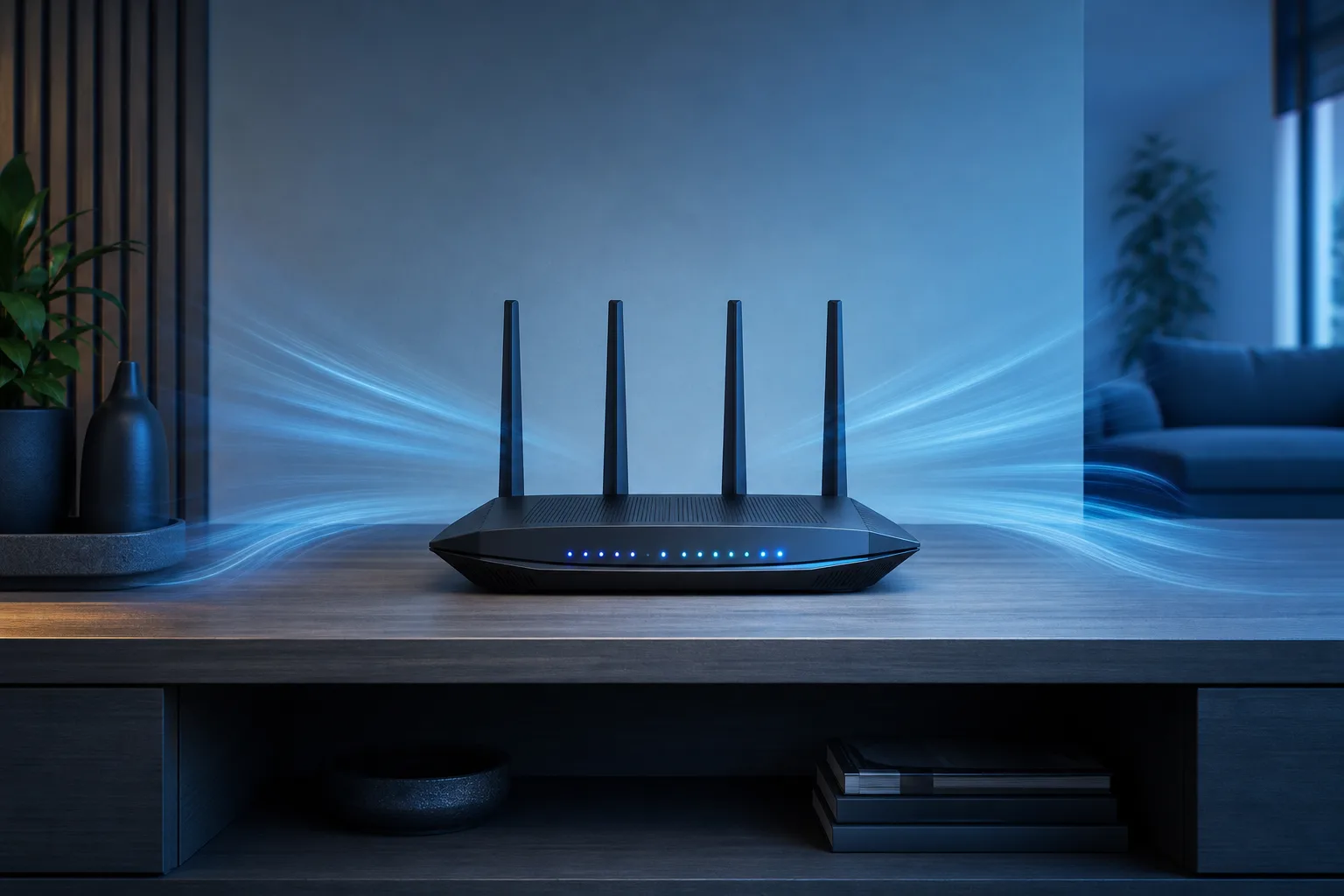
- Place the router in a central location, elevated off the floor.
- Keep it away from walls, metal objects, and other electronics.
- Make sure it has airflow around it. Routers generate heat, and heat causes hardware throttling and random drops.
- Check if your router is hot to the touch after a few hours of use. If it is, that's a problem.
A router that's overheating will drop connections intermittently, often getting worse as the day goes on. If yours runs hot, a small USB fan pointed at it can make a real difference. And if it's more than 4-5 years old and running hot, it's probably time to replace it.
Step 7: Test Your ISP Connection Directly
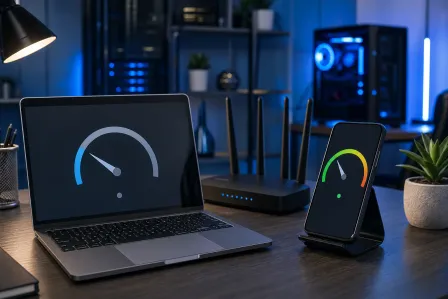
Plug a laptop directly into your modem via ethernet, bypassing the router entirely. Then run a speed test at fast.com or speedtest.net.
If your speeds are fine and stable on a wired connection, the problem is your router or something on the Wi-Fi side. If the wired connection also drops or shows terrible speeds, call your ISP. The problem is upstream of your equipment.
ISPs in South Florida are not immune to local outages, especially after storms. Check your ISP's outage map before spending an hour troubleshooting your router for a problem that's on their end.
Common Mistakes
Replacing the router immediately. Most people buy a new router before ruling out driver issues, firmware, or ISP problems. That's an expensive guess.
Rebooting too quickly. A 5-second restart doesn't actually reset anything meaningful. Full 60-second power cycles matter.
Leaving the channel on Auto forever. Auto channel selection is convenient but it often settles on whatever was least congested when the router first booted, not what's best now.
Ignoring the 2.4 vs 5 GHz choice. Your device might be clinging to a weak 5 GHz signal when switching to 2.4 GHz would give it a stronger, more stable connection. Check which band your device is connected to.
Not checking for driver updates on Windows. Windows Update does not always push Wi-Fi adapter driver updates. You often have to grab them directly from the manufacturer's site.
Forgetting to check heat. Routers that are hot to the touch for hours on end are throttling themselves to prevent damage. Ventilation matters.
If you've got a business with multiple access points and ongoing connectivity issues, that's a different animal. Our business networking services are designed for exactly that situation.
Bottom Line
Wi-Fi drops are annoying, but they're almost never mysterious. Work through these steps in order and you'll find the problem. Start with whether it's one device or all of them, do a proper 60-second restart, update your firmware, switch to a less congested channel, and check your physical setup.
If you've gone through all of this and you're still dropping connections constantly, the hardware itself might be failing, either the router or a network adapter in your device. That's when it makes sense to have someone look at it in person.
For device-level issues, you can schedule a repair or try our remote support if you want to walk through diagnostics with a real person without leaving your house. Either way, you don't have to live with a connection that drops every 20 minutes.
Computer acting up? Get a real diagnosis.
Fix My PC Store has repaired thousands of machines across West Palm Beach. Honest pricing, no upsell games, and a free diagnostic for new customers with our email coupon.