USB-C vs Thunderbolt vs HDMI: Which Port Does Your Laptop Need?
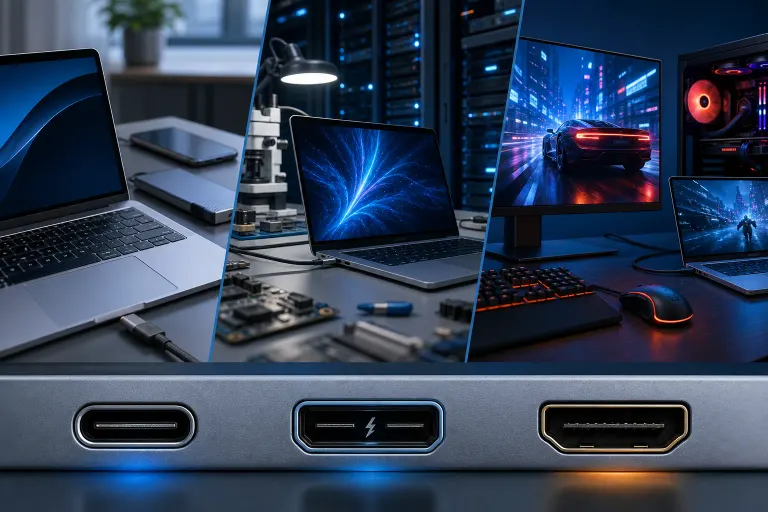
TL;DR: USB-C is a connector shape, Thunderbolt is a speed standard that uses that same shape, and HDMI is a dedicated video port. Knowing which one your laptop actually has saves you from buying cables that do nothing, or worse, barely work. Pick the right port and your monitors, docks, and drives will thank you.
At a Glance
| Feature | USB-C (generic) | Thunderbolt 3/4 | HDMI |
|---|---|---|---|
| Connector shape | USB-C | USB-C | HDMI |
| Max data speed (approx.) | Up to 10 Gbps (USB 3.2) | Up to 40 Gbps | Not for data |
| Video output | Sometimes | Yes, including 4K/8K | Yes, up to 4K/8K depending on version |
| Power delivery | Often | Yes | No |
| Daisy-chain devices | No | Yes (TB3/4) | No |
| Backward compatible | Partial | Yes (USB-C devices work) | HDMI versions vary |
| Price of cables/adapters | Low | Higher | Low-moderate |
Big caveat upfront: every laptop is different. Check your manufacturer specs before assuming any port does what you want.
USB-C: The Port That Promises Everything and Sometimes Delivers
USB-C is a connector shape. Full stop. It tells you almost nothing about what that port can actually do.
That tiny oval port on your laptop might support USB 2.0 speeds (embarrassingly slow), USB 3.2 Gen 2 speeds (genuinely fast), video output, power delivery, or some combination of all three. Or none of the above. It depends entirely on what the laptop manufacturer wired behind it.
This is the source of so much confusion, and honestly, so many wasted afternoons at the cable store.
What USB-C does well
- Single-cable convenience. If your port supports Power Delivery (PD), one cable can charge your laptop and carry data simultaneously.
- Universal shape. More and more devices use USB-C, so fewer adapters in your bag.
- DisplayPort Alt Mode. Some USB-C ports support this, which lets you push video to a monitor without a separate HDMI cable. Key word: some.
Where USB-C trips people up
You plug a USB-C hub into your laptop expecting dual monitors and gigabit ethernet. Nothing works right. Why? Because your specific USB-C port does not support the protocols that hub requires. The plug fits. The features do not.
Always look up your laptop model and confirm which USB-C standards each port supports. This is not a trust-the-marketing-spec-sheet moment. Dig into the actual product page or the manual.
If your laptop has been behaving strangely around ports, or you are getting weird power delivery issues, our laptop repair team has seen every flavor of this problem.
Thunderbolt: When USB-C Went to the Gym
Thunderbolt (currently Thunderbolt 4, with Thunderbolt 5 starting to appear) uses the USB-C connector but operates on a completely different, much more capable protocol developed by Intel in partnership with Apple.
The key numbers: Thunderbolt 3 and 4 both offer up to 40 Gbps of bandwidth. That is four times faster than USB 3.2 Gen 2. Thunderbolt 5 pushes even higher, though it is mostly on newer premium hardware right now.
What Thunderbolt does that USB-C usually cannot
- Daisy-chaining. Connect multiple Thunderbolt devices in a chain off one port. Useful for creative professionals running multiple drives and displays.
- eGPU support. An external graphics card enclosure almost always requires Thunderbolt. Generic USB-C will not cut it.
- High-bandwidth docks. Thunderbolt docks reliably power dual 4K monitors, gigabit ethernet, multiple USB ports, and audio, all from one cable to your laptop.
- Fast external storage. NVMe drives in a Thunderbolt enclosure can hit speeds that make your internal SSD look slow by comparison.
The Thunderbolt catch
Cost. A Thunderbolt cable (especially a certified one at full 40 Gbps) costs noticeably more than a generic USB-C cable. Thunderbolt docks start around $150 and go up from there. If your workflow genuinely needs the bandwidth, it is worth every dollar. If you just need to connect one monitor, it might be overkill.
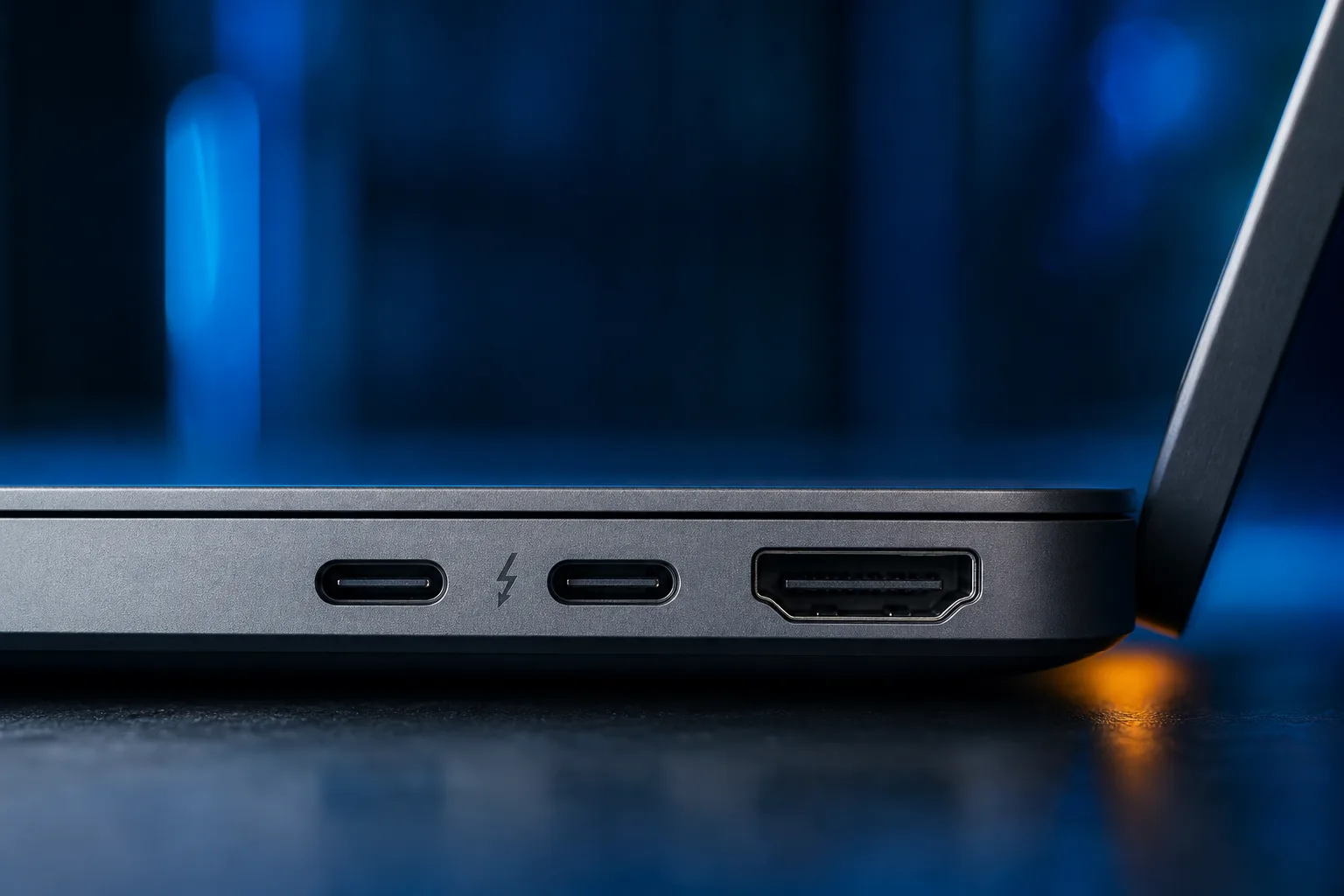
Also worth noting: not every USB-C port on a Thunderbolt laptop is a Thunderbolt port. Manufacturers often mix one or two TB ports with plain USB-C ports on the same machine. The Thunderbolt port is usually marked with a small lightning bolt icon. Check before assuming.
For business users running complex workstation setups, this matters a lot. Our business IT team can help you spec out a proper desk setup that does not leave you hunting for the right adapter at 8 AM before a client call.
Computer acting up? Get a real diagnosis. Book a diagnostic
HDMI: Old Reliable, Still Standing
HDMI is a dedicated video and audio interface. It does not carry power. It does not transfer files. It does one job, video and audio from point A to point B, and it does it without confusion.
If your laptop has an HDMI port, connecting to a monitor or TV is genuinely plug-and-play. No driver weirdness, no compatibility question marks. This is HDMI's superpower: simplicity.
HDMI versions actually matter
HDMI 1.4 supports 4K but only at 30Hz, which feels noticeably sluggish for everyday desktop use. HDMI 2.0 bumps that to 4K at 60Hz, which is the sweet spot for most users. HDMI 2.1 adds 4K at 120Hz and supports 8K, mostly relevant for gaming monitors and high-end displays.
If your laptop has an older HDMI port and you are wondering why your new 4K monitor looks slightly off, version mismatch is likely your answer.
When HDMI is the right choice
- Connecting to a TV, projector, or conference room display. Those are almost always HDMI.
- When you need dead-simple reliability with no adapter chain involved.
- Presentations. Plug in, it works, no drama before your slide deck loads.
When HDMI is not enough
Running dual monitors from a single HDMI port is not possible. HDMI is one port, one display. For multi-monitor setups, you either need multiple physical ports or a dock with DisplayPort and HDMI outputs, which usually requires USB-C or Thunderbolt as its upstream connection.
Real-World Scenarios: Which Port Do You Actually Need?
You work from home with two monitors. You want a Thunderbolt port and a quality Thunderbolt dock. Generic USB-C docks for dual monitors are inconsistent. Thunderbolt is the right tool here.
You present to clients using conference room TVs. HDMI wins. Keep a USB-C to HDMI adapter in your bag as a backup if your laptop has dropped the full-size HDMI port.
You edit video or photos and use fast external drives. Thunderbolt again. The bandwidth difference is real and you will feel it when moving large files.
You just need to charge and sync a phone or drive. A regular USB-C port handles this fine. No need for Thunderbolt.
You game on a laptop and want an eGPU. Thunderbolt only. Non-negotiable.
Your small business uses a shared screen in a conference room. An HDMI cable from the laptop to the TV is still the most reliable, lowest-friction solution. If you need help setting up a proper office network around that, our business networking team covers exactly this.
Adapters and Hubs: Where Things Get Complicated
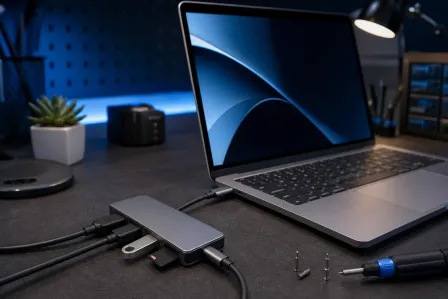
Here is the uncomfortable truth about adapters: they are not magic. A USB-C to HDMI adapter works if your USB-C port supports DisplayPort Alt Mode. If it does not, the adapter does nothing. The adapter is not broken. Your port just does not support that function.
Same with USB-C hubs. A hub that advertises dual 4K displays needs Thunderbolt or at minimum a USB-C port with full DisplayPort and Power Delivery support. Plug that hub into a basic USB-C port and you will get USB data, maybe charging, and one monitor at best.
Before buying any hub or dock, look up your laptop's port specifications and compare them to the hub's requirements. Most hub manufacturers list exactly what upstream connection they need. Take them seriously.
And if your laptop has physical port damage, a broken connector, or charging issues that you suspect are port-related, that is a laptop repair situation. Do not ignore a port that cuts in and out. It tends to get worse, not better. You can also reach us through remote support if you just need help diagnosing the issue first.
Verdict
USB-C is the connector shape you will encounter most. What matters is what standard lives behind it.
For most casual users, a USB-C port with Power Delivery and DisplayPort Alt Mode is plenty. For power users, video professionals, and anyone running a multi-monitor workstation, Thunderbolt is worth paying for. For plug-and-play display connections to TVs and projectors, HDMI still earns its place on the spec sheet.
The worst thing you can do is assume. Check your laptop's actual port specs, match them to what your peripherals need, and buy cables and docks accordingly. A little homework upfront saves a lot of frustration later.
If your current laptop is confusing you with port issues, connectivity problems, or you are considering an upgrade and want advice, reach out to us. We have seen every port configuration imaginable and can cut through the spec sheet noise quickly.
Computer acting up? Get a real diagnosis.
Fix My PC Store has repaired thousands of machines across West Palm Beach. Honest pricing, no upsell games, and a free diagnostic for new customers with our email coupon.