Laptop Overheating: Causes and Repair vs. Replacement
A slow Windows computer is one of the most frustrating technology problems people face. Tasks that used to take seconds now take minutes. Applications freeze, boot times stretch out, and the spinning wheel becomes your constant companion. The good news is that most slow computers can be significantly improved through a combination of software optimization, cleanup, and sometimes modest hardware upgrades.
Windows computers slow down for predictable reasons. Understanding these causes helps you target your efforts effectively, whether you are performing DIY optimization or seeking professional help. The Microsoft support documentation provides official guidance on Windows performance optimization, and the techniques below expand on these recommendations.
Understanding Why Windows Slows Down
Every Windows computer accumulates digital weight over time. Programs installed months or years ago continue consuming resources. Temporary files build up without being cleaned. Startup items multiply until boot time stretches into minutes. Understanding these accumulation patterns helps you address the root causes of slowness.
Startup bloat is one of the most common performance killers. Many programs configure themselves to run at startup, even when you do not need them immediately. Each startup program extends boot time and consumes memory throughout the day. A computer with twenty programs loading at startup will feel far slower than one with only essential services.
Disk space affects performance, especially when drives become very full. Windows needs free space for temporary files, virtual memory, and system operations. When free space drops below fifteen percent, performance can suffer noticeably.
Malware often causes dramatic slowdowns. Viruses, cryptocurrency miners, and other malicious software consume resources for their own purposes while you experience the symptoms. If your computer suddenly became slow, malware should be considered. Our virus removal services can eliminate these hidden performance drains.
How to Speed Up Your Windows Computer
Step 1: Run Disk Cleanup
Search for "Disk Cleanup" in the Windows search bar. Select your main drive (usually C:), then click "Clean up system files" for a more thorough cleanup. Check all boxes including Windows Update Cleanup, Previous Windows Installations (if present), and Temporary files. Click OK to delete. On systems that have never been cleaned, this can free gigabytes of space.
Step 2: Manage Startup Programs
Press Ctrl+Shift+Esc to open Task Manager. Click the Startup tab (click "More details" if you do not see tabs). Review each item and its startup impact. Right-click programs you do not need immediately at startup and select "Disable." Keep essential items like security software enabled, but disable update checkers, helper applications, and programs you only use occasionally.
Step 3: Uninstall Unused Programs
Open Settings (Windows key + I), then Apps. Sort by size to find the largest programs. Uninstall programs you no longer use or never wanted. Pay special attention to programs you do not recognize, pre-installed software you never use, and trials that have expired.
Step 4: Run a Full Malware Scan
Open Windows Security from the system tray or search. Click "Virus & threat protection," then "Scan options." Select "Full scan" and click "Scan now." This thorough scan checks all files and can take an hour or more. Do not skip this step; malware is a common hidden cause of slowdowns.
Step 5: Update Windows and Drivers
Open Settings, then Update & Security. Click "Check for updates" and install any available updates. Pending updates sometimes consume resources in the background. After updating Windows, consider updating drivers, especially graphics drivers, through your hardware manufacturer's website or Windows Update.
Step 6: Adjust Visual Effects
Search for "advanced system settings" and click "Settings" under Performance. Select "Adjust for best performance" to disable all visual effects, or choose "Custom" and disable specific effects while keeping ones you prefer. This helps especially on older or lower-spec computers.
Step 7: Check for Resource-Hungry Programs
Open Task Manager and click the Processes tab. Sort by Memory or CPU to identify programs consuming excessive resources. If a program you are not actively using appears at the top, consider closing it or investigating why it is using so many resources.
When Software Optimization Is Not Enough
Software cleanup and optimization can significantly improve performance, but they cannot make old or underpowered hardware perform beyond its capabilities. Sometimes hardware upgrades are the appropriate solution.
RAM upgrades provide noticeable improvement when your computer frequently runs out of memory. If Task Manager shows memory usage consistently above eighty percent during normal use, more RAM would help. Most computers can be upgraded from 4GB or 8GB to 16GB or more at reasonable cost.
SSD upgrades provide the most dramatic single improvement for computers still using traditional hard drives. Replacing a hard drive with an SSD typically cuts boot time from minutes to seconds and makes everything feel more responsive. This upgrade is often possible even on older computers and is highly recommended.
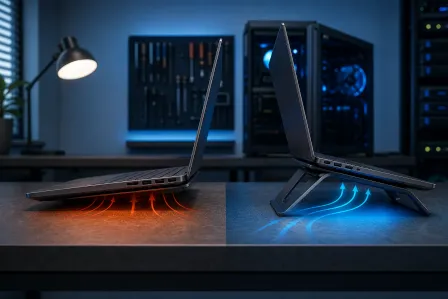
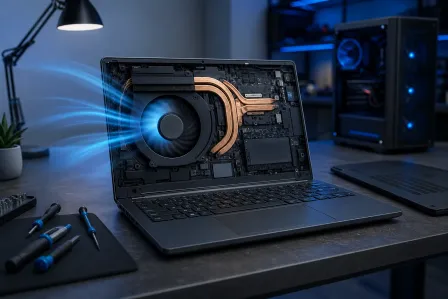
Thermal maintenance addresses slowdowns caused by overheating. If your computer gets hot and slows down during use, cleaning dust from cooling components and replacing thermal paste can restore normal performance. Our hardware service includes thermal maintenance for computers experiencing heat-related issues.
Frequently Asked Questions
Why is my Windows computer so slow?
Common causes include too many programs starting at boot, accumulated temporary files, malware running in the background, outdated or corrupted drivers, low disk space, or hardware limitations like insufficient RAM or an old hard drive. Often multiple factors combine.
Will adding more RAM speed up my computer?
If your computer frequently runs out of RAM, adding more can significantly improve performance. Check Task Manager during typical work to see if RAM usage is consistently high. If you regularly approach one hundred percent usage, more RAM will help. If usage is typically below fifty percent, RAM is probably not your bottleneck.
Is upgrading to an SSD worth it?
Absolutely. If your computer has a traditional hard drive, upgrading to an SSD is the single most impactful performance improvement you can make. Boot times drop from minutes to seconds, applications open faster, and the entire system feels more responsive. This is often the best upgrade value available.
Should I use registry cleaners?
Registry cleaners are generally unnecessary and can sometimes cause problems by removing entries that are actually needed. Microsoft does not recommend third-party registry cleaners. The built-in Windows tools provide adequate maintenance for most situations.
How often should I do this maintenance?
Basic maintenance like Disk Cleanup and restart can be done monthly. Startup review and program cleanup can be done quarterly or when performance declines. Consider annual professional tune-ups for thorough maintenance including internal cleaning.
Need Professional Help Speeding Up Your PC?
Our technicians provide comprehensive optimization including deep cleaning, malware removal, and hardware upgrades. Serving Palm Beach County.
Get Your PC Running FastFor professional computer optimization in West Palm Beach and throughout Palm Beach County including Boca Raton, Boynton Beach, and Delray Beach, Fix My PC Store can help restore your computer's performance. We offer malware removal, SSD upgrades, and comprehensive tune-up services.