How to Safely Clean Dust Out of Your Desktop or Laptop
TL;DR: Dust buildup causes overheating, slowdowns, and early component failure. Follow your device maker’s instructions for vent cleaning. Internal access, time, and maintenance frequency vary by model and environment; seek help if disassembly is unfamiliar.
What You Need
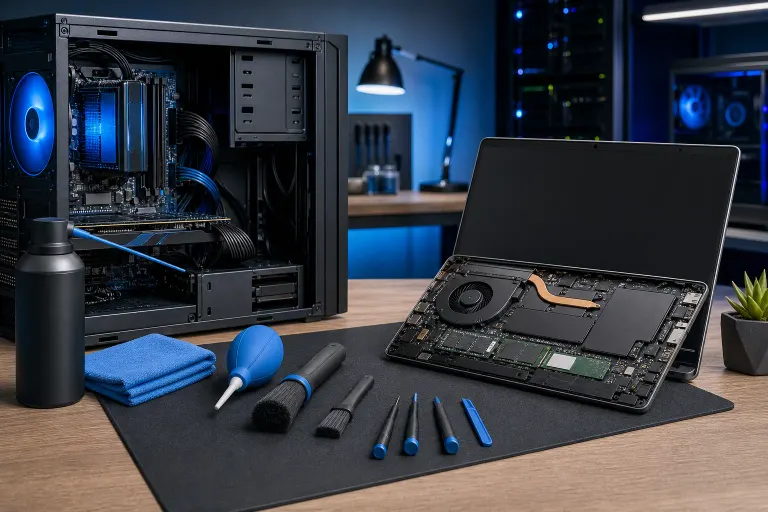
Before you open anything, gather your materials. Using the wrong tools is how people damage components or shock themselves.
For desktops and laptops:
- Canned compressed air (look for a product with a bitterant/bittering agent to discourage misuse, and always use it upright)
- Soft antistatic brush (a clean, never-used paintbrush works fine)
- Microfiber cloth
- Phillips-head screwdriver (usually #1 or #2)
- Plastic pry tool or spudger (for laptops)
- ESD wrist strap or antistatic mat (optional but recommended)
- Isopropyl alcohol, 90% or higher (for thermal paste replacement if needed)
- Thermal paste (only if you are removing the heatsink)
What you do not need:
- A vacuum cleaner. Household vacuums are not recommended near exposed electronics because of static and contact risks.
- Paper towels. They scratch and leave fibers.
- Water, household cleaners, or anything with silicone.
If your machine is still under warranty, check the manufacturer's terms before opening it. Laptops especially sometimes have warranty stickers over screws.
Step 1: Power Down and Disconnect Everything
Shut down completely. Sleep or hibernate is not enough. Power off, then unplug the machine from the wall. For laptops, power off and disconnect the charger.
For desktops, flip the switch on the power supply to the off position (the "O" side), then unplug the power cable. This disconnects external power; Dell warns never to open the power-supply unit, which can retain hazardous charge.
Follow the device service instructions before opening its case. Never open the power supply or monitor; waiting briefly does not make their internal capacitors safe.
Remove any connected peripherals: USB drives, external drives, monitors, keyboards. Less clutter, less risk of something getting knocked loose.
Step 2: Ground Yourself
Static discharge is invisible and immediate. You can destroy a stick of RAM by touching it without grounding yourself first, and you will not know it happened until the machine will not boot.
The simplest method: touch a bare metal part of the case (unpainted) before touching any components. If you have an ESD wrist strap, clip it to the case. Do this every time you reach back inside after moving around.
Work on a hard, non-carpeted surface if you can. Carpet is basically a static generator.
Step 3: Open the Case
Desktops: Most modern mid-tower cases use thumbscrews on the rear panel. Some use Phillips screws. Remove the left side panel (facing the front of the case). You usually do not need to remove the right panel for a basic dust cleaning.
Laptops: This is where it gets specific to the model. Most modern laptops have a bottom panel held on by Phillips or Torx screws. Some use hidden screws under rubber feet. Remove the feet carefully with a plastic pry tool, not a metal screwdriver, to avoid scratching.
If you are not sure how to open your specific laptop model, check the manufacturer's service manual. Most are available as free PDFs. Forcing a panel that is not fully unlatched is the number one way people crack plastic clips they cannot replace.
For MacBooks and certain ultrabooks, the process is more involved. If you are not confident, our laptop repair team can handle the cleaning professionally without risking the chassis.
Step 4: Assess Before You Blast
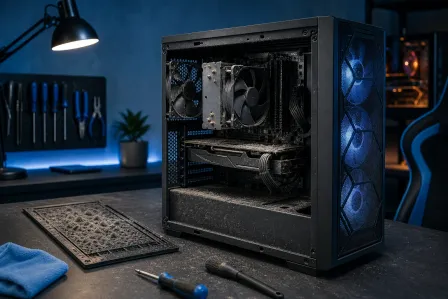
Before reaching for the compressed air, look. Note where the dust is heaviest. Common buildup zones:
- Intake and exhaust fan blades
- Heatsink fins on the CPU cooler
- GPU heatsink and fan assembly
- Case intake vents (front, bottom, sides)
- Power supply vents (desktops)
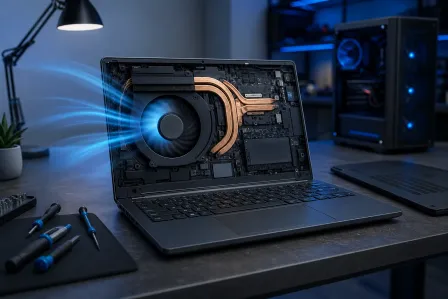
- The vents along the bottom and side of a laptop
If the dust is light and loose, compressed air alone will handle it. If there are thick, matted clumps of dust (common in older machines, pet households, or smoker environments), you will need the brush first to break it up, then the air to clear it.
Heavy dust does not establish that thermal paste has failed. Clean the accessible vents and heatsink first; if overheating persists, diagnose the cause before removing a heatsink. Thermal-paste service is a separate procedure and should be based on diagnosis.
Computer acting up? Get a real diagnosis. Book a diagnostic
Step 5: Clean the Fans First
Fans are the primary dust traps and the first thing to address.
- Hold each fan blade still before spraying. Spinning a fan with compressed air can overspeed it and damage the bearings. Use your finger or a pencil to hold the blades in place.
- Spray in short bursts at an angle, not straight into the hub.
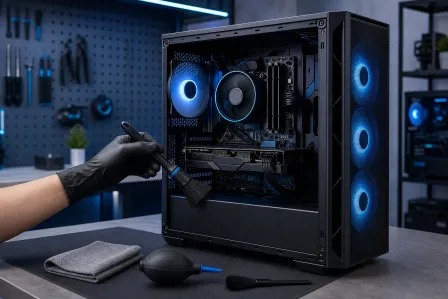
- Use the brush to loosen caked-on dust between blades.
- Follow with another short burst of air.
Do this for every fan in the system: case fans, CPU fan, GPU fans, and the laptop's internal fan.
Step 6: Clean the Heatsinks and Vents
Heatsink fins trap dust in layers that restrict airflow significantly. This can contribute to heat problems even after fan cleaning.
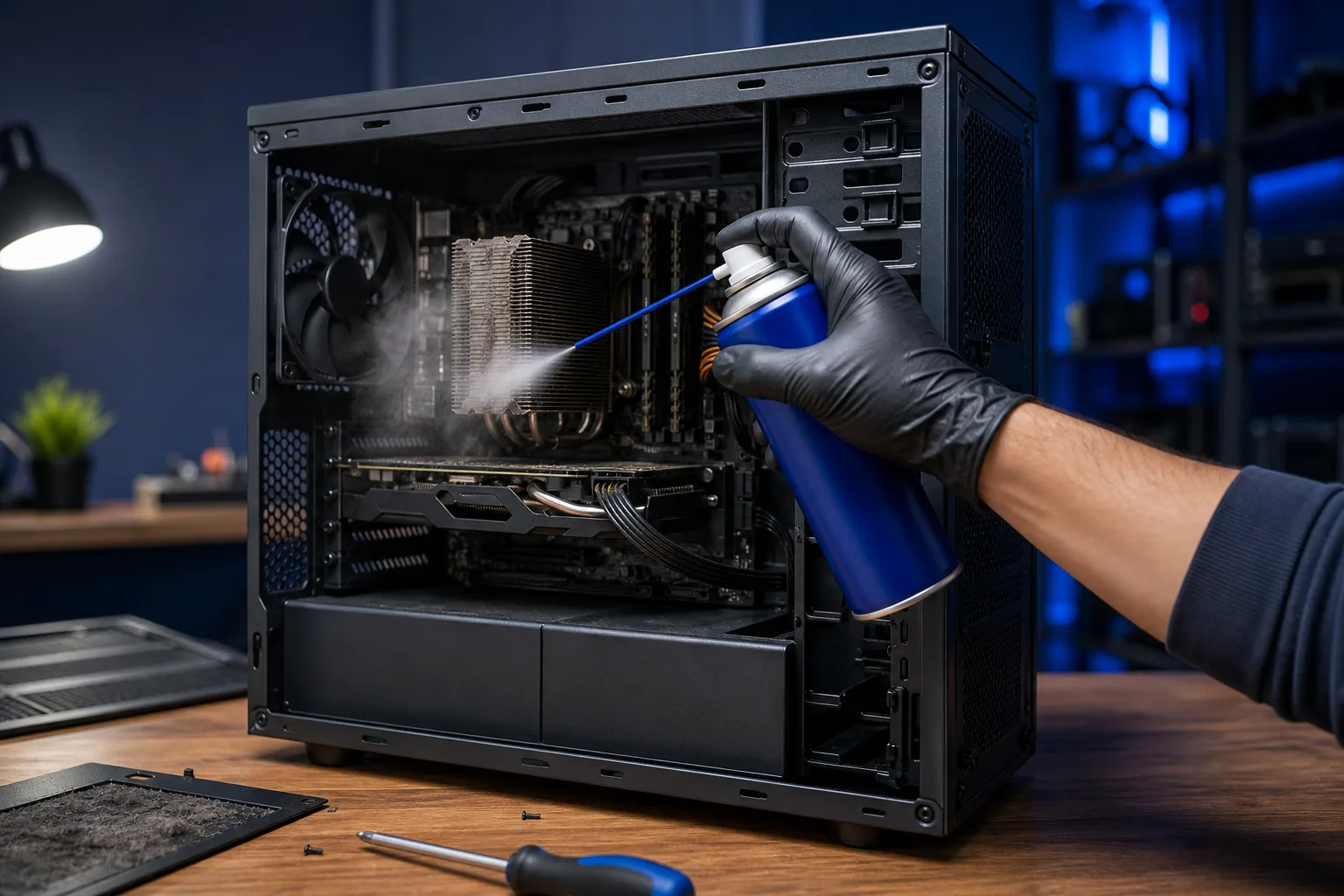
- Hold the compressed air can upright. Tipping it can release liquid propellant that will damage components on contact.
- Spray through the heatsink fins from multiple angles.
- Use the brush to work out dust packed between fins.
- Spray again to clear the debris the brush loosened.
For case vents and laptop vent grilles, spray from the inside out where possible. This pushes dust out the direction it came in, rather than deeper into the machine.
For the power supply in a desktop, do not open it. Spray through the external vents only. Power supplies contain capacitors that hold lethal charge even when unplugged.
Step 7: Wipe Down Surfaces
After the air has cleared, use a dry microfiber cloth to wipe down the inside of the case, the tops of components, and any remaining dust on surfaces. Do not use the cloth on circuit boards or connector pins.
For exterior surfaces, follow the manufacturer's cleaning instructions; use a suitable soft cloth and never let liquid enter openings.
If you removed the heatsink to replace thermal paste, clean the old paste off both the heatsink base and the CPU lid using isopropyl alcohol and a microfiber cloth. Apply a small amount of new paste (a pea-sized dot centered on the CPU lid) before reseating the heatsink.
Step 8: Reassemble and Test
- Reseat the side panel or laptop bottom cover.
- Reconnect power and peripherals.
- Power on and monitor temperatures for the first 10 to 15 minutes.
For temperature monitoring, a free utility like HWiNFO or Core Temp will show you CPU and GPU temps in real time. Idle temps should be meaningfully lower than before cleaning. If temperatures remain high, another issue may need diagnosis.
If the machine will not boot, immediately power off and check your connections. A loose connection is one possibility; if the machine does not start, stop and troubleshoot safely rather than assuming the cause.
For machines that were already showing serious thermal problems before cleaning, a more thorough diagnosis may be warranted. Our computer repair team in West Palm Beach can run full thermal testing and address anything the cleaning did not resolve.
Common Mistakes
1. Using a vacuum cleaner. Already covered, but worth repeating. Household vacuums are not recommended near exposed electronics because of static and contact risks.
2. Spraying compressed air at an angle or tilted. Liquid propellant on a PCB is a bad day. Keep the can upright.
3. Letting the fans spin freely while spraying. Overspeed kills fan bearings. Hold them still.
4. Skipping the laptop bottom panel because it looks complicated. The dust inside a laptop is often worse than a desktop because the airpath is so tight. If the bottom panel looks intimidating, bring it in rather than forcing it.
5. Cleaning only the fans and missing the heatsink fins. The fins are where heat actually transfers. Dusty fins mean the CPU or GPU is still cooking even with clean fans.
6. Not replacing thermal paste after removing a heatsink. If you lift the heatsink for any reason, replace the paste. Old paste does not re-seat cleanly.
7. Waiting until the machine is already overheating. Thermal damage is cumulative. By the time a laptop is shutting itself off from heat, the CPU or GPU may have already sustained damage. Dust cleaning is maintenance, not emergency response. If you already have shutdown or throttling symptoms, consider a professional evaluation alongside the cleaning. Remote support can help assess software-side thermal issues before you even open the case.
Bottom Line
Dust cleaning is one of the most cost-effective things you can do to extend the life of a desktop or laptop. The cost and time vary by model. Removing dust can improve airflow and may prevent some heat-related problems; it cannot guarantee that no repair will be needed.
Set a reminder. Check vents periodically and clean according to visible buildup, device instructions, and the environment.
If your machine is already running hot, the fans are loud, or the performance has noticeably dropped, dust is the first thing to rule out. Dust is one possible cause; a technician can check fans, airflow, workload, and other causes. And if you open it up and the situation is more involved than expected, or you are not comfortable doing this on a machine you cannot afford to damage, schedule a repair and let us handle it.
Computer acting up? Get a real diagnosis.
Fix My PC Store serves West Palm Beach and nearby communities from its Okeechobee Boulevard shop. Initial checks are free for most standard in-store repairs; ask about any advanced diagnostic fee before work begins.