6 Corrupted BIOS Symptoms and How to Diagnose Them
TL;DR: Failed POST, boot loops, missing hardware, and display problems can have several causes. A resetting clock often points to a CMOS/RTC battery rather than corrupted firmware. Each one has a specific diagnostic path. You can record symptoms at home, but confirmation may need model-specific diagnostics.
Your BIOS (or UEFI, if your board is from the last decade or so) is the first code that runs when you press the power button. It checks your hardware, hands control to Windows, and quietly manages things like fan curves and boot order in the background. You almost never think about it. Until it breaks.
Firmware damage can follow a failed update or hardware fault. A depleted CMOS/RTC battery usually affects settings, not the firmware code. When boot problems appear, the PC starts behaving in ways that look a lot like a dead hard drive, bad RAM, or a failing motherboard. Chasing the wrong culprit wastes hours. Knowing the actual corrupted BIOS symptoms saves you from replacing parts you didn't need to.
Here are the six symptoms worth knowing, plus how to diagnose each one cleanly.
1. The PC Fails POST and Throws Diagnostic Beep Codes
POST stands for Power-On Self-Test. Every time you start your PC, the BIOS runs a quick hardware check before Windows even thinks about loading. A POST failure or beep code can indicate firmware or another hardware issue; decode the exact pattern using your model’s manual.
You'll see a black screen, maybe a blinking cursor, and hear a pattern of short and long beeps from the motherboard speaker. The beep pattern varies by manufacturer. AMI BIOS, Award BIOS, and Phoenix BIOS each have different codes, so look up your specific board's documentation rather than guessing.
How to diagnose it: Pull up your motherboard manual or search the model number plus "beep codes." If the manufacturer’s diagnostic code explicitly identifies BIOS/firmware, that is stronger evidence than a black screen alone. If there are no beeps at all and the screen is blank, check whether the board has a POST code display (a small two-digit readout on the board itself). POST codes are model-specific; look up the exact code in the board manual.
One important note: no beep can also mean the motherboard speaker isn't connected, or there is no speaker. Rule that out first.
2. The System Is Stuck in a Boot Loop
The PC powers on, gets partway through startup, and then restarts itself. Over and over. You never reach Windows.
Boot loops get blamed on Windows update failures, corrupted system files, and driver conflicts far more often than they get blamed on the BIOS. That instinct is usually right. But if you've already ruled out a Windows startup repair and the loop happens before the Windows logo even appears, the BIOS is worth suspecting.
How to diagnose it: Watch closely for timing. If the restart happens during POST (before any Windows branding), the fault may involve firmware, hardware, boot storage, or operating-system startup. Use the manufacturer’s diagnostic steps. Clear CMOS only by the method documented for your board, and record existing boot or encryption settings first. Improvement after a reset suggests a settings issue but does not prove firmware corruption.
If the loop continues, check memory, power, storage, and the manufacturer’s recovery guidance before a reflash.
3. Hardware Is Suddenly Unrecognized or Shows Wrong Specs
You boot up and Windows reports less RAM than you have installed. Or your NVMe SSD disappears. Or a graphics card that worked fine yesterday isn't detected. Nothing physically changed.
Missing hardware is not specific to BIOS corruption; check connections and model-specific diagnostics first. Before you order replacement parts, consider that the BIOS is responsible for enumerating all connected hardware. If the firmware is damaged, it may fail to detect devices correctly or report wrong values.
How to diagnose it: Enter the BIOS setup screen (usually Delete, F2, or F10 at startup) and check whether the hardware shows up there. If a device appears in firmware setup but not Windows, software configuration is one possibility; the device can still be faulty. If the device is missing from BIOS entirely, try reseating it first. If reseating does not help, use the device manufacturer’s diagnostic codes to narrow the cause.
Also check: does the BIOS report your CPU speed correctly? Unexpected CPU settings can also reflect an overclock, reset, or configuration issue.
Computer acting up? Get a real diagnosis. Ask about an initial check
4. Corrupted BIOS Symptoms on the Screen: Visual Glitches During POST
Garbled text, scrambled characters, partial POST screens, or a BIOS splash screen that freezes mid-display. These visual symptoms can come from the display, GPU, memory, or firmware; they do not identify the cause by themselves.
This symptom is less common than the others, but use another display or graphics path and consult the manufacturer’s diagnostics before suspecting firmware.
How to diagnose it: Swap to a different monitor and cable to rule out a display issue. Try integrated graphics if your CPU has them, removing the dedicated GPU. If the garbled output persists across different displays and different GPU configurations, firmware remains one possibility to assess. Do not reflash on visual symptoms alone. Follow the model’s recovery instructions if diagnostics support firmware damage.
Some higher-end motherboards include a dual-BIOS feature that automatically switches to a backup chip when the primary is corrupted. Check your board's documentation to see if that option is available.
5. Random Shutdowns or Freezes That Happen Before Windows Loads
Sudden shutdowns during heavy load usually point to overheating or a power supply issue. But if the PC shuts off or freezes during POST, the cause is still uncertain; power, cooling, board, and firmware faults can all interrupt startup.
Early power loss can involve several components; firmware is one possibility after power and cooling checks.
How to diagnose it: Timing is everything here. Use your phone to record the boot process in slow motion if you need to. An early shutdown does not by itself rule out heat or power faults. Use model-specific diagnostics before resetting settings or updating firmware. Do not flash solely because a version looks old.
If you've already ruled out a failing power supply with a PSU tester or swap, and shutdown recurs during POST, check the manufacturer’s diagnostic and recovery procedure before attempting a firmware update.
6. The System Clock Keeps Resetting to the Wrong Date and Time
You set the clock, reboot, and it's wrong again. Maybe it resets to the year 2000, or to some other obviously wrong date. This one looks trivial but it matters.
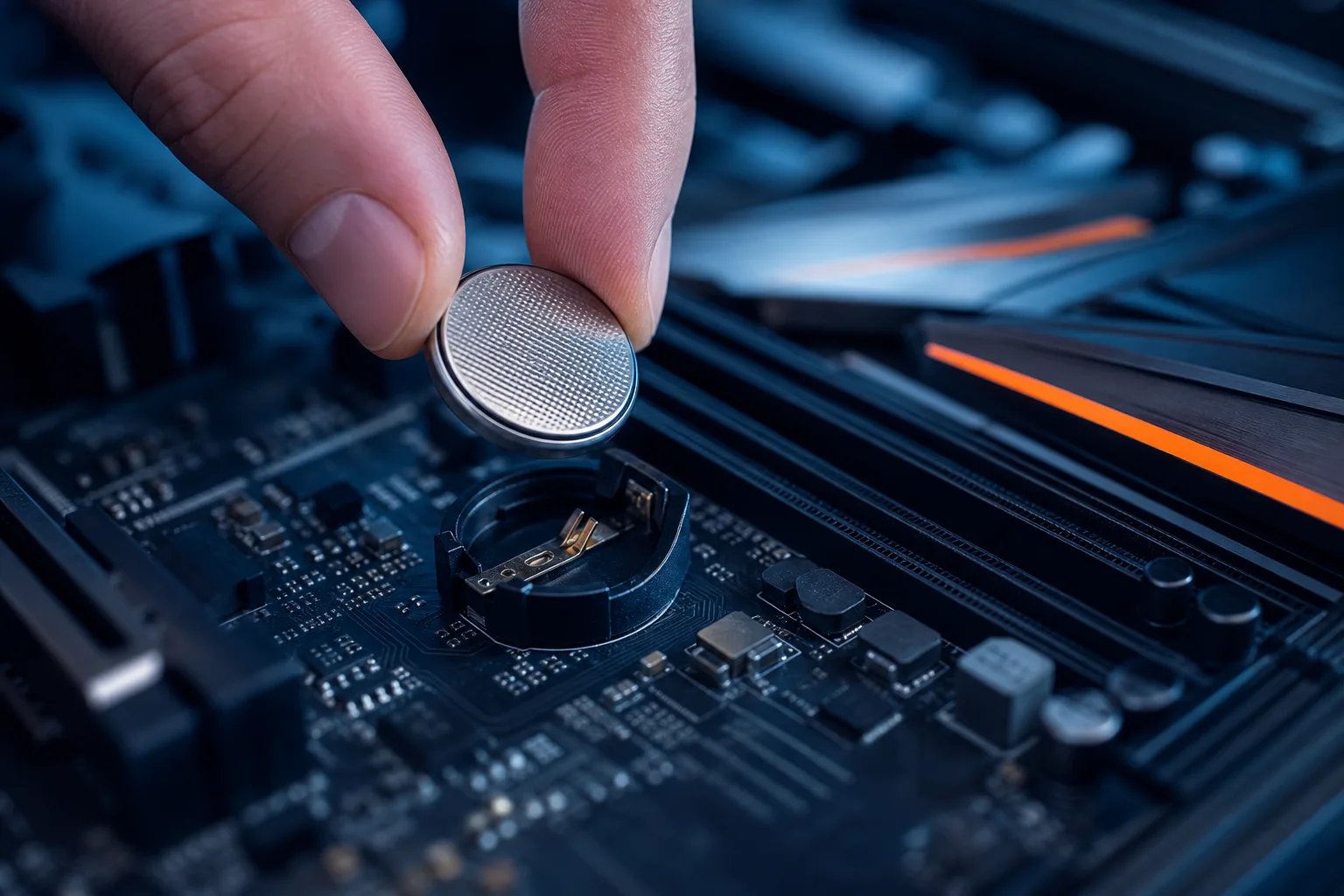
The CMOS battery on your motherboard, a small coin-cell battery, keeps the BIOS clock running and preserves your BIOS settings when the PC is powered off. On affected systems, a depleted RTC/CMOS battery can reset clock or saved settings when external power is removed; behavior varies by design. Some settings or the date may reset.
Here's the important distinction: a dead CMOS battery is not technically a corrupted BIOS, but it can cause the BIOS to behave as if it's corrupted, because settings may revert after power is removed.
How to diagnose it: Replace the CMOS battery. Check the device manual: some batteries are inaccessible, use different parts, or require service. If the clock holds afterward, the battery was a plausible cause. If it still resets, check installation, power, and board diagnostics before considering firmware recovery.
Bottom Line
Corrupted BIOS symptoms are genuinely tricky because they overlap with so many other hardware and software problems. The diagnostic principle is consistent across all six: isolate the timing. If the problem occurs before Windows starts loading, the BIOS is always worth checking. Follow the manufacturer’s diagnostics first. Clear CMOS or use a recovery feature only when its documentation fits the symptoms; availability and steps vary by model.
That said, reflashing firmware on a board you're not familiar with carries real risk. A failed flash that gets interrupted can leave you with a completely unresponsive motherboard. If you're not comfortable with the process, or if the board doesn't have a recovery mode, this is a good time to bring it to someone who does this regularly.
Our team at Fix My PC Store handles exactly these kinds of low-level hardware diagnostics in West Palm Beach. Whether it's a stubborn boot issue, a machine that won't POST, or anything else on the list above, you can book a repair or drop it off and we'll tell you exactly what's happening before anything gets touched. For a machine that cannot boot or connect, an in-store inspection may be necessary.
And if this diagnostic process has you realizing your machine is just getting old, it might be worth a conversation about what computer repair versus a new build would cost for your current device.
Computer acting up? Get a real diagnosis.
Fix My PC Store has repaired thousands of machines across West Palm Beach. Initial checks are free for most standard in-store repairs; advanced diagnostics may have a fee disclosed before work begins.